Completing your Pay run
Your payroll process will look something like to this:
- Approve timesheets (optional)
- Send timesheets from CareMaster to Xero
- Approve the draft timesheets within Xero
- Create a pay run within Xero
- Edit this payrun within CareMaster to add allowances
If you require assistance with timesheets, there is a separate article for that in our knowledgebase here.
Why is a worker not appearing in a payrun?
-
Check worker's start date in their Caremaster profile under the Organistation Information section, the date must be on or before their first support. Update the date if necessary and Sync worker to Xero by clicking Send to Xero in the Sync Status section.
-
Check the worker is linked to the correct Payroll Calendar, this is shown under Admin > Integrations > Xero Workers. If this needs fixing this needs to be changed on the Xero side and synced to Caremaster via the Xero Dashboard.
If in the middle of a payrun you would need delete the payrun, fix the start date or payroll calendar and create the payrun again. If you don't wish to delete the payrun as you have already done all your allowances you would need to do a unscheduled payrun for that worker manually on the xero side.
Completing Your Payrun
To get to the Pay runs page in CareMaster, go to Admin → Integrations → Xero → Pay Runs and Allowances
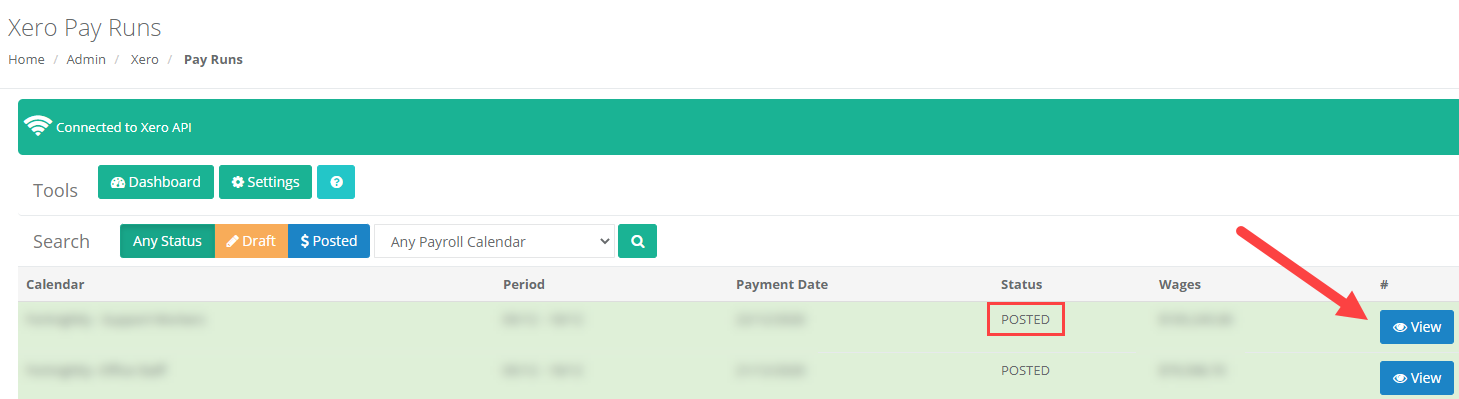
Here you will be able to see all pay runs, current and previous. You can view the details of a POSTED run by clicking on the View button towards the right. If you need to make changes to a POSTED pay run, you can try reverting it to draft in Xero.
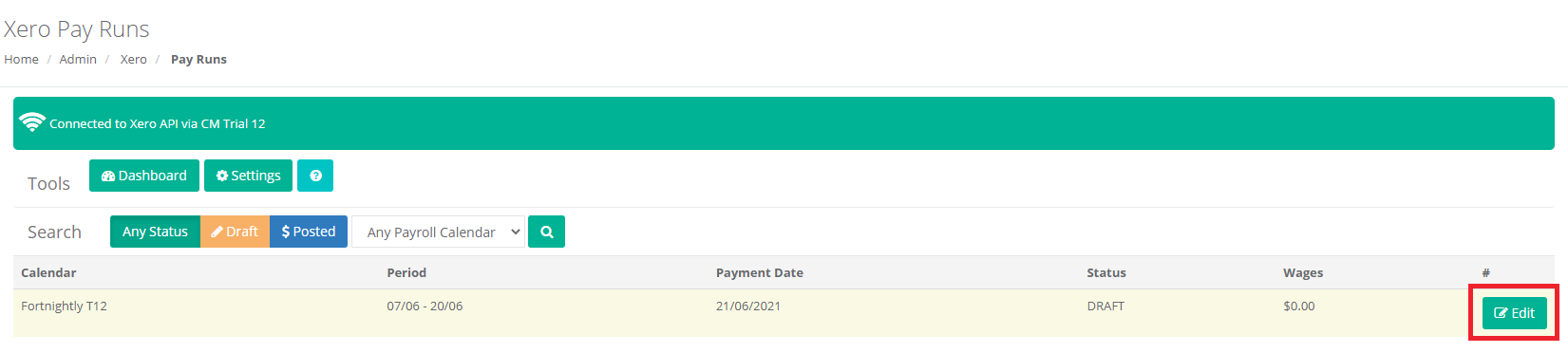
When you are ready to add allowances to the pay run, find the draft pay run you created in Xero and click on Edit.
Click on the edit icon next to the first employee on the list.
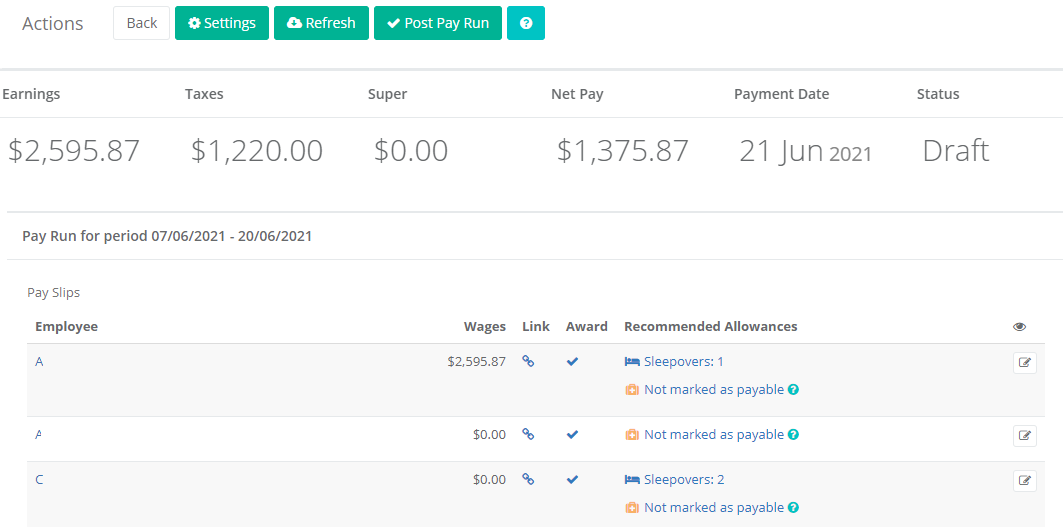
Click on Suggest Allowances and it will refresh the page with the recommended allowances based on their timesheets and the award.
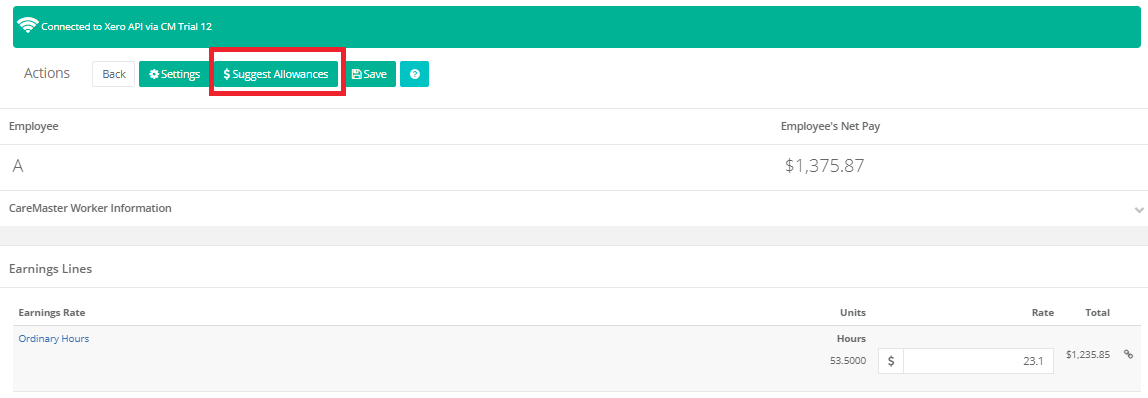
You can adjust as required then click on Save and Next. This will take you to the next employee. Repeat for each employee requiring allowances.
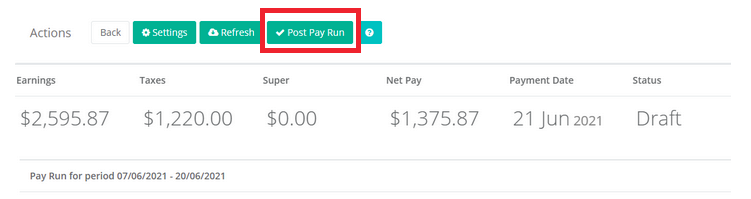
Once you have gone through and added allowances for all workers, you can now click on the Post Pay Run Option.