
Dashboard Tab
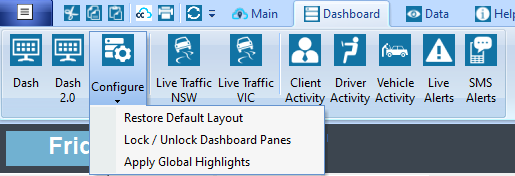
Dash – See a summarized overview of various pieces of Trips data. Customize this using the Configure menu.
In the top right hand corner of each panel in the dashboard are these buttons, the functions of each are described as below:

Menu- Selecting this down arrow will show you the different options you can change the date range to, for example you can choose to show “last week”, “Last 30 days”, “last 60 days” or specify a custom date range. This menu will also give you a print preview and print option. Auto hide – when selected, will minimise the selected pane to the left side of the window, to view this on your dashboard again click on the tab that will show on the left. Close – This will close the selected widget window.
Dash 2.0 - A more advanced/detailed summary, requires, an additional installation by Trips support. Configure → Restore Default Layout- The dashboard is configurable for each user, this is used to restore the dashboard back to its default layout. Configure → Lock / Unlock Dashboards Panes- This is used to configure the dashboard click on this and use the icons listed below, these are located on the top right corner of each pane. Apply Global Highlights – Selecting this will highlight the headings for widget. Client Activity – This shows several client and trip activity reports comparing your organisations statistics over the past few years. Driver Activity- Shows several Driver activity reports for example, hours, kms, net costs and journeys based on the specified Crew comparing your organisation’s statistics over the past few years Vehicle activity- Shows several vehicle activity reports for the specified vehicle plate. These reports show the comparison of totals for the past few years. Live Alerts – Shows all of the current alerts such as client reassessment, vehicle maintenance and bookings/trips that are assigned to exited clients.
SMS Alerts – Shows overview of SMS Alerts sent to drivers or clients. For information on setting this up, contact support.