
Home Page
After logging in, you will be brought to the CareMaster Home page.
The most important tool you'll use when navigating through CareMaster is the main menu on the left. This menu is visible on every CareMaster page for easily navigating through the software, and will be referred to repeatedly when making your way through the user documentation.
Each of these options will be explained further other Helpdesk articles.
The top menu bar has some additional important features that you can use.
-
Search: From any page, you can search and open the record of a worker, participant or support using the search option.

-
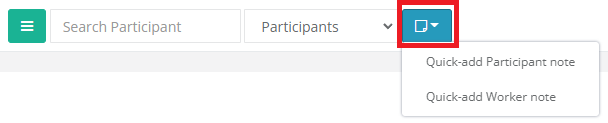
Add Note icon: from any page, you can add a worker or client case note. Click on the note icon and then select the one you want to add.
-
Notification Bell: CareMaster gives notifications alerts for when things need to be brought to your attention – for example when a participant’s review date is nearing, or a staff member’s qualifications are near expiry – clicking this bell will take you to the Alerts Page.
-
Logout: After you have finished your session, click this button to log out.
Reporting Quick View
Shows you a view of your current Participant & Worker Count.
Your Support Count, is counting ALL historic, cancelled, current and future Supports.
The number changes per User Role
- Admin - Can see All Supports total
- Coordinator - Can see Supports total with their ID associated
- Worker - Can see Supports total with their ID associated
Additionally, it displays a list of upcoming supports. This can be further filtered by Day / Week / Month or View All