
How to advertise / broadcast available shifts to workers?
** The advertise/broadcast feature will not work on Group Supports.
CareMaster has the functionality to send email and SMS notifications. It works like a job advertisement. CareMaster will not send SMS messages or emails unless you manually adjust the Worker Notification settings.
Please note: A SMS can be as short as 1 character or as long as 160 characters. Any SMS messages sent from CareMaster costs 15c per message. This fee is billed monthly and will be incorporated into your standard invoices.
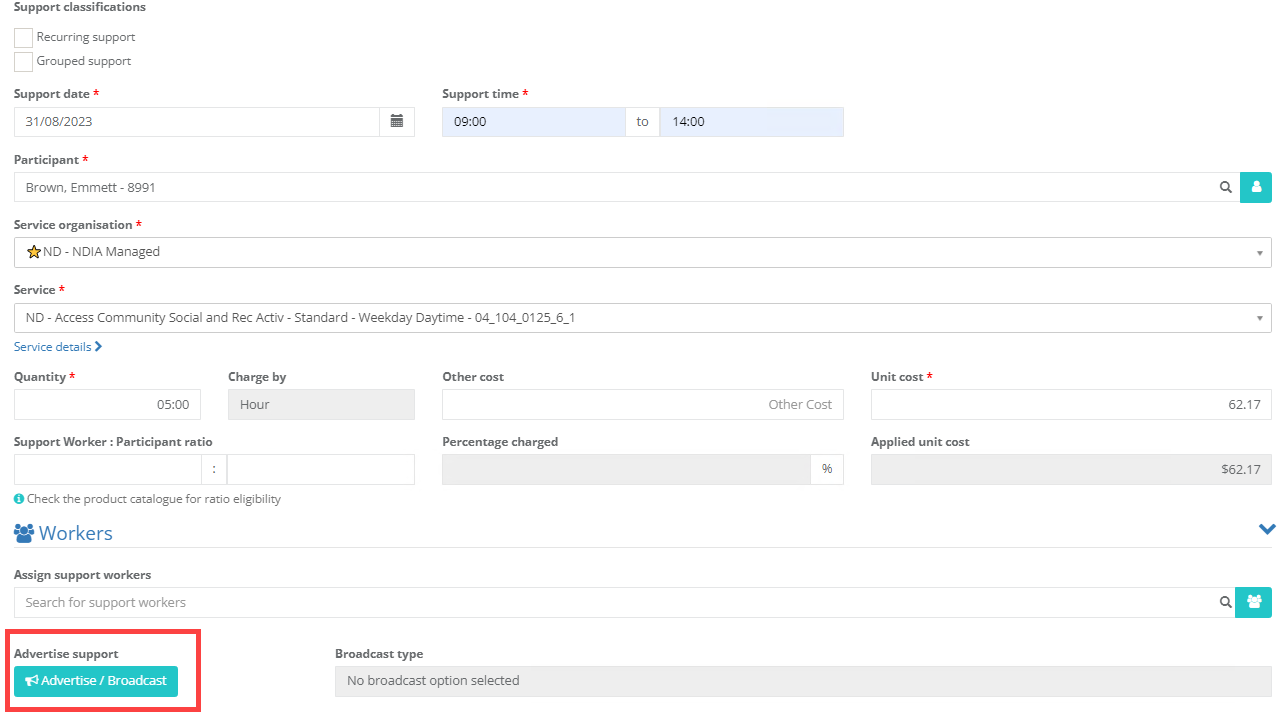
Advertising unassigned shifts to workers can be done using our Broadcast/Advertise feature. You can find this on the edit support page, next to the support worker field on both new and existing supports in your database.
Once you have filled out all relevant support details, click on the Broadcast/Advertise button.
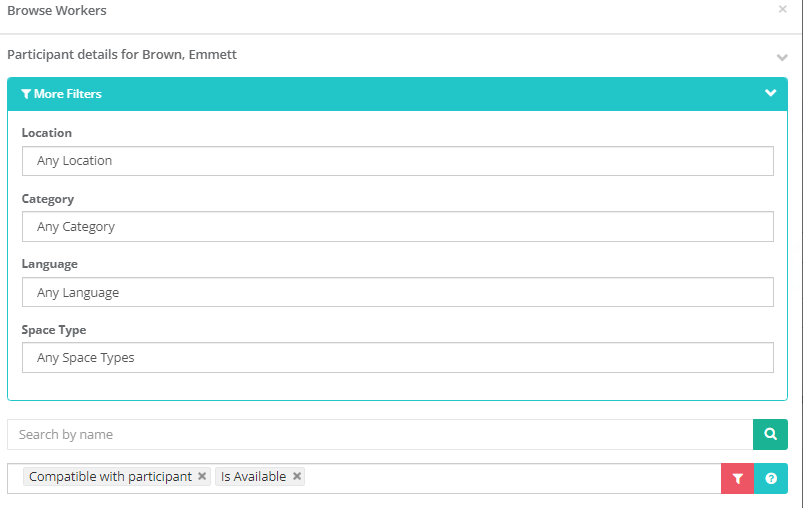
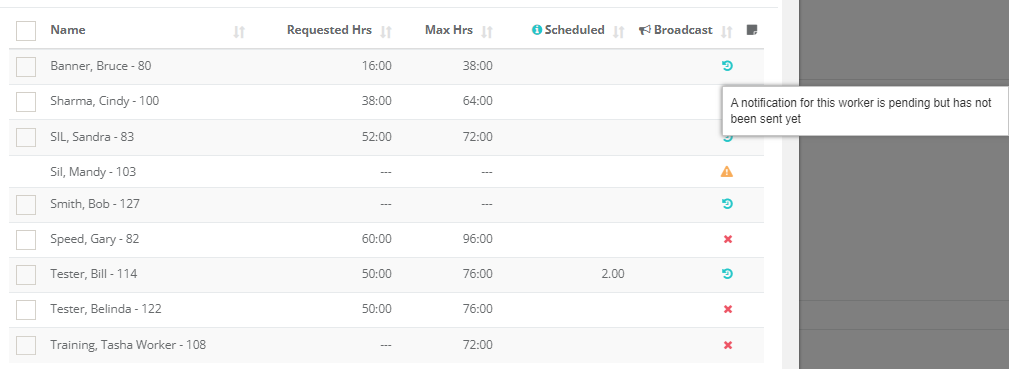
It will bring up the usual Browse Worker popup with all the same filters for sorting through the list of workers, with the addition of a broadcast column that indicates when a worker was previously notified about an advertised support.
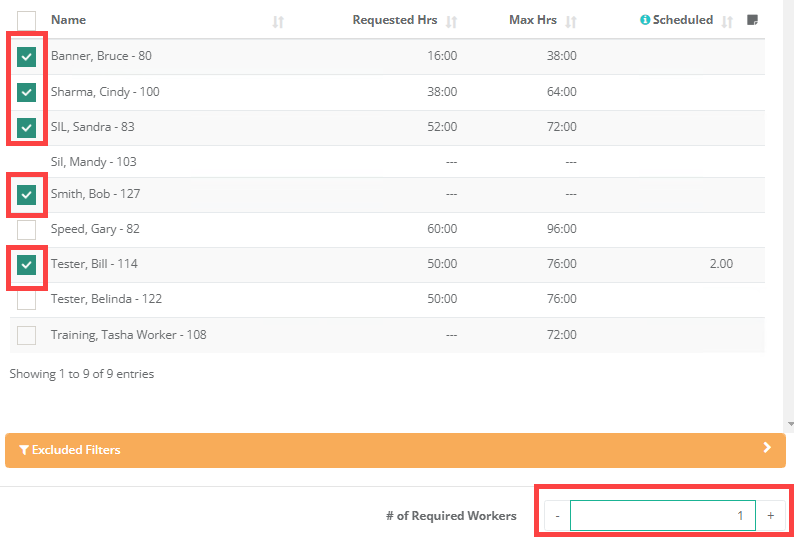
Place a tick in the column of each worker you want to send an notification to as well as the number of required workers for the support. It will default to 1 as a minimum.
It will give a confirmation message but nothing will be sent until you save the Support.
You can then pick whether you want to advertise the shift for just that one support, or if it is a recurring support, all supports in the chain. Click on whichever option you like, then it will take you back to the edit support screen. If you are unsure on what option to pick, we would suggest picking Send for this Support only.

Once you are back to the edit transaction screen, you need to click the Save button on the support for the broadcast to be sent. The advertisement for the available shift will NOT be sent until after the support has been SAVED.
Once saved, it will show the request status for each worker in the Advertise / Broadcast section under a new column
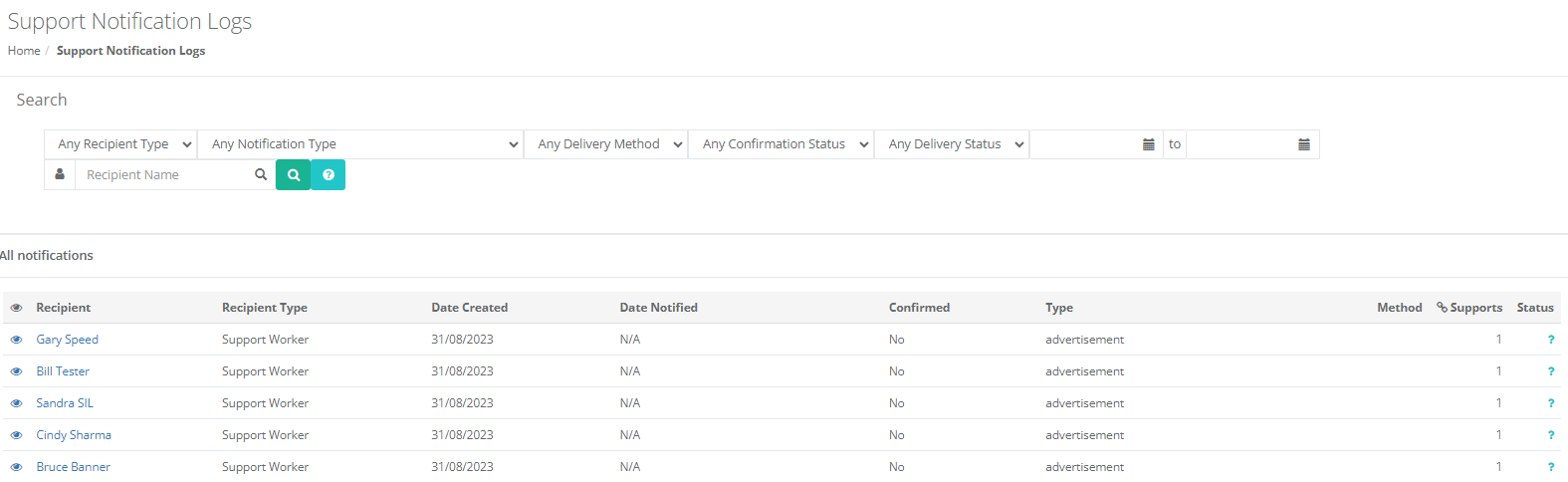
This is also visible in Data → Logs → Support Notifications Logs to see who it has been sent to.
What happens in the worker app?
The worker will receive a notification to their preferred contact method, email or SMS:

They can then accept the shift via the link or by going into the worker app and clicking on:

And then:
** 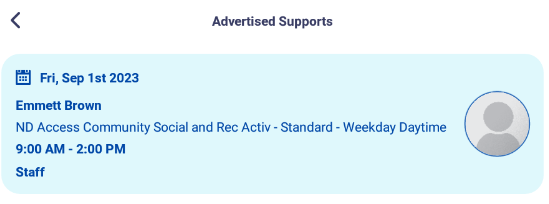 **Where they will then have the option to:
An email notification is sent to a Workers Coordinator when a shift is accepted via broadcast.
Reviewing if a Broadcasted shift has been filled
You also have the ability to search for broadcast supports to check if they have been filled or not.
Within the Supports → All page there are 2 Filter options available that can show you;
1. Broadcast and non-broadcast Supports - Supports that have been broadcast;
- By Me (the current logged in user)
- A specific user - if they are off sick or unavailable
- Anyone
2. Broadcast allocation status:
- Allocated (only include supports that have a worker assigned)
- Unallocated (only include supports that do not have a worker assigned)
- Any status (filled or unfilled)
