
How to Clear App Cache & Data for Android?
Important: This guide only works with Android and Google Devices. It does not work on Apple Devices. Appearance may also be different depending on age of phone and OS.
Please note: This can also be done by tapping the App Logo repeatedly and click OK when the warning to clear data appears.
This guide will show you how to clear the Cache for the App through your phone. This is a work-around for App Users that have issues returning to the PIN login screen. The PIN is required to be correct as it downloads all the server information for you so that you are not required to enter this information manually. If the incorrect PIN is entered, you will not be able to login.
Step 1
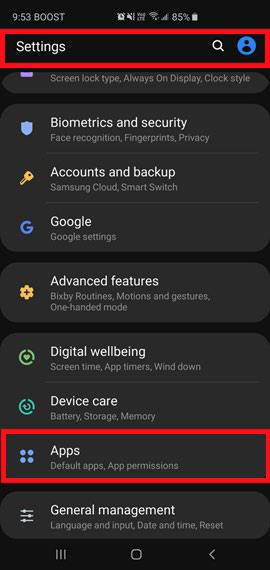
Go into your phone settings.
Find the Apps section and tap to enter the App Settings:
Step 2
In your App Settings find the CareMaster App and tap to enter:
Step 3
Here you will find some general information about the App as well as some additional settings.
Find and tap to enter the Storage settings as per the screenshot below:
Step 4
In the storage settings you will find information about the app.
Find the Clear Data button (as stated in the introduction; the layout and appearance may be slightly different as the below).
Once you have found the Clear Data button, tap it:
Step 5
There will be a screen pop-up with a notification that doing this will make all of the settings, files and databases will be deleted and will provide you with an option to continue (ok) or exit (cancel).
Important: The information that will be deleted are only login details and server information (information that needs to be removed from the phone so that we can return to the PIN Login Screen) This will not affect any other information in CareMaster.
Click the OK or Allow button to confirm the Data Deletion:
Step 6
Once you have taped Ok or Allow; you will be brought back to the App Storage Settings and the Data and Cache information will now be at 0:
Now you can exit out of your settings completely and back to your phones main screen.
Step 7
You should now be able to successfully sign into the CareMaster App.