
How to customise the Roster view
A Roster feature was added where you could select a Default Roster View to open when selecting a Coordinator, Participant, Vehicle or Workers Roster. To further enhance this Feature, we have updated this Roster View to align with your existing Weekly or Fortnightly pay cycle dates. When changing a roster view from one period to another (e.g. going from day view to month view or weekly view to fortnightly view), the new view will always show the current date or period.
- Important Information – The Day of Week for the start of your Payroll Period / Fortnight are set in: Settings > System Settings > Staff Availability > Staff Availability Date

Set this first to have your Roster View start on the right day.
-
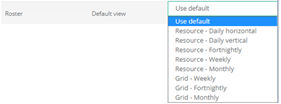
You can set your Default View by going to Settings > System Settings > Roster > Default View
-
This setting will be removed
 \n
\n -
Day View
-
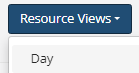
When the user selects the day view, the system will display the current date. If a previously date had been selected this will be ignored.
The next and previous buttons will move day to day as it does now.

The Today button will return the user back to the current date.

Selecting a date - the date will be updated to show the selected date.
Navigation controls will continue from this date.
Week View
\n

\n
The week view will always show 7 days.
\n
When selecting a date, system will calculate the weekly payroll period that date falls in and shows the week to the user.
\n
The week view will be based on the customer’s payroll period. As customers may have weekly or fortnightly payroll periods these requirements will be broken up into two sections to make things clear.
\n
Weekly Payroll Periods
\n
The first day of the week to show in the calendar will always be based on the customer’s payroll period.
\n
If you select a specific date via the calendar, it will go to the Weekly view including that selected day but starting on your Pay Week start date.
\n
Fortnightly Payroll Periods
\n
Like with weekly payroll periods, the system needs to work out the first day of the week based on the fortnightly payroll period. It will then display the selected date in a weekly view including that selected day but starting on your Pay Week start date. This could be the first or second week shown depending on your selected date.
\n
The next and previous buttons will move week to week as it does now.

\n
The Today button will return the user back to the current week that includes that date.

\n
\n
When selecting a date, the week view will be updated to include the selected date.
\n
Navigation controls will continue from this date.

\n
Fortnight View
\n \n
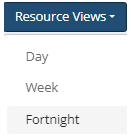
The fortnightly view will always show 14 days.
The fortnightly view will be based on the customer’s payroll period. As customers may have weekly or fortnightly payroll periods these requirements will be broken up into two sections to make things clear.
Weekly Payroll Periods
The first day of the week to show in the calendar will always be based on the customer’s payroll period. When a user selects the fortnightly view, the system will display the current week based on the current date and then the next full week to make up 14 days.
The next and previous buttons will move fortnight to fortnight as it does now.

The Today button will return the user back to the current weekly payroll period plus the next week.

When selecting a date, system will calculate the weekly payroll period that date falls in and shows the week to the user, plus the following week.

Fortnightly Payroll Periods
The first day of the week to show in the calendar will always be based on the customer’s payroll period. When a user selects the fortnight view the system will display the current fortnight payroll period based on the current date.
The next and previous buttons will move fortnight to fortnight as it does now.

The Today button will return the user back to the current weekly payroll period plus the next week.

When selecting a date, system will calculate the Fortnightly payroll period that date falls in and show the correct fortnightly period with the relevant start day.

\