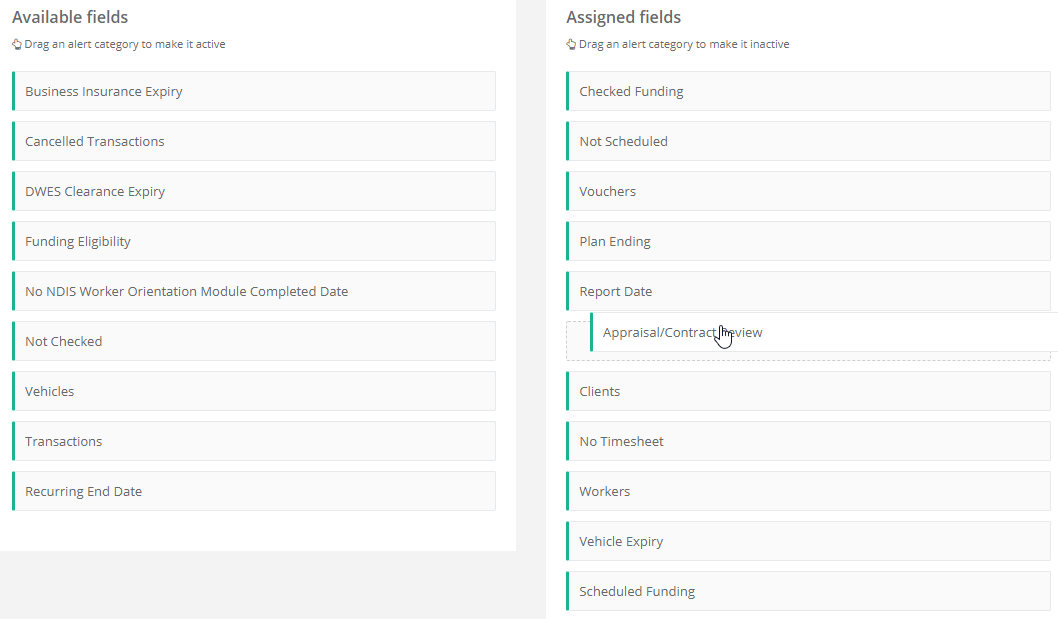
How to hide certain alerts?
CareMaster has a lot of alerts that will display by default in the Alerts section. Sometimes they are not relevant to your organisation or you are not interested in getting notifications on these.
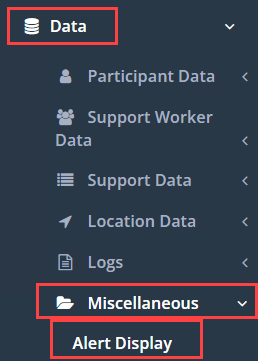
You can choose to hide or show all of our alerts in the system by going to Data, clicking Miscellaneous and then on Alert Display.
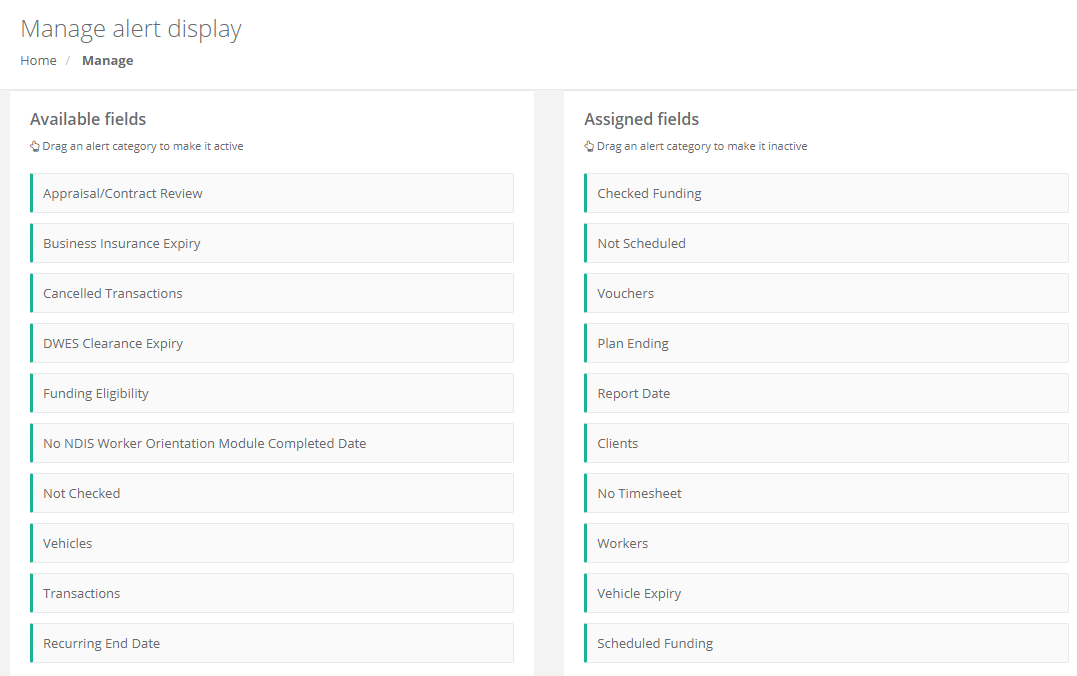
The Alert Display page has 2 columns, the left column has a list of hidden alerts and the right column has a list of the shown alerts.
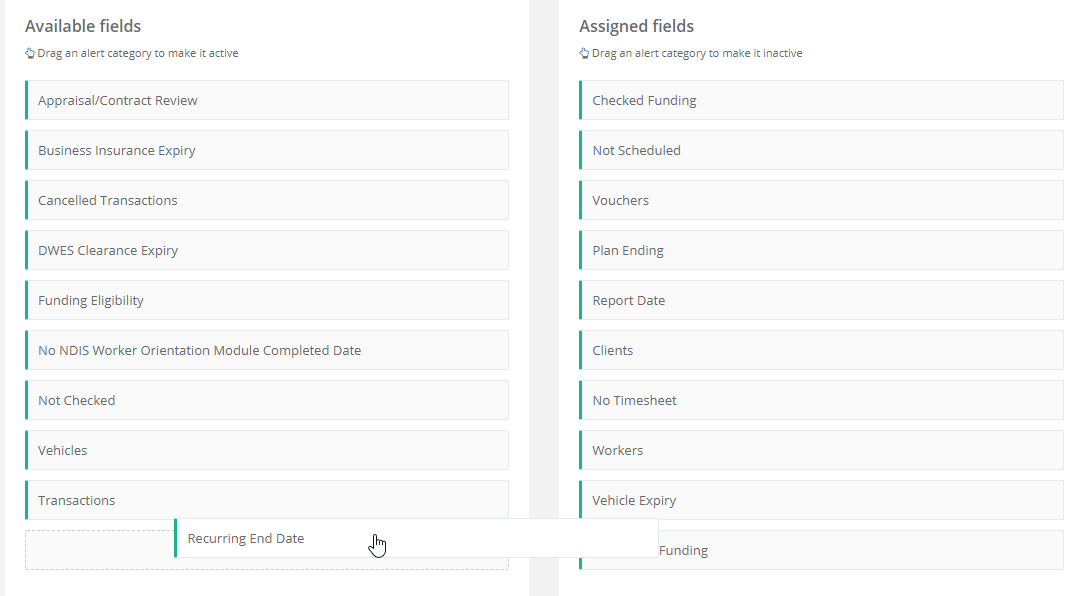
If you want to hide an alert, you would click on the alert on the right column and drag it to the left column. A blank space will show on the column and you can drop the alert into that list.
If you want to show an alert, you would do the opposite. Click on the alert in the left column and then drag it to the position you want on the right column. You can also use this column to order the alerts in the order you want them to be organised.