
How to run Elmo Payroll export?
Required Setup Steps:
-
You will need to add a list of Payroll Items. You can do this by going to Admin → Integrations → Elmo → Payroll Element and adding the payroll items in manually. Until these have been added, no rates will generate.
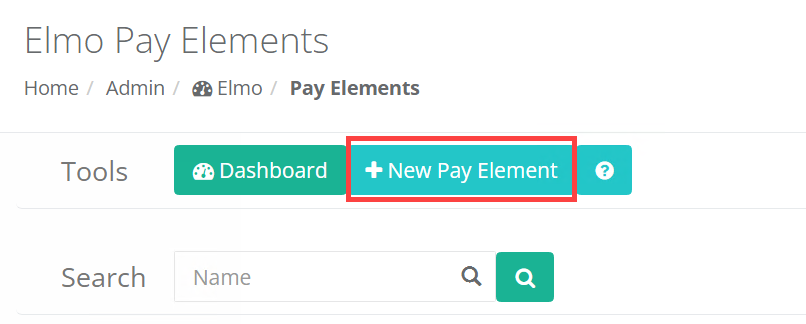
-
Once you have imported these payroll items, you will need to go to Admin → Integrations → Elmo → Settings and assign the payroll item assignments.
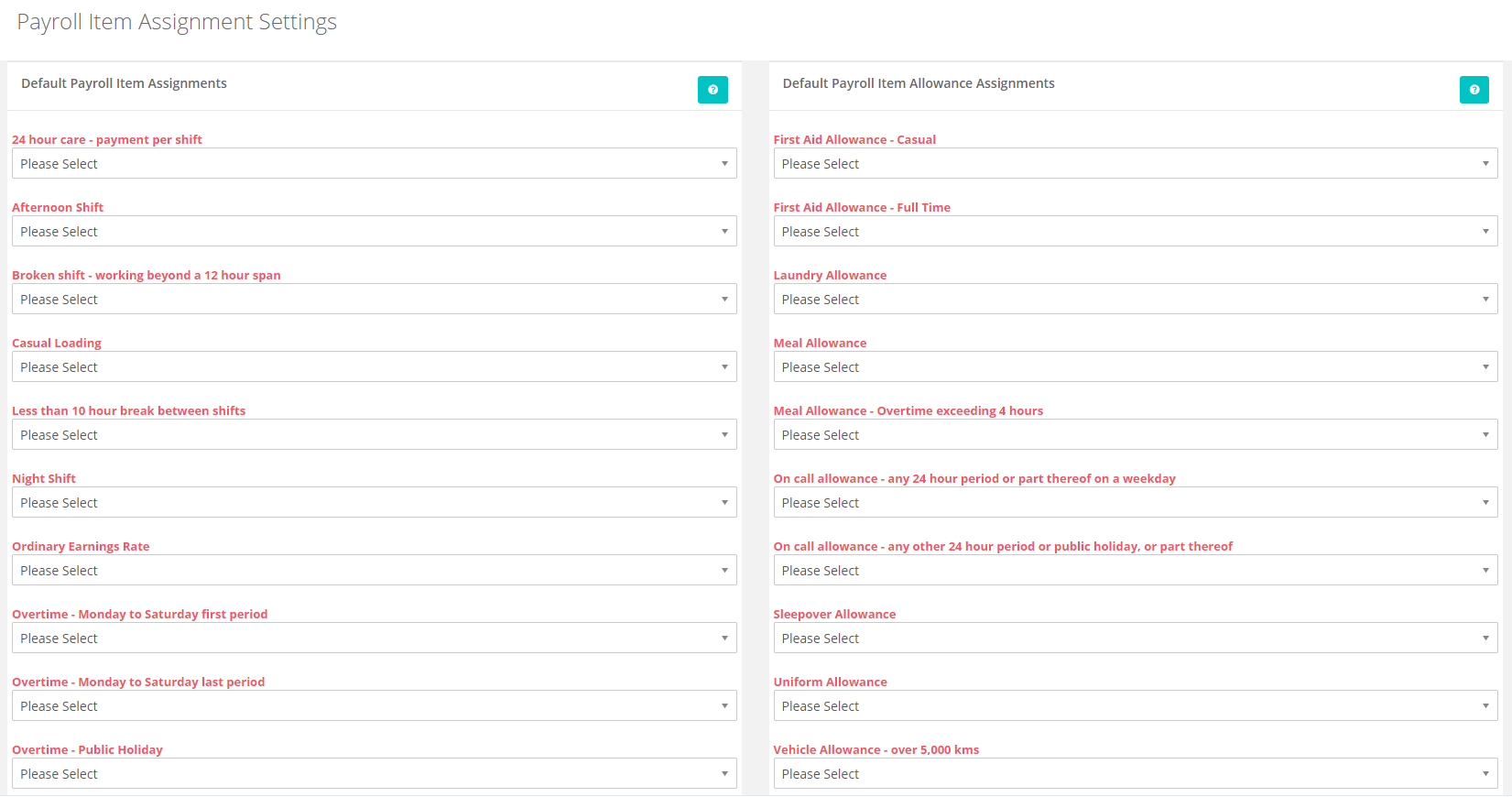
Generate Payroll CSV File:
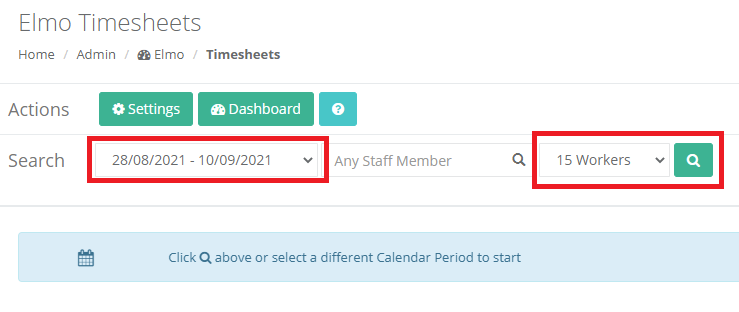
Once you have set up the payroll items and assigned them, you can now go to Admin → Integrations → Elmo → Timesheets.
Select the payroll period you want to generate the file for and click on the Search icon. By default it will only show the first 15 workers, but you can change this if required.
If you have any unassigned rates in the settings section, it will let you know that the timesheets may include missing or incorrect payroll items.
The summary section will contain a list of all workers and what will be included or excluded.

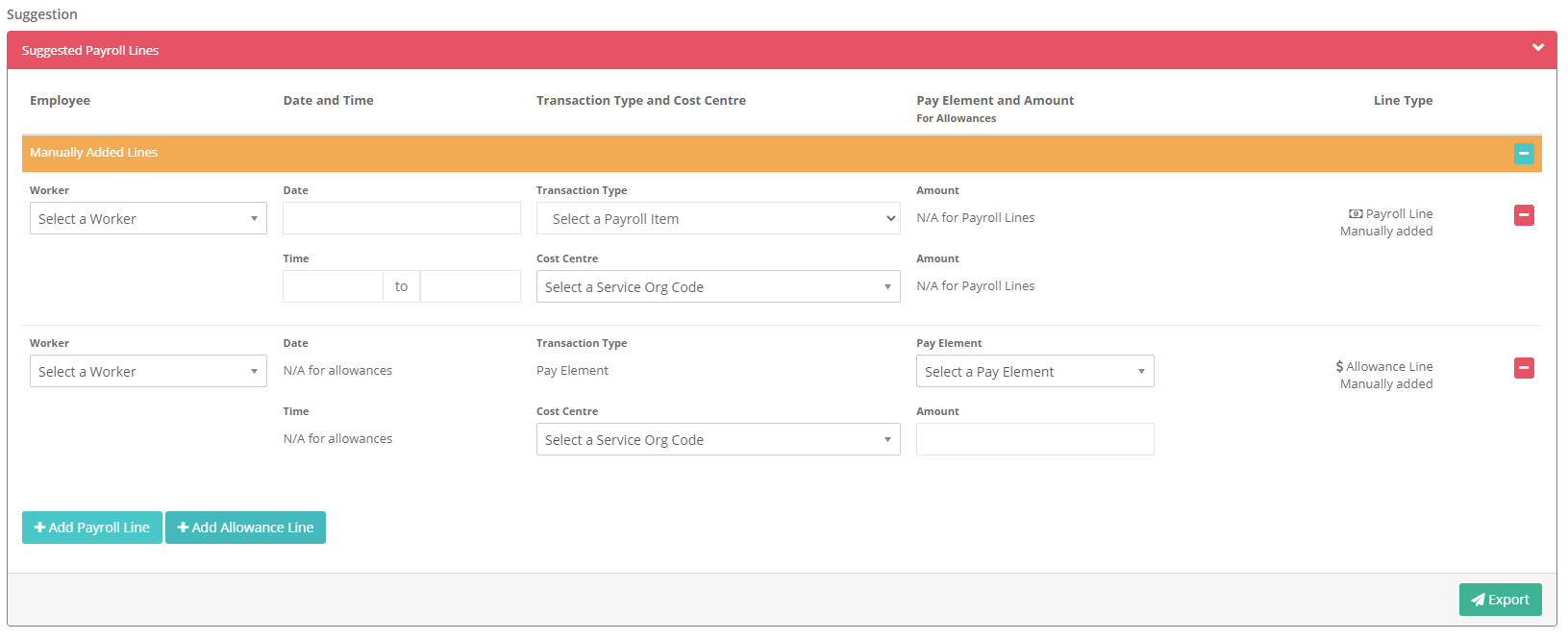
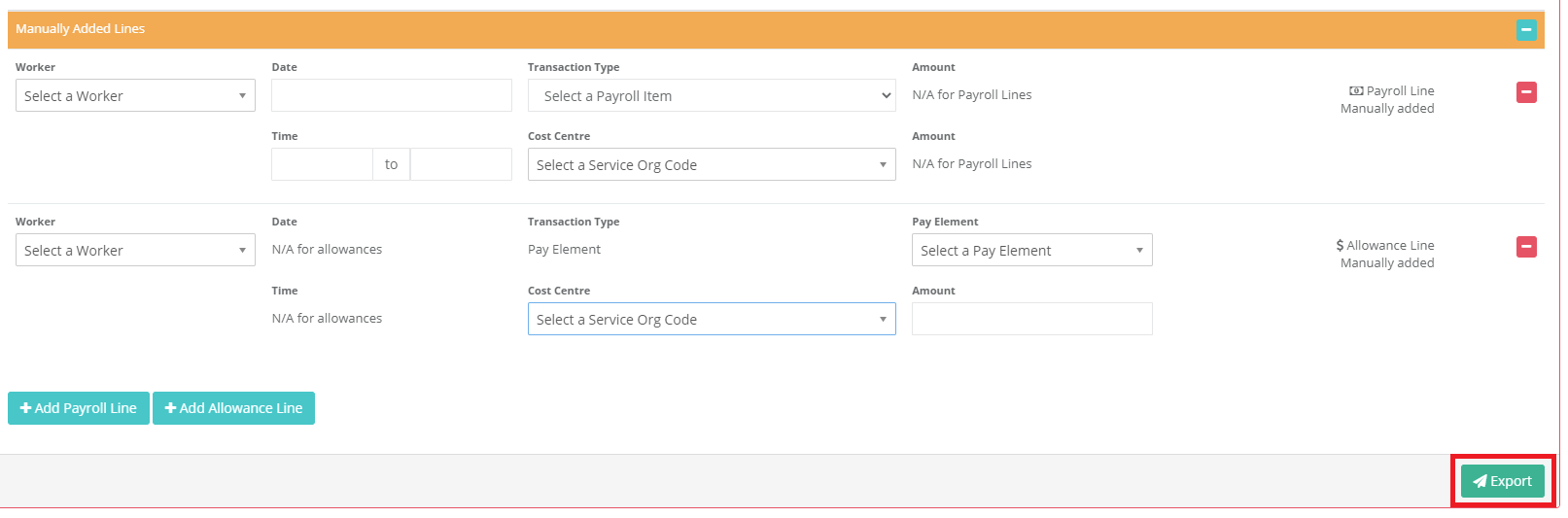
Underneath the summary is the suggested timesheets that will be included in the export. It will be sorted by Worker then date, you can also adjust whatever fields you like before export and also add any manual lines as required. Allowances will also be included.
The Cost Centre defaults to the service organisation code set for the service organisation used in the support.
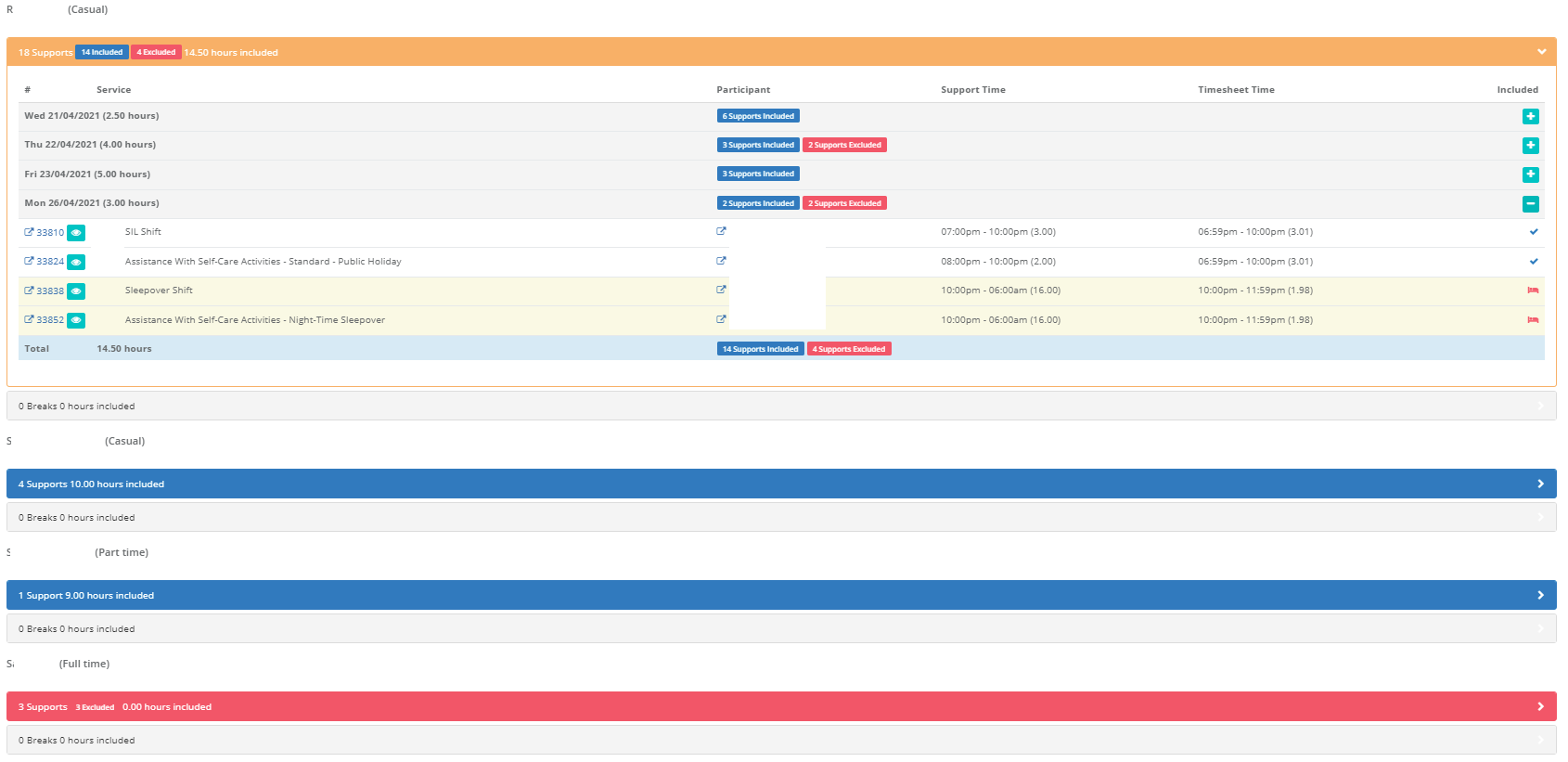
Underneath the Suggestion section, it will list each worker and all supports for the date range. This will allow you to see what has and hasn't been included and why so you can sort that out. We would recommend reviewing this section before exporting the file.
Workers highlighted in blue have all support included.
Workers highlighted in orange have some supports included.
Workers highlighted in red have no supports included.
Once you have reviewed all the timesheets, you can click on the Export button in the Suggestion section. It will generate the CSV file you can use to upload into Elmo.
You now have a file that you can import into Elmo. If you are unsure on how to do this, you will need to contact Elmo support for assistance.