
How to run Reckon Invoice Export?
Required Setup Steps:
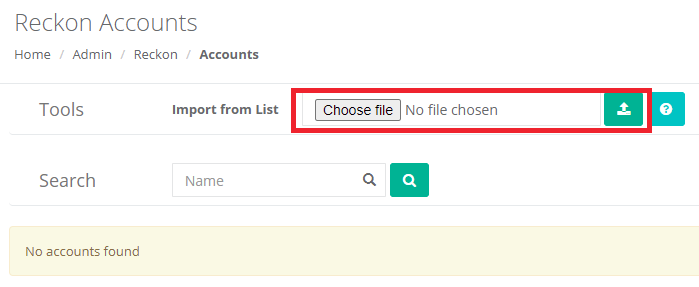
- You will need to import a list of Accounts. You can do this by exporting a list from Reckon and then going to Admin → Integrations → Reckon → Accounts and using the Import From List function.
-
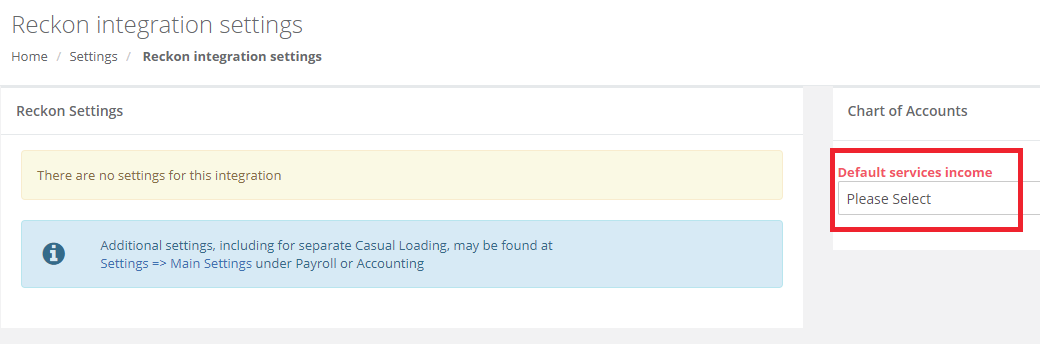
Once you have imported these accounts, you will need to go to Admin → Integrations → Reckon → Settings and assign the default services income account.
-
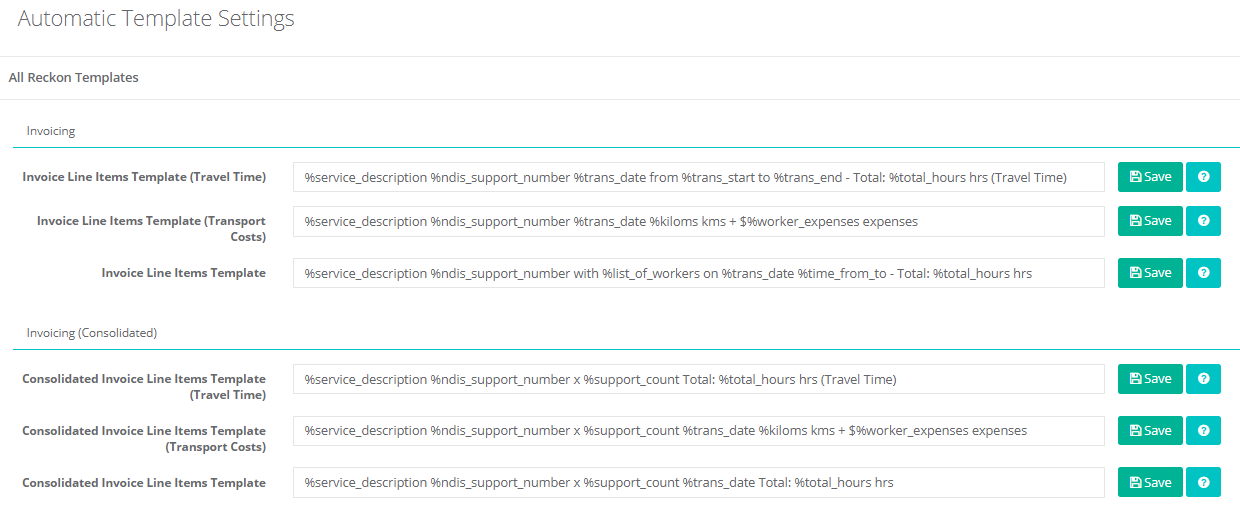
The setting section will also allow you to adjust the line item templates. Make any required changes and save here.
-
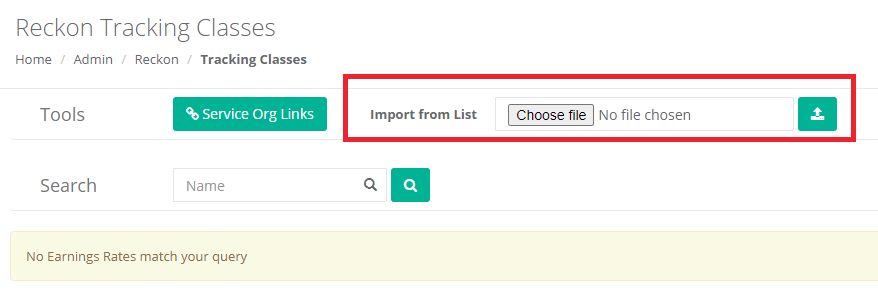
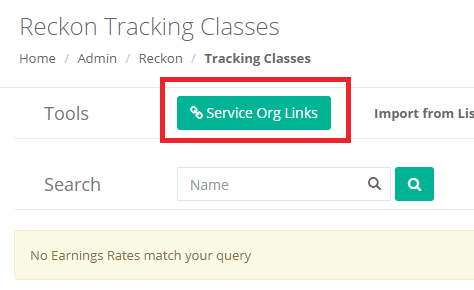
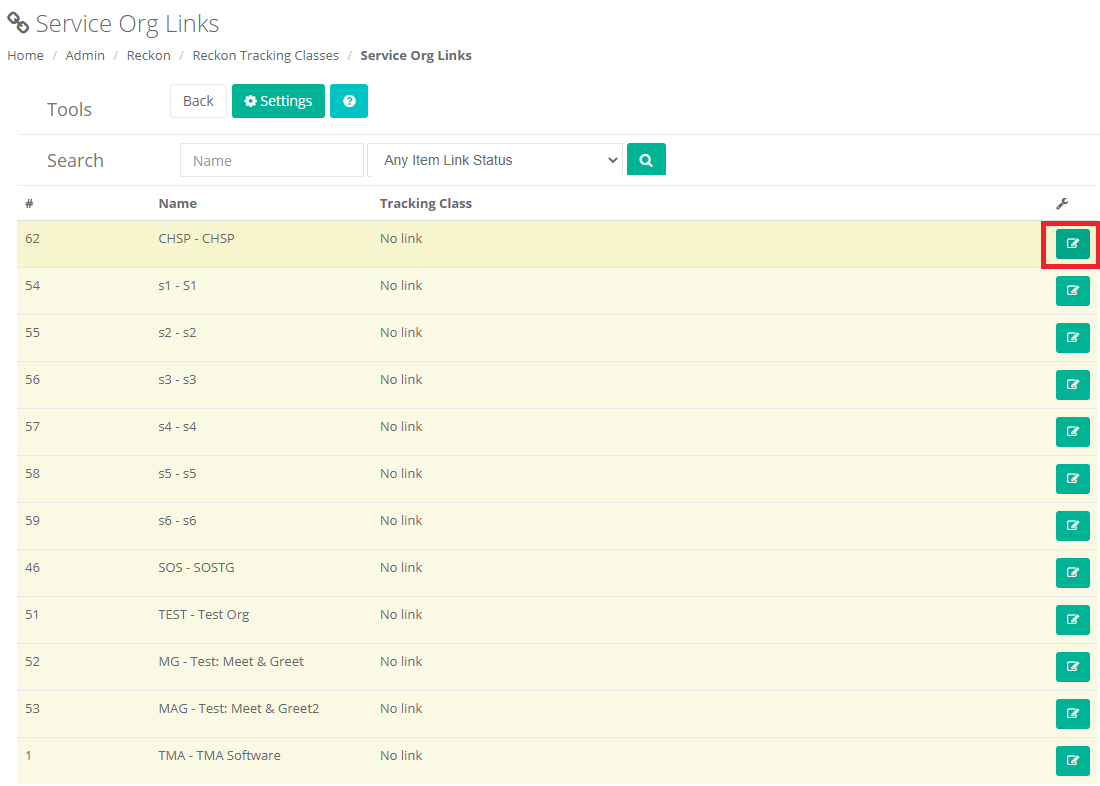
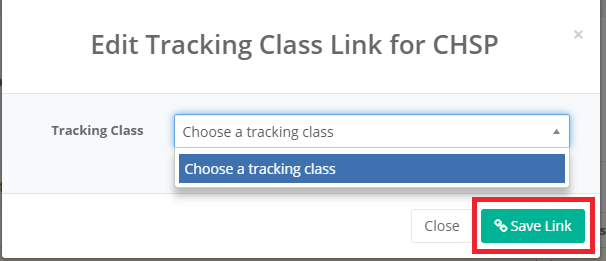
If you would like to use tracking classes, you will need to make sure that you have imported these and linked them by going to Admin → Integrations → Reckon → Tracking Classes. An export from Reckon and the Import From List functionality will import them, then you will need to use the Service Org Links button to assign the tracking classes to appropriate service organisations.
Generate Invoice IIF File:
Once you have set up the accounts and assigned them, you can now go to Admin → Integrations → Reckon → Invoices.
The main page will display a list of invoice files that were previously generated with the ability to download the file again.

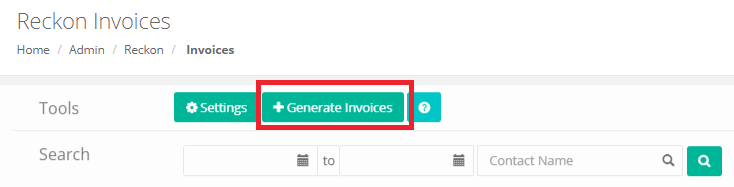
To generate new invoices, click on the Generate Invoices button.
A list of all supports available for invoicing are displayed.
You can use the Search filters to filter the invoices by date, client name and/or service organisation.
Once you have the list of supports you wish to invoice, you can place a tick in the include column and click on Export Selected.

If you would like to review or manually adjust an invoice, click on the Manual button.

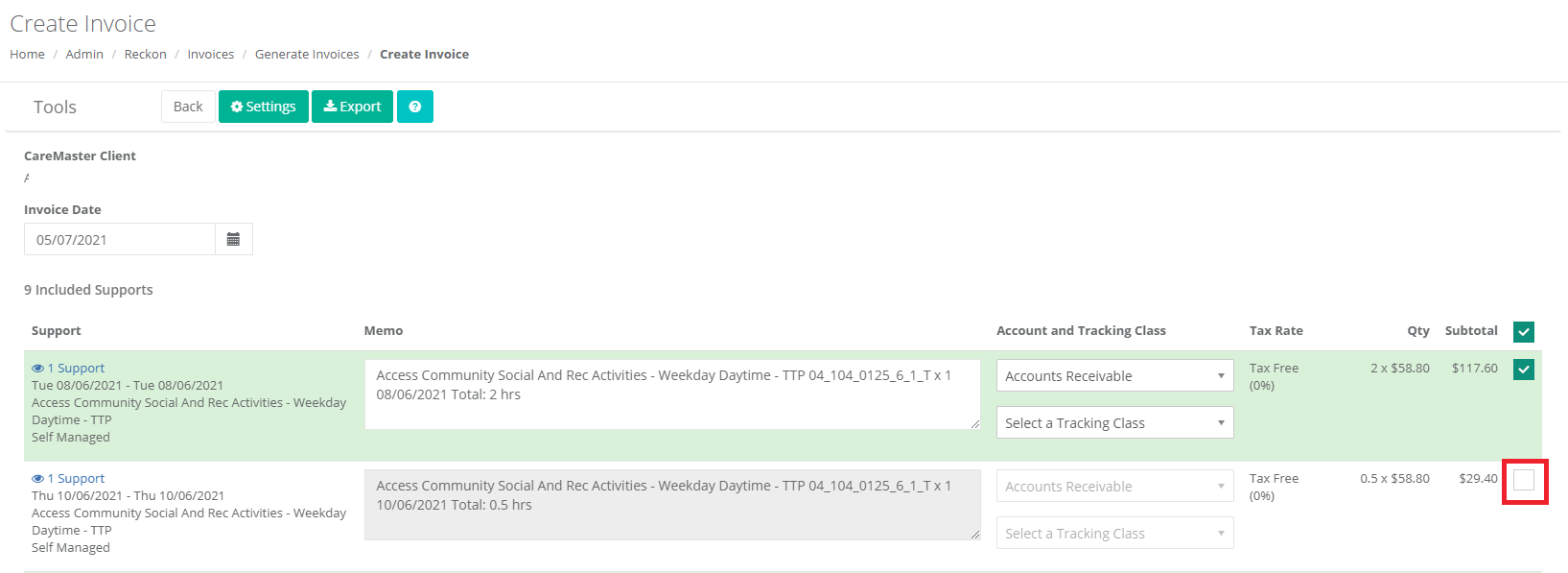
Here you can change the invoice date, the line item description, the account and/or tracking class. You can also untick a line on the right hand column and it will not invoice that support.
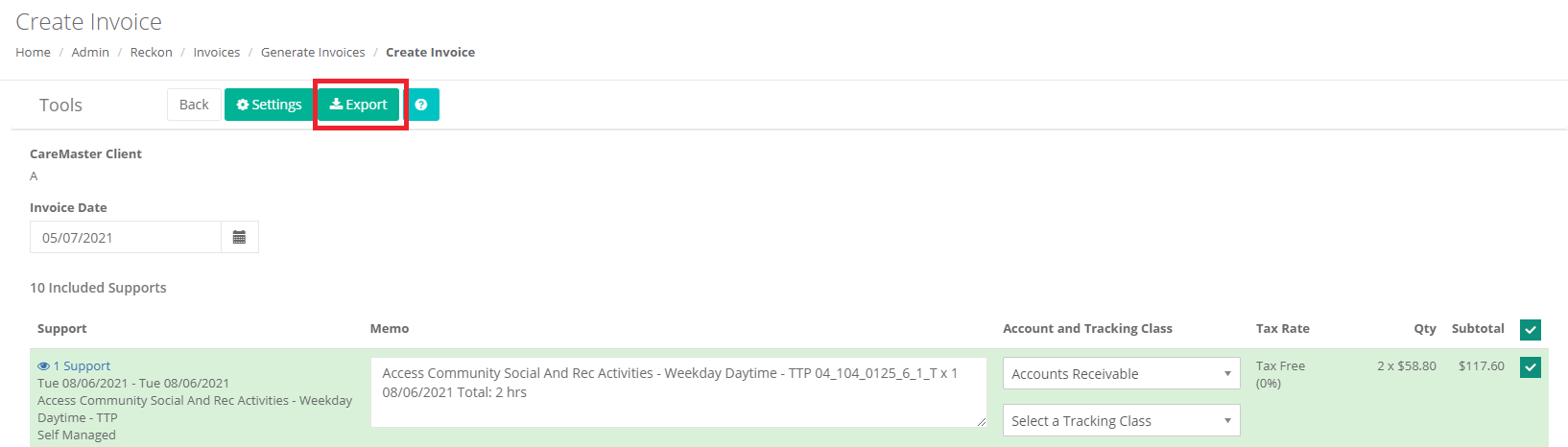
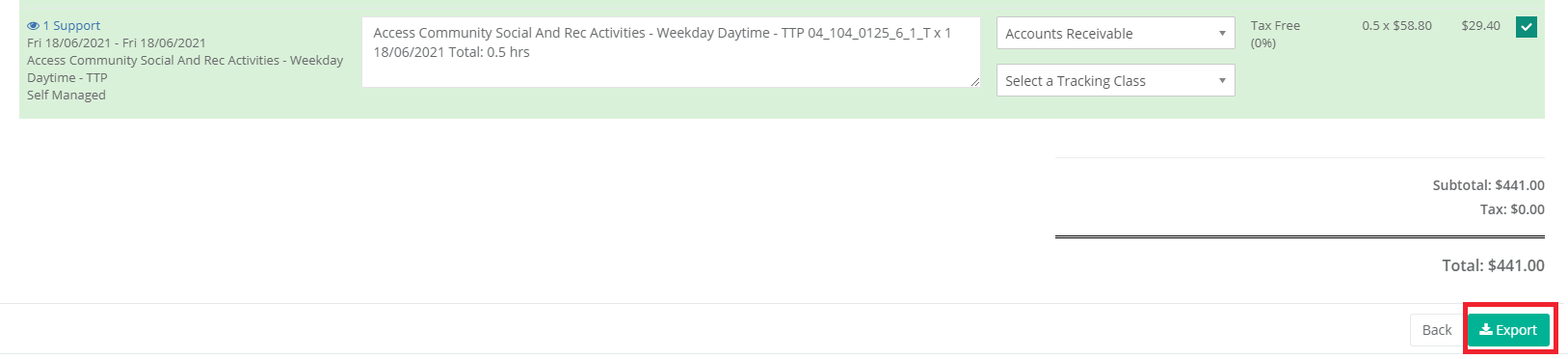
If you manually edit the invoice, you will need to click on Export at the top of the page or the bottom. Any manual changes you make to the invoice will not be saved until you click on Export.
Whether you exported all selected or you manually exported a single invoice, you now have a file that you can import into Reckon. If you are unsure on how to do this, this page from the Reckon forum may assist: https://community.reckon.com/discussion/7902755/how-to-simple-steps-for-exporting-and-importing-lists-iif-from-reckon-accounts-desktop-and-hosted. Otherwise you will need to contact the Reckon support for assistance.