Participant/Client Leave Requests
To add participant/client leave, you need to go to Participants → Leave Requests.
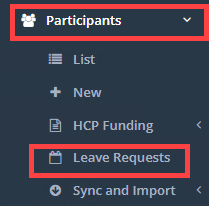
Once you are on this page, you can click on New Request to add.
Select the clients name, add in the date range, pick a leave reason, decide if you want to remove the supports during the leave dates or not, then click save.
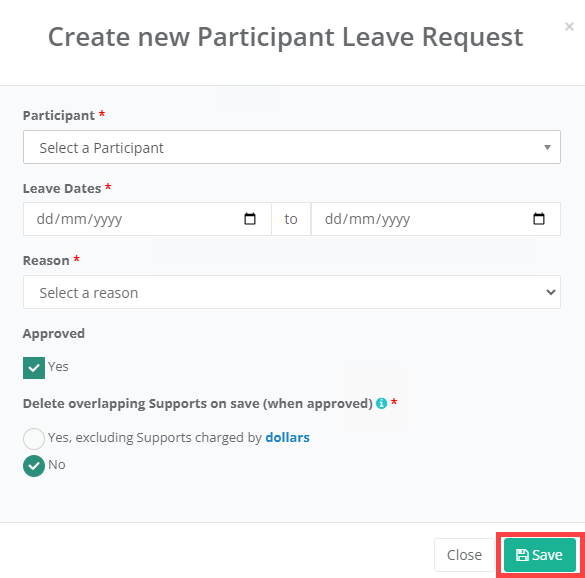
If you would like to delete the supports in this date range so they won't get charged for the supports make sure you select Yes for the Delete overlapping Transactions on save question.
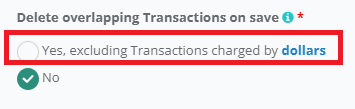
It will still leave any supports charged by dollars as these may be fees or purchases that are still valid. If these also need to be deleted so they are not charged to the client, you will need to manually delete from the support list page.
NOTE: Once supports are deleted by Saving a Participant/Client Leave Request, cancelling, changing or deleting the leave request does not bring back the supports. You would need to recreate the supports OR go to Supports > Deleted and Restore the supports.
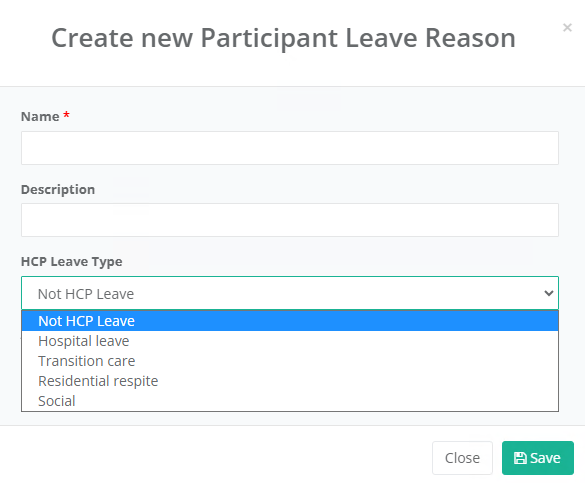
If needed, you can create extra Participant Leave Reasons and have them listed as Not HCP Leave or HCP Leave (For organisations using the Home Care Package Funding functionality). These can be managed at Data → Participant Data → Participant Leave Reasons.
By default we have added 4 HCP leave types that are not editable.