
Support Display - App Data Tab
A worker has the ability to provide information from the app when they are active in a Support.
A support can be viewed via the Roster page, the Participant / Worker profile or the Supports All menu.
The worker input data is shown in the App tab.
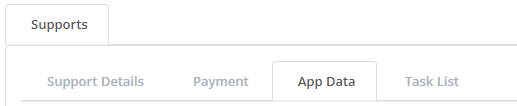
Which data is available to be input is managed by the Worker App Settings. Most can be turned on and off
For more information, visit The Worker App Settings
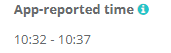
App Reported time - Shows the times the worker pressed Start / End. If not pressed, will display as N/A. If more than 1 worker assigned, it will cover the total Span.
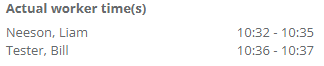
Actual Worker time(s) - Will display as scheduled time if start / end not pressed. Will display individual worker times if more than 1 worker assigned.
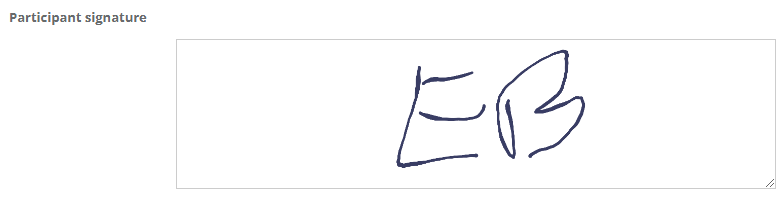
Signature - Can be turned on or off. Setting available on participant profile if they are unable to sign.
Odometer - Can be turned on or off. Takes input at the start and end of the support.
Kilometers - Input is requested only if Transport is ticked on the support. If left blank will return 0.
Travel Time - Can be turned on or off. If left blank will return 0.
GPS:
- Can be turned on or off.
- Worker will need to turn their location settings on if the setting is active. Otherwise they will be unable to start a support.
- Location Data - If more than 1 worker is allocated, select the one whose data you want to view.
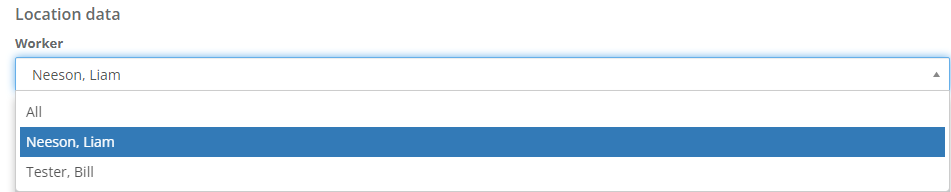
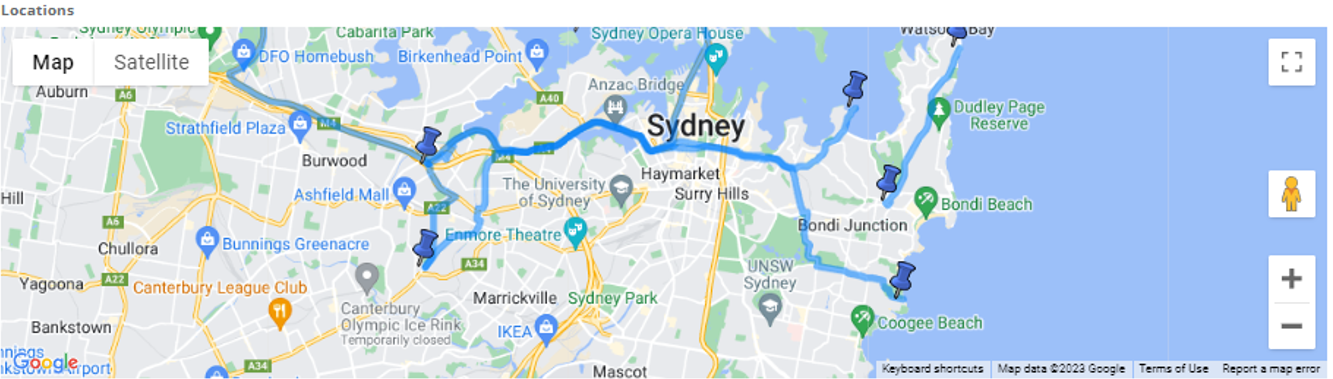
There are 2 Location maps available if GPS settings activated:
Map 1 shows a route based on "Pings" received from local networks. You can set the Ping interval in settings. A Pin is dropped at each ping.
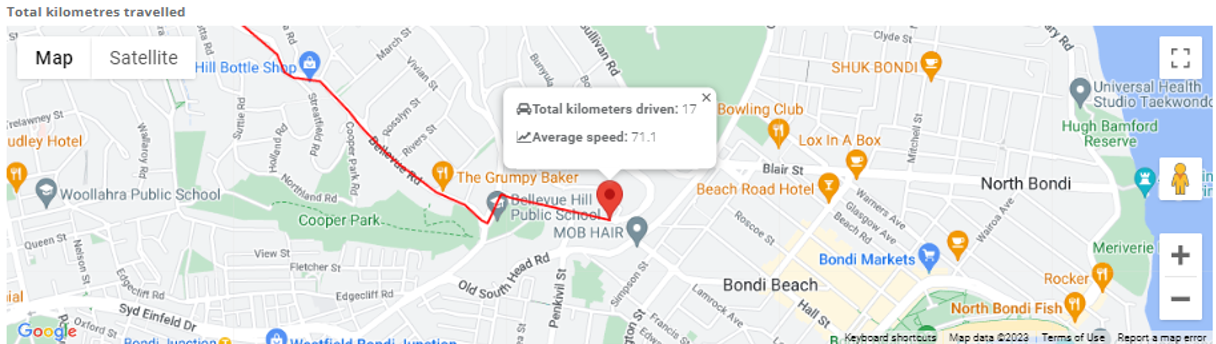
If Kilometers input, Map 2 will show the Estimated travel path on roads between those pins.
Case Note - Can be turned on or off
You have the option to add a Case note directly against a Support
Press Add Case Note and select a Category, an Activity, add your case note information, upload a file and save.
You can also edit the Case note from the App Data tab. select the 3 vertical dots on right hand side and edit. You are also able to edit the support and delete the case note. **Please note deleting a case note will also delete the underlying support
Timesheets - shows if a timesheet has been created and the current status
