
User Guide: Bulk Assigning and Unassigning of Participants and Workers
Bulk assigning and unassigning of participants and workers
The guide provides a step-by-step explanation of how to efficiently assign and remove workers and participants in bulk from a coordinator's profile.
Step 1: Bulk assigning participants to a coordinator’s profile.
1.
Go to menu Staff/Volunteers à List
2.
Search for the Coordinators name.
3.
Scroll down to the Participant tab and click the edit button.

4.
To add the name of an individual participant, type their name into the search field, choose the name from the options, and then click the "Add Participant" button.

5.
To bulk assign participants to the coordinator’s profile. Click on the “People’’ button.

6.
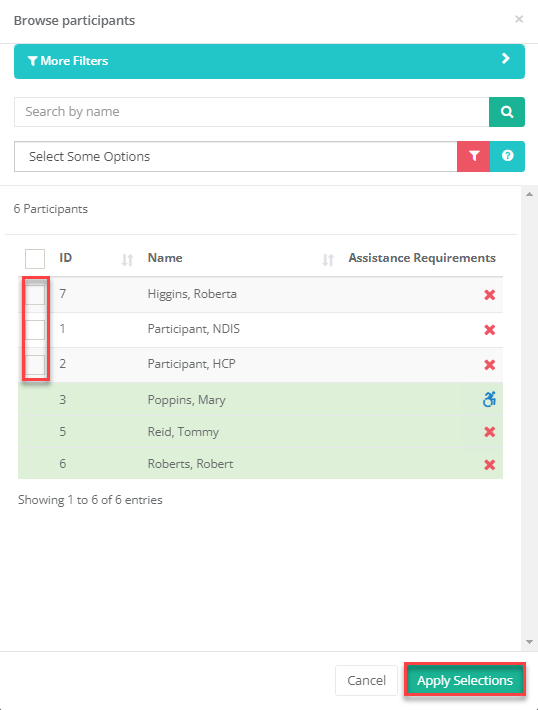
Participants not linked to the coordinator profile will be accompanied by a checkbox beside their names. The participants already associated with the coordinator profile will be listed without a checkbox.
7.
Apply the required filters to help search for the participants names.
8.
Mark the checkbox beside the names of the desired participants, then click the "Apply Selections" button. This action will add the selected participants to the coordinator's profile.
This process will also update the selected participant’s profile: Service Provider Information tab à Coordinators field.
Step 2: Bulk unassigning participants from a coordinator’s profile.
1.
Go to menu Staff/Volunteers à List
2.
Search for the Coordinators name.
3.
Scroll down to the Participant tab and click the edit button.

4.
To bulk unassign participants from the coordinator’s profile. Tick the names of the required participants and then click the red unlink button. The process will remove the selected participants from the coordinator’s profile

Step 3: Bulk assigning workers to a coordinator’s profile.
1.
Go to menu Staff/Volunteers à List
2.
Search for the Coordinators name.
3.
Scroll down to the Workers tab and click the edit button.
4.
To bulk assign workers to the coordinator’s profile. Click on the “People’’ button.

5.
Workers not linked to the coordinator profile will be accompanied by a checkbox beside their names. The workers already associated with the coordinator profile will be listed without a checkbox.
6.
Apply the required filters to help search for the workers names.
7.
Mark the checkbox beside the names of the desired workers, then click the "Apply Selections" button. This action will add the selected workers to the coordinator's profile.
This process will also update the selected worker’s profile: Organisation Information tab à Coordinators field.
Step 4: Bulk unassigning workers from a coordinator’s profile.
1.
Go to menu Staff/Volunteers à List
2.
Search for the Coordinators name.
3.
Scroll down to the Workers tab and click the edit button.

4.
To bulk unassign workers from the coordinator’s profile. Tick the names of the required workers and then click the red unlink button. The process will remove the selected workers from the coordinator’s profile.

Bulk assigning and unassigning of Participants and Workers.pdf 349207