
User Guide: Location Data
Destination Categories
Destination categories can help define the Destinations.
The destinations categories can include:
- Support
- Health and Fitness
- Education
- Shopping
- Entertainment
1.
To add or edit an existing item
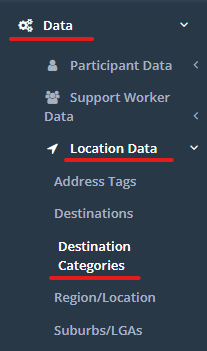
Click on the DATA > LOCATION DATA > DESTINATIONS CATEGORIES menu.
2.
Click on the New button to enter a new destination category.
To edit an existing entry, click on the pencil icon next the categories name.

3.
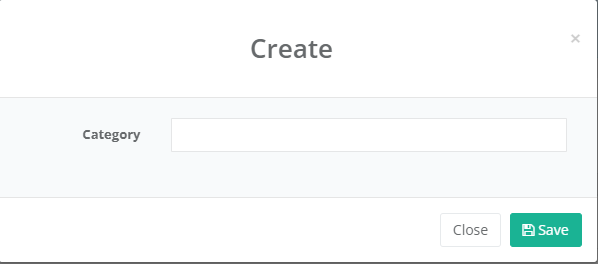
Enter/Update the category details and press the Save button
Destinations
Destinations can be any locations regularly visited by the Participants and their Support workers.
The destinations can include:
- Company Support Centers
- Public Swimming Pool
- Local Library
- Shopping Centre
- Movie Cinemas
- Head Office
1.
To add or edit an existing item
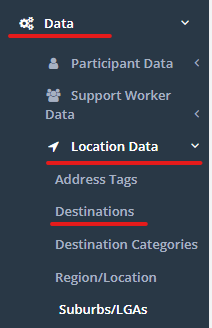
Click on the DATA > LOCATION DATA > DESTINATIONS menu.
2.
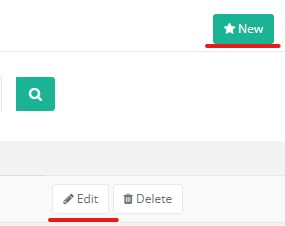
Click on the New button to enter a new destination.
To edit an existing entry, click on the pencil icon next the destination’s name.
3.
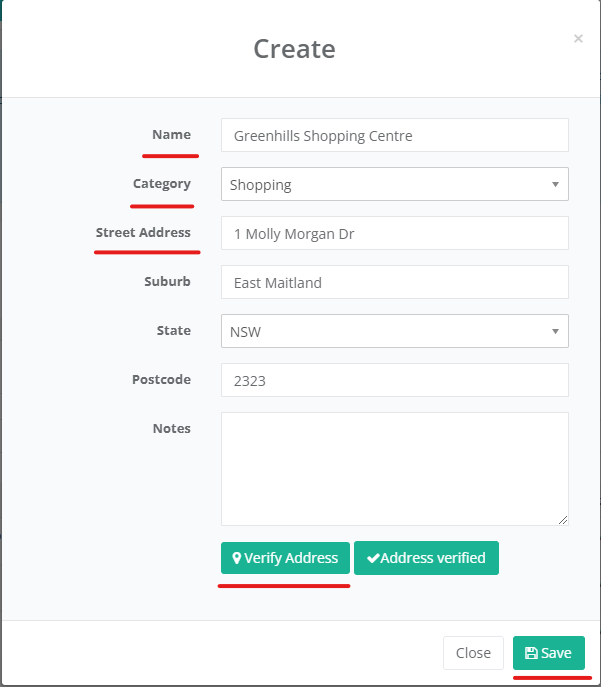
Enter/Update the destinations details:
- Name
- Category
- Street address
Click the Verify Address button then save the Destination
Region/Location
The Region/Location menu allows the system administrators to enter the company’s Business Unit details for each region the company provides supports too.
1.
To add or edit an existing item
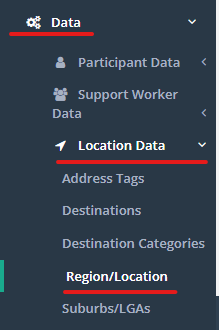
Click on the DATA > LOCATION DATA > REGION/LOCATION menu.
2.
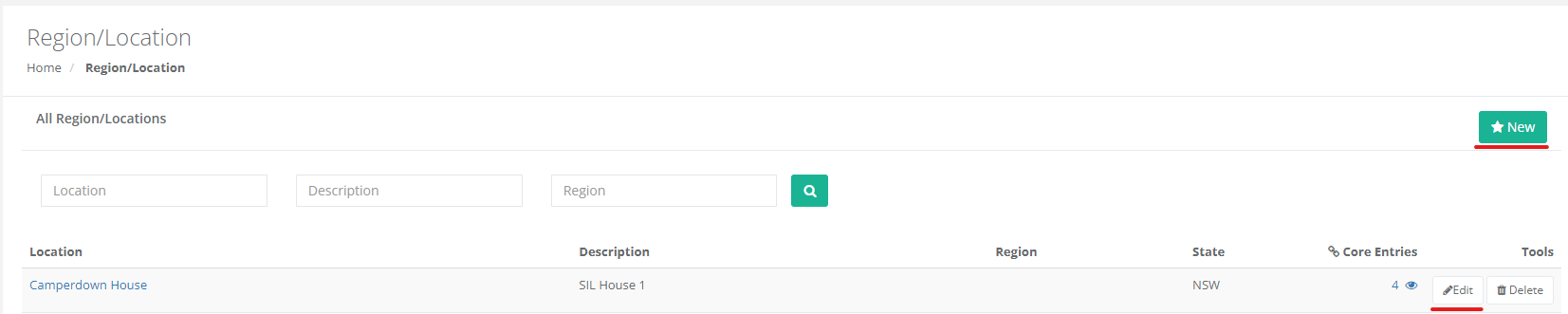
Click on the New button to enter a new location.
To edit an existing entry, click on the pencil icon next the locations name.
3.
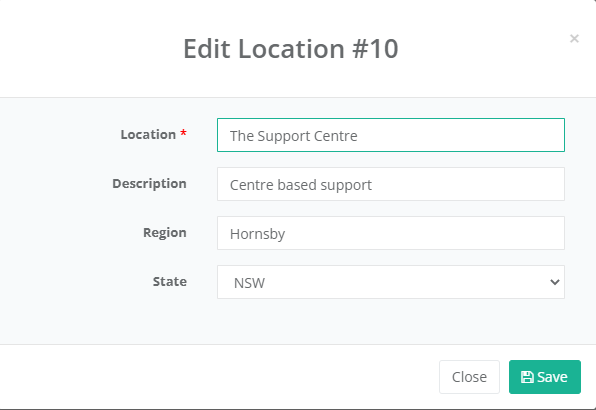
Enter/Update the locations details and press the Save button
Suburbs/LGAs
The Suburb/LGAs menu allows the system administrators to enter the Suburbs and LGA the company provides services to.
The LGA/Suburb details populated on the participants address fields.

1.
To add or edit an existing item
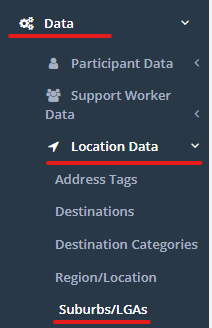
Click on the DATA > LOCATION DATA > SUBURBS menu.
2.
Click on the New button to enter a new Suburb.
To edit an existing entry, click on the pencil icon next the Suburbs and LGA name.

3.
Enter the Suburb and LGA details.
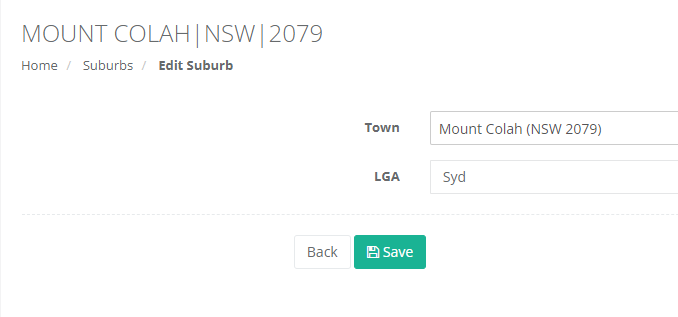
Please note the LGA field is limited to 4 characters
Adding a Location to a worker or staff profile
To add a Location to a worker or staff profile, select Organisational Information on the workers or staff profile in CareMaster.
Add the required Location
Select Save