
What do the supports reports show?
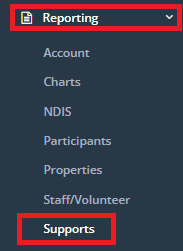
To access these support reports, click on Reporting -> Supports.
Recurring Supports
Support Summary
MDS Summary
Support Detail
Support Detail v2
Support List
Task List Completion
All reports in this section will export in an Excel spreadsheet format unless otherwise specified in the filters of the report.
\
Recurring Supports
This report will export a list of all recurring supports set up in the system for each participant:

The only option before running this report is:
- **Export Format –**using the dropdown, select how you would like the export to be formatted:
- Excel – exporting to an excel document, allows you to edit the information that has been exported such as delete any unrequired fields that are generated.
- PDF – exporting to a PDF will not allow editing.
- This report will show Participant Name, Service Type, Recurring frequency, Quantity, Total cost and Recurring End date
\
Support Summary
This report will export a summary of all supports for all participants for a date range.
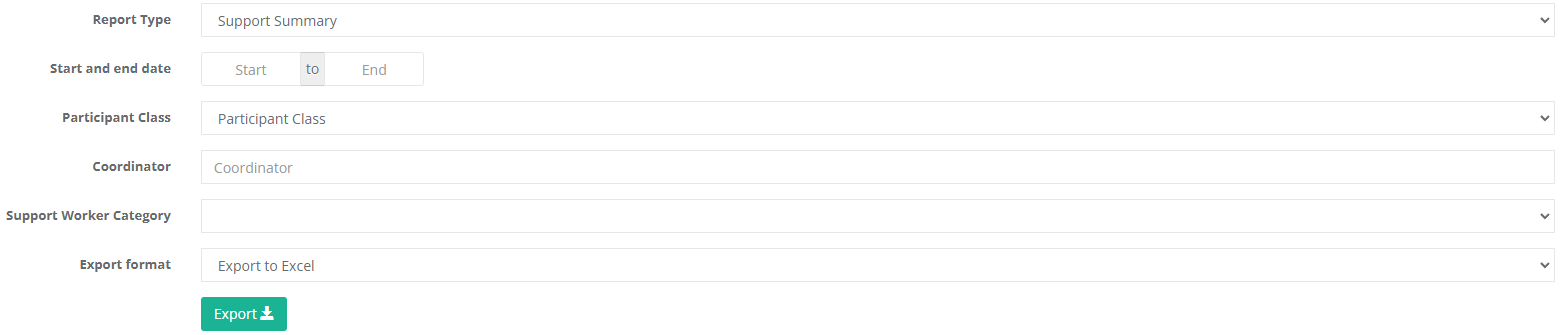
Before running the report, you have the option of filtering depending on the results you wish to receive:
-
Start & End Date – use this area to enter in the Start and End Date that you would like to view in the report. – the report will not run without this information.
-
Participant Class - using the dropdown provided select whether you would like to generate the report and view only a certain class of participant:
- Carer
- Frail Aged
- Younger Disabled
-
Coordinator - using the field provided enter in the Coordinator name and select it from the drop down.
-
Category – if your organisation has set up Support Worker Categories you are able to filter using the dropdown provided.
-
**Export Format –**using the dropdown, select how you would like the export to be formatted:
- Excel – exporting to an excel document, allows you to edit the information that has been exported such as delete any unrequired fields that are generated.
- PDF – exporting to a PDF will not allow editing.
\
MDS Summary
This report will export out a detailed list of all supports for all participants in the selected time period including MDS statcode summary total. If you are unsure what MDS or statcode stands for then you likely do not need to run this report.

Before running the report, you have the option of filtering depending on the results you wish to receive:
- Start & End Date – use this area to enter in the Start and End Date that you would like to view in the report. – the report will not run without this information.
- Service - using the dropdown provided select a Service; this will provide a list of all the participants that have supports entered with this service.
- Frail Aged/Disability – using the dropdown provided, select to either view only participants that are Frail Aged or Identify as having a Disability. This will default to both (Frail Aged/Disability).
- Category – if your organisation has set up Support Worker Categories you are able to filter using the dropdown provided.
\
Support Detail
This report will export a detailed report of all supports for all participants for a date range. Similar to the Support Summary Report but with additional support fields.
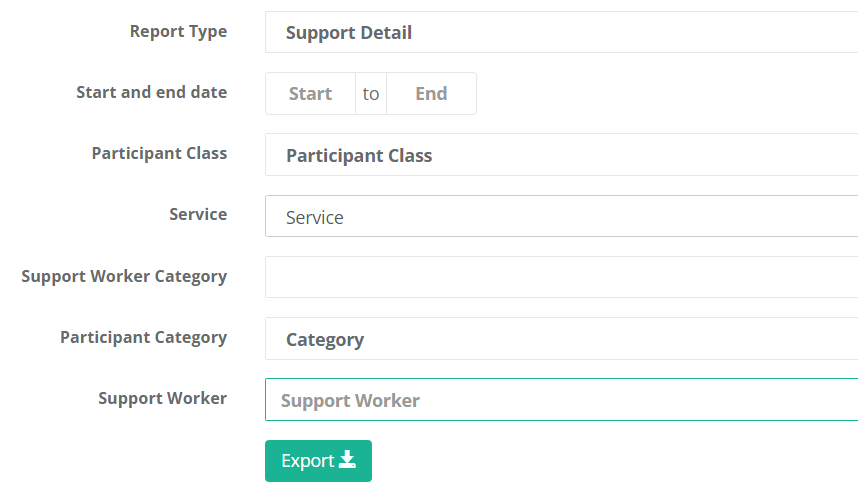
Before running the report, you have the option of filtering depending on the results you wish to receive:
- Start & End Date – use this area to enter in the Start and End Date that you would like to view in the report. – the report will not run without this information.
- Participant Class - using the dropdown provided select whether you would like to generate the report and view only a certain class of participant:
- Carer
- Frail Aged
- Younger disabled
- Service - using the dropdown provided select a Service; this will provide a list of all the participants that have had supports entered with this service.
- Category – if your organisation has set up Support Categories you are able to filter using the dropdown provided.
- Support Worker - Filter by a single support worker as needed
\
Support Detail v2
This report will export a detailed report of all supports for all participants for a date range with additional information on supports including coordinator, worker and kms.
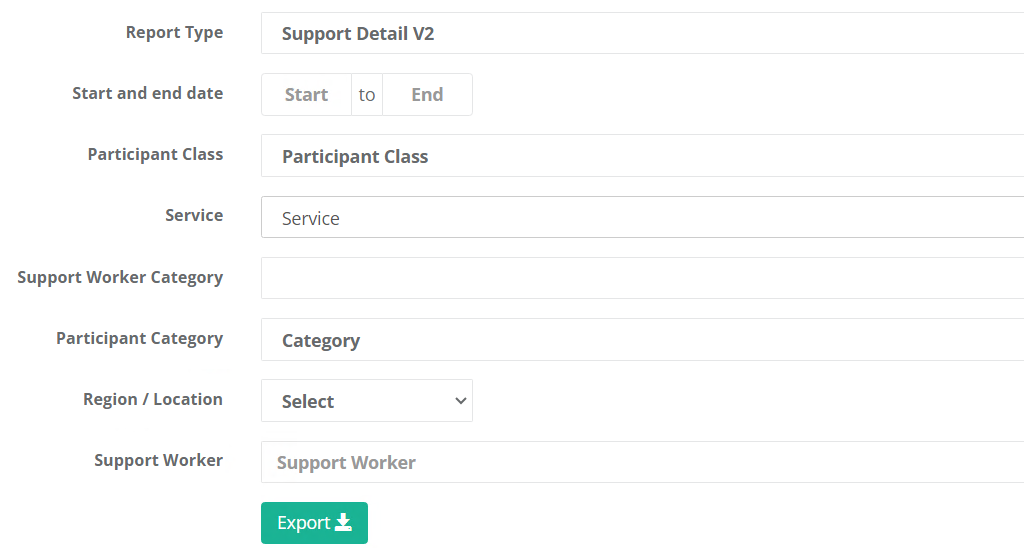
Before running the report, you have the option of filtering depending on the results you wish to receive:
- Start & End Date – use this area to enter in the Start and End Date that you would like to view in the report. – the report will not run without this information.
- Participant Class - using the dropdown provided select whether you would like to generate the report and view only a certain class of participant:
- Carer
- Frail Aged
- Younger disabled
- Service - using the dropdown provided select a Service; this will provide a list of all the participants that have had supports entered with this service.
- Category – if your organisation has set up Categories you are able to filter using the dropdown provided.
- Support Worker - Filter by a single support worker as needed
\
Support List
This report will print out a list of all the supports assigned to all Participants for the selected date range in CareMaster along with amount claimed and modified date.
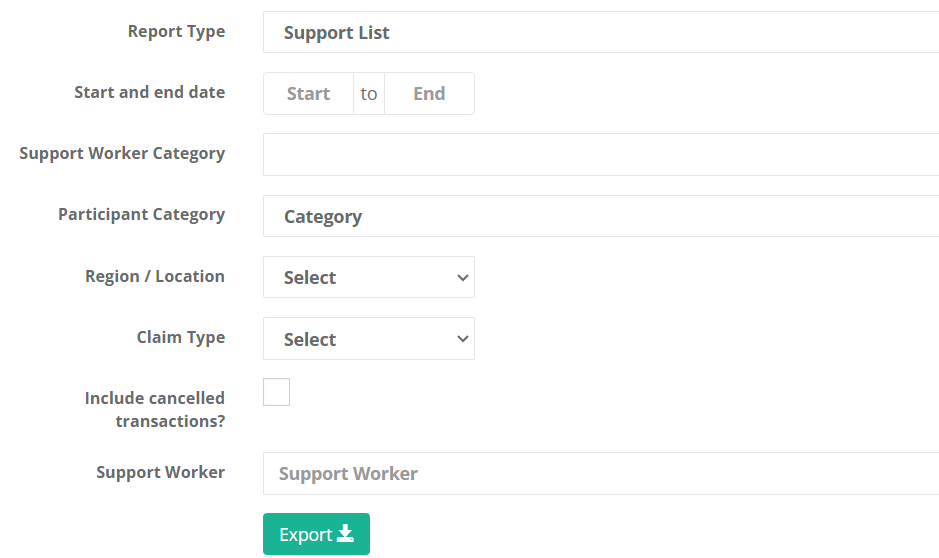
Before running the report, the Start & End Date is required to be entered. The report will not run without this information.
- Support Worker Category – if your organisation has set up Categories you are able to filter using the dropdown provided.
- Participant Category - if your organisation has set up Categories you are able to filter using the dropdown provided.
- Region/Location - select the participant location to filter the report by from the provided dropdown. Blank will export all.
- Claim Type - if you want to filter the supports to only those of a specific NDIA claim type, select an option from the dropdown.
- Include Cancelled Transactions? - by default cancelled supports are not included in the report. If you would like them to show, place a tick in the box.
- Support Worker - Filter by a single support worker as needed
\
Task List Completion
This report will print out a list of all the supports assigned to all Participants for the selected date range in CareMaster along with amount claimed and modified date
Before running the report, the Start & End Date is required to be entered. The report will not run without this information.
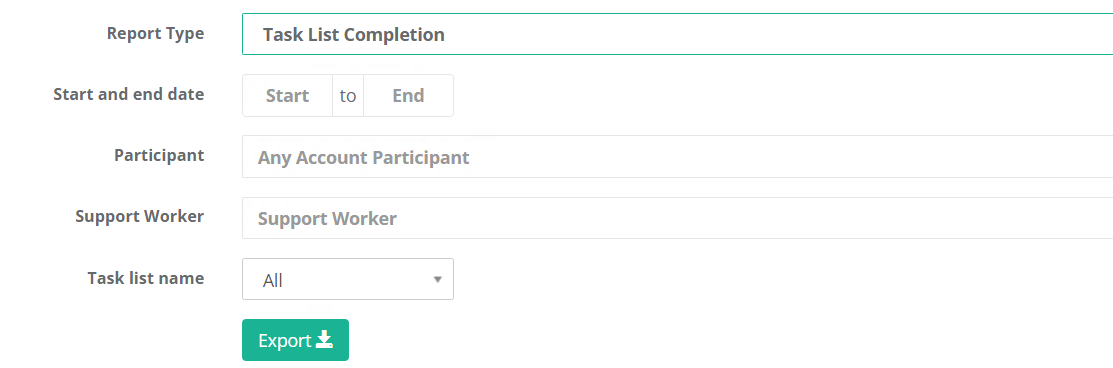
- Participant – select your Participant
- Support Worker - select your Worker
- Task List Name - use the drop down to select your required reportable Task List
\