
Connecting to Xero
-
Log in to your CareMaster installation as an Administrator
-
In your menu, navigate to Admin → Integrations → Xero → Dashboard
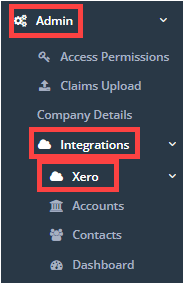 NOTE: If you do not see this Xero menu option, please contact our Customer Care team to enable it on your account.
 -
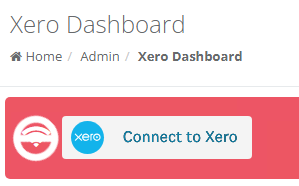
Click 'Connect to Xero'
-
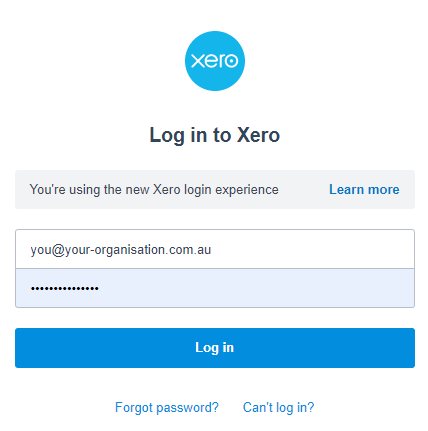
You will be redirected to login.xero.com : sign in with your Xero user details. Your credentials need to have access to your payroll system.
-
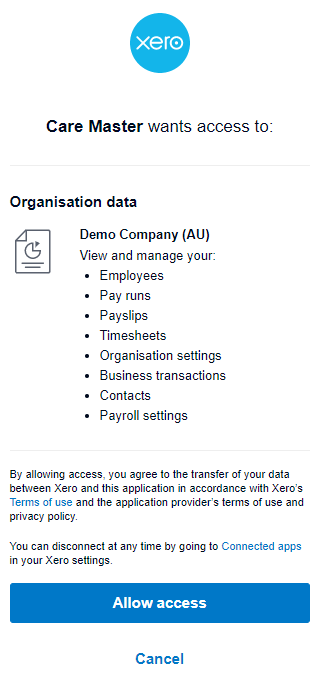
Authorise CareMaster to access your organisation's data
-
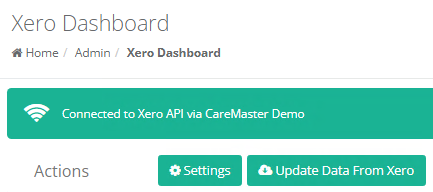
Your CareMaster is now ready to communicate with Xero
-
Sync your initial data.
CareMaster is capable of automatically linking and downloading a lot of your data from Xero, saving you having to enter in everything manually.
Stay on the Xero Dashboard. The page will look something like this:
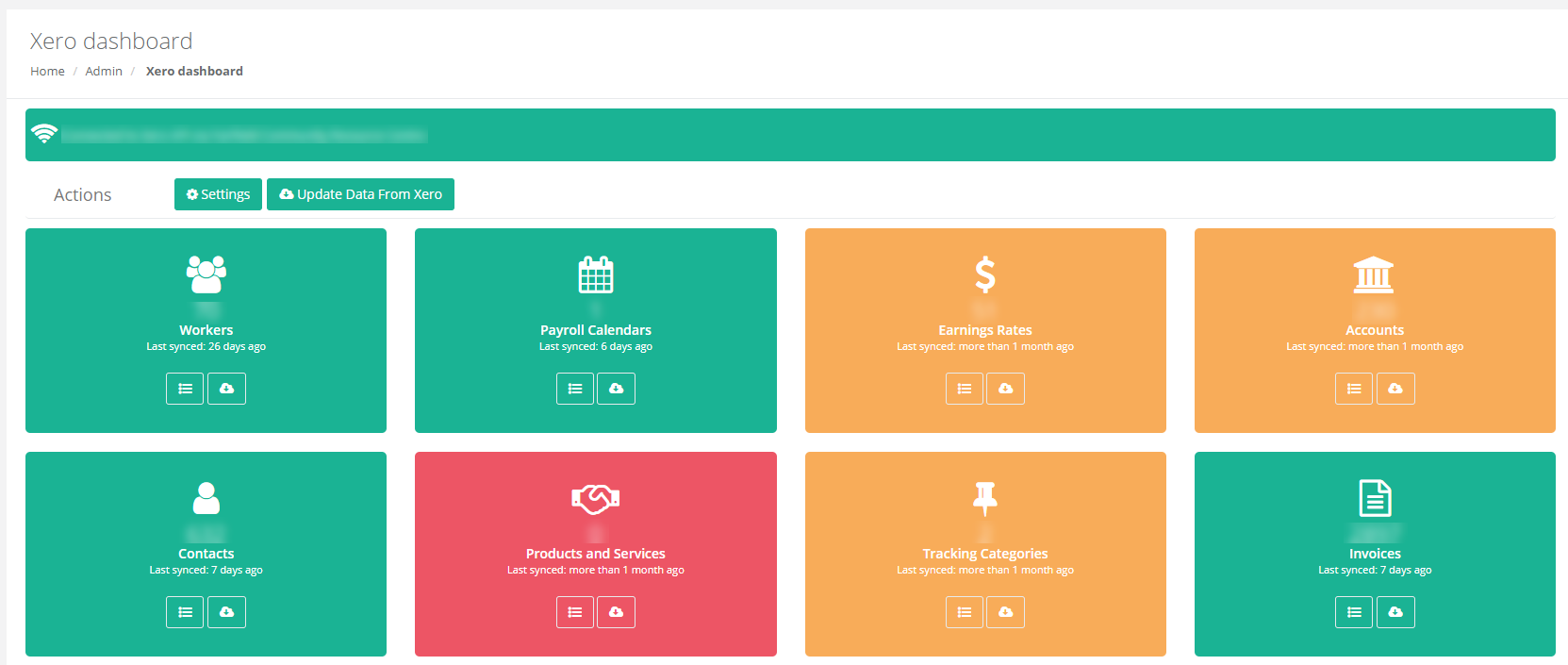
Each section has its own sync button, and there's also an 'Update Data from Xero' button which will sync everything it can from Xero into CareMaster from all sections.
Doing this is reasonably safe - no existing data within CareMaster regarding timesheets/invoices/worker data will be removed or significantly changed. Doing this is the first step to allowing CareMaster to communicate with your Xero data. Not everything can be linked up or setup automatically, we will look closer at these later.
Changing Xero accounts
If you are currently connected to Xero with CareMaster and need to change the Xero account that you are connected to please follow the below instructions.
1. Firstly take a screen shot of the existing Xero settings. These are available under Admin > Integrations > Xero > Settings.
2. Ensure your payroll and invoicing is up to date and completed.
3. Disconnect your current Xero account from CareMaster. This is available in Admin > Integrations > Xero > Settings
4. You will then need to submit a support case online to have our Customer Care team delete all current Xero data in CareMaster.
5. Once completed you will then need to follow the steps from 1 to 7 above ( under Connecting for the first time ) to connect your new Xero account.