
Control Settings
Changing these settings will affect all Trips users. Handle with care. Access these setting by clicking on the TMA logo button in the top left hand corner of the Trips window, then select Control Settings.
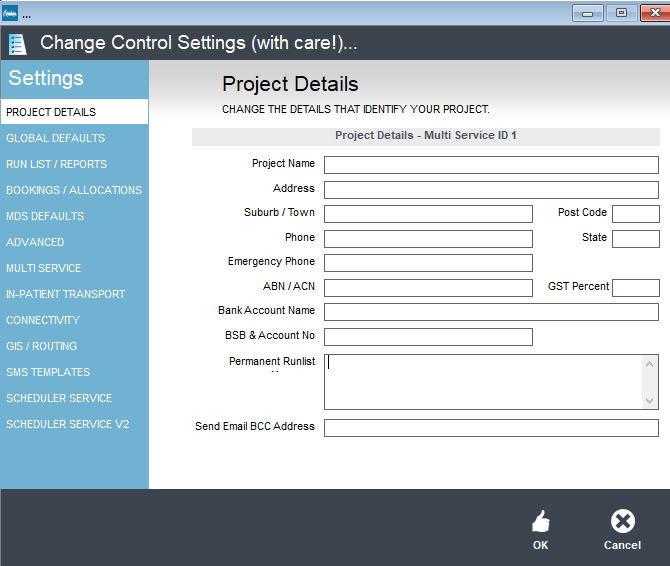
Project Details \n Enter your project and organisation information into the appropriate fields.
Global Defaults
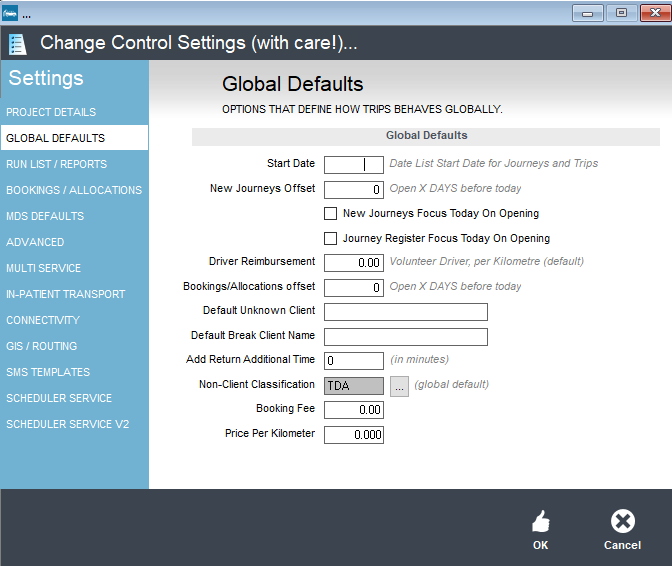
Start Date: This sets the start date for the date list in the journeys and trips screens. It is set when Trips is first installed. \n New Journeys offset: Sets the default starting date for the New Journeys window when it is first opened. \n New Journeys Focus Today On Opening: This will select today’s date when opening the New Journeys window. \n Journey Register Focus Today On Opening: This will select today’s date when opening the Register/Verify window. \n Driver Reimbursement: This sets the default per km reimbursement rate for volunteer drivers. \n Booking/Allocations: Sets how many days before today’s date the bookings and allocation screen will default to. Default Unknown Client: This sets the default unknown client to be used when an unknown client is inserted. \n Default Break Client: Sets the default client used with Breaks. Add return additional time: Time entered here will automatically fill in the return time when using the Add return button or auto add return feature is enabled. In minutes. Non-client classification: This is for organisations using non client as notes to appear on their run lists. This feature ensures it’s not counted as a seat to make the seat count and report statistics are accurate. Booking Fee & Price per Kilometer: Entering prices in these fields enables auto quoting on each booking and trip.
Run List Settings
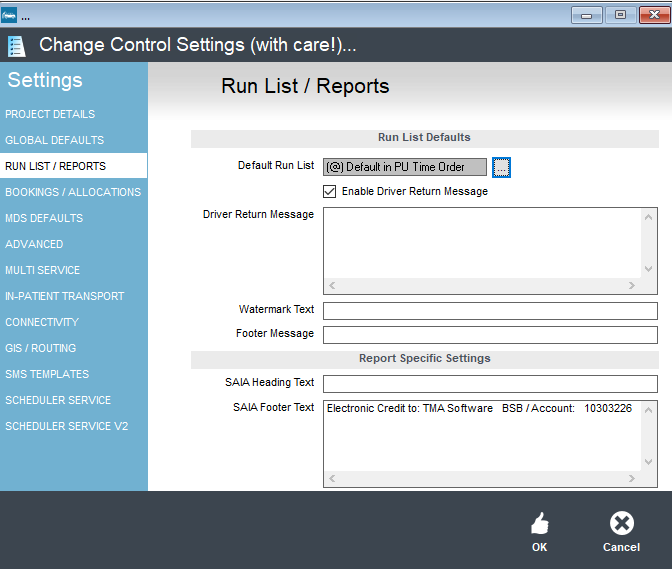
Set the default Run list used for all run lists. \n If you wish you can set a Driver Return message to appear on any run lists, as well as a Watermark and/or message to display in the footer of a runsheet
Bookings/Allocations
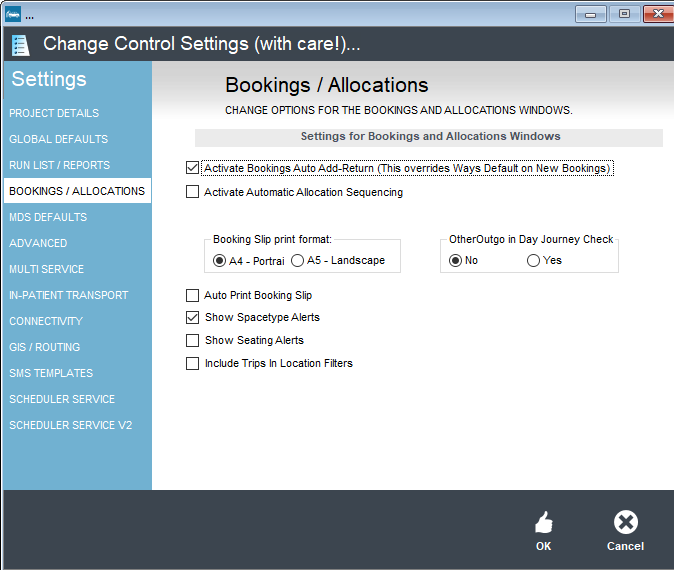
Activate Bookings Auto Add Return (This overrides Ways Default on New Bookings): Enabling this setting will automatically add a return booking for each new booking. \n Activate Automatic Allocation Sequencing: Automatically assigns an allocation number to a booking. Not currently utilised. \n Booking Slip Print Format: Sets the print format of Booking Slips. OtherOutgo in Day Journey Check: Not currently utilised. \n Auto Print Booking Slip: Automatically gives a print preview of a booking once the booking form is filled in and saved. \n Show Spacetype Alerts: Shows alerts when allocating if the vehicle cannot take the space type specified in the booking. \n Show Seating Alerts: Shows alerts when allocating if the vehicle cannot take the seats required, for example when the vehicle is full. \n Include Trips in Location filters: This should be enabled if an organisation has multiple locations or office.
MDS Defaults
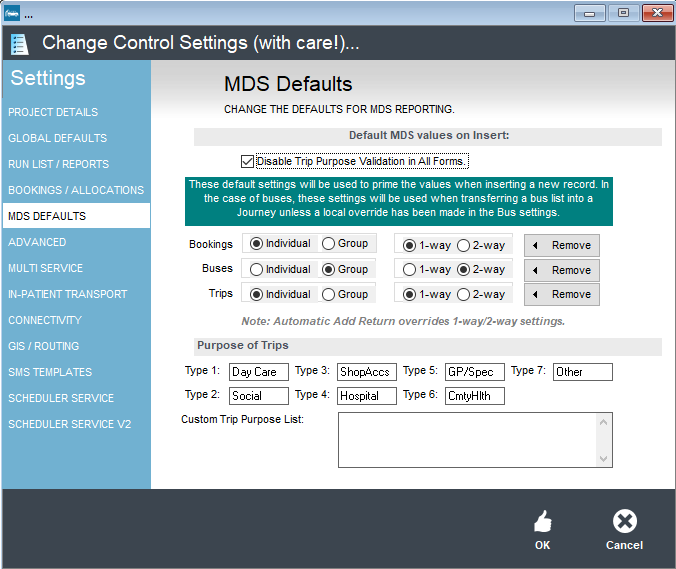
Disable Trip Purpose Validation in All Forms: Removes the MDS validation checks for ALL data entry forms. This should only be ticked by organisations who do not submit MDS reports. \n Bookings, Buses and Trips: Sets defaults for new bookings, buses and trips, i.e. Select Individual and 1-way for Bookings and when you create a new Booking those fields will already be set. If you do not want any defaults click the Remove button to clear your selections. \n Purpose of Trips: MDS types, informational only, these cannot be changed.
Advanced
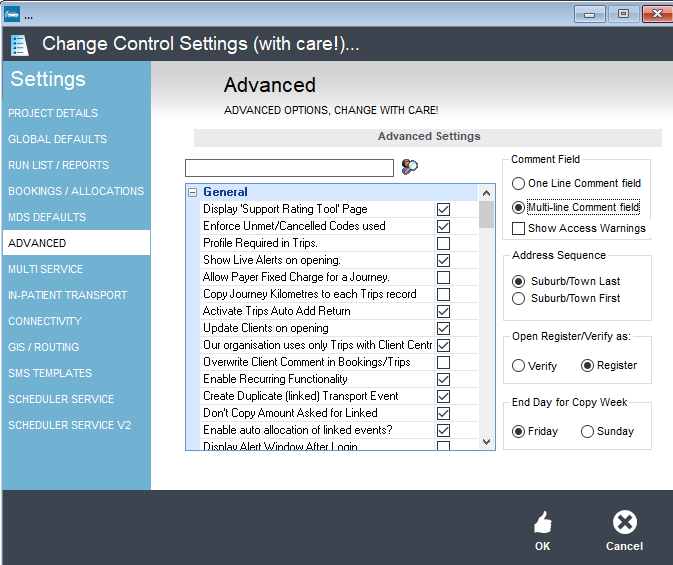
Display “Support Rating Tool” Page: Ticking this setting will enable the Support Rating and Rating Tool Tab in all bookings, trips and client forms. \n Enforce Unmet/Cancelled Codes Used: Cancelled codes are compulsory for the NSW MDS. If you are using National MDS you can turn this setting on or off. \n Profile Required in Trips: Ticking this setting will make the Profile field a required field in Trips. \n Show Live Alerts on opening: Ticking this setting will display a print preview of the alerts for that day when Trips is opened. Allow Payer Fixed Charge for a Journey: Ticking this setting will allows you to assign a fixed charge for a journey to a payer. Copy Journey Kilometres to each Trips record: Ticking this setting will automatically copy the journey kilometres to each trip assigned to that journey. This can lead to considerable inaccuracy in client kilometres, use with care. \n Activate Trips Auto Add Return: Ticking this setting will enable automatically adding a return trip for each new entry. \n Update Clients on opening: Ticking this setting will make Trips Enterprise update the client’s database from TMA Central every time it is opened. It is recommended that this setting is enabled. \n Our organisation only uses Trips with Client Central: This setting should be unticked if you are using Caremaster or MnM as well as Trips. \n Overwrite Client Comment in Bookings/Trips: If this is enabled when a client is selected in a Booking or Trip it will overwrite any existing client comments on that booking or trip.
Include Return Trips Details In Runlist: If enabled, displays the return time and driver of the client’s return journey. \n Display Emergency Phone on Run List: If enabled, will display the emergency phone number on the run list. \n Enable Recurring Functionality: If enabled, allows the creation of recurring bookings/trips/journeys. \n Create Duplicate Transport Event: Ticking this setting will allow you to create the same transport event for a carer of a client or linked client. \n Don’t copy Amount Asked for Linked: Tick this to prevent automatic copying of Amount Asked for linked transport recipients. \n Enable Auto Allocation of linked events? Trips can be linked, for example a link between a trip with a care recipient and a link with their carer. If this is ticked, when moving or allocated a trip that has a link you will receive a prompt to move the linked trip as well. \n Display Alert Window After Login: Not currently utilised. \n Empty Fare Alert: If ticked, when you enter a trip/booking with no amount asked, it will display an alert prompting you to check if there should be an amount entered. \n Show Date Booked Column: If ticked, this will display the date the booking was entered into the system in the Bookings window. \n Show Estimated Time Column: If ticked, this will show the estimated time in the Allocations window. \n Enable Driver Column in Client Window: If enabled will show the driver for each journey in the Trips window on the Client page. \n Enable Profile Column: Ticking this setting will display the profile in the Allocations window. \n Costing Required for Verification: Ticking this setting stops any Trips from being verified if they don’t have costings entered into the Trip record. \n Show Client ID: Shows the client IDs next to their names on run sheets if ticked.
Update the Kms when Estimated Kms Changes?: When the estimated kilometres are changed or calculated, if this setting is on then the estimated kms are automatically applied to the trip. \n Display Payer Details and client email on SAIA report: Choose if payer details and the client’s email address is shown on a SAIA report. \n Only Print SAIA invoices with outstanding amount: When running SAIA reports, instead of showing all invoices regardless of if anything is owed only show those with outstanding amounts. \n Enable: Cancel same day Trips? \n Enable: Cancel same day Bookings? \n Fees Charged – Use Amount Asked instead of Amount received: Events reported to the DEX portal require ‘Fees charged’ information. This is imported from each trip record, choose if this amount is taken from the Amount Asked or $ Received field. \n Enable Auto Update of future transport events: If any details are changed within a client record, then this will automatically update any future transport events for said client. \n Include Comment when updating future transport: After making changes to a client record, you can choose the client’s comments are also included. If this is ticked, whatever is currently in the client comments will flow through and overwrite anything that may already be in the trip comments. \n Include Return Trips Details in Runlist: If a trip record has a return trip, in the details of the initial trip a summary of the return trip can be shown. \n Display Emergency Phone on Run List: In the runlist, show emergency phone details as well. \n Display Emergency Contact in Client Contacts: If ticked, a client’s emergency contact information that has been entered into TMA Central will come across to the client’s comments in Trips.
Multi Service
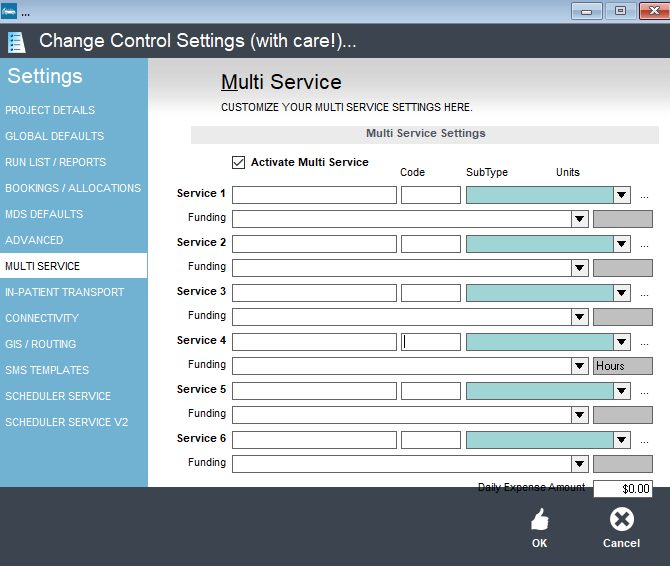
Activate Multi Service: Ticking this setting enables the multi service features of Trips, which means that you can record your providing other service types alongside transport events, eg if you are providing an SSP and transport event together you can record both event types. Allows up to six different service types to be recorded. Contact Trips support for assistance setting this up.
In-Patient Transport
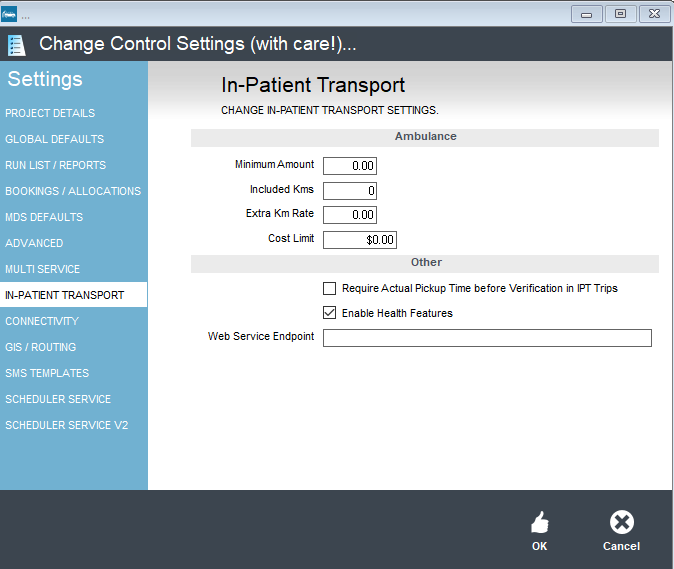
These settings are only used for Health Related Transport.
Connectivity
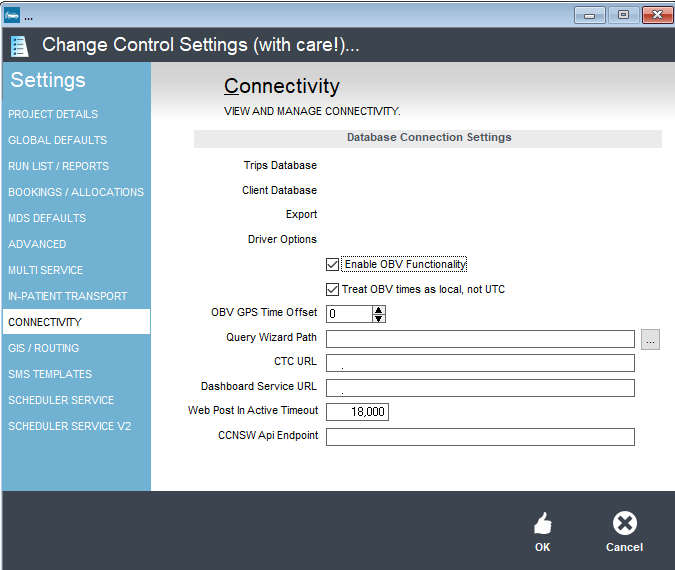
Should only be changed by Trips support.
GIS/Routing
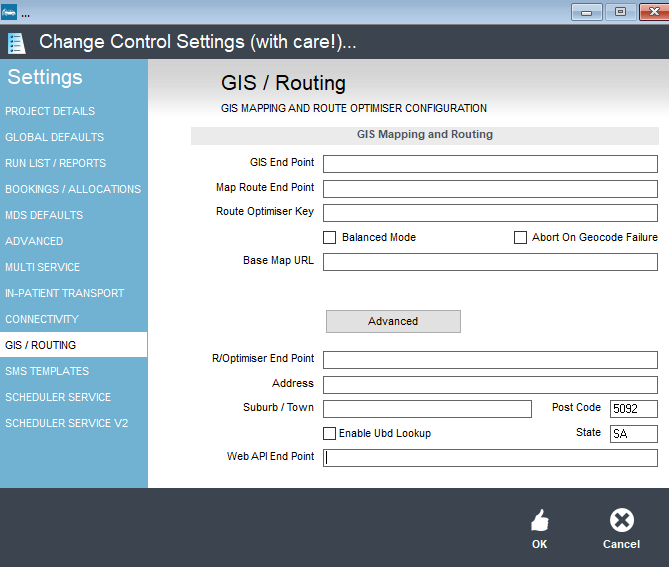
These settings are set by support for the Route Optimisation and Auto Allocation feature. These settings should only be changed by Trips Support.
SMS Templates
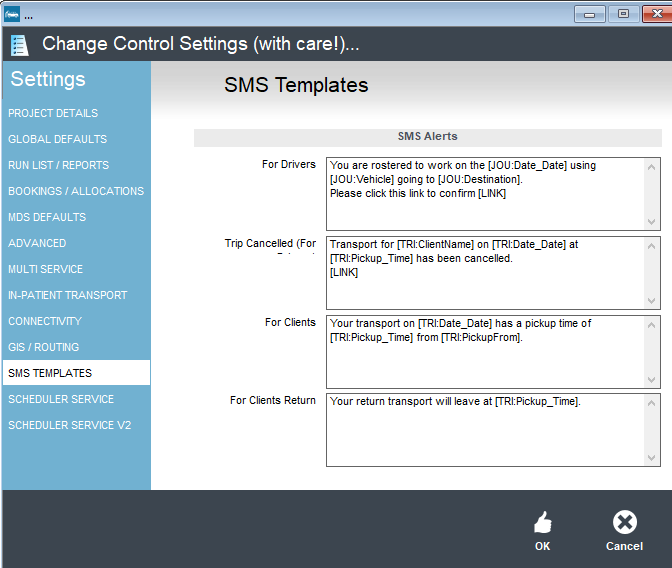
When sending out SMS Alerts, you can configure what the contents of those are. It is recommended that you check in with support before making any changes, as the formatting needs to be very specific in order to work properly.
\n
Scheduler Service
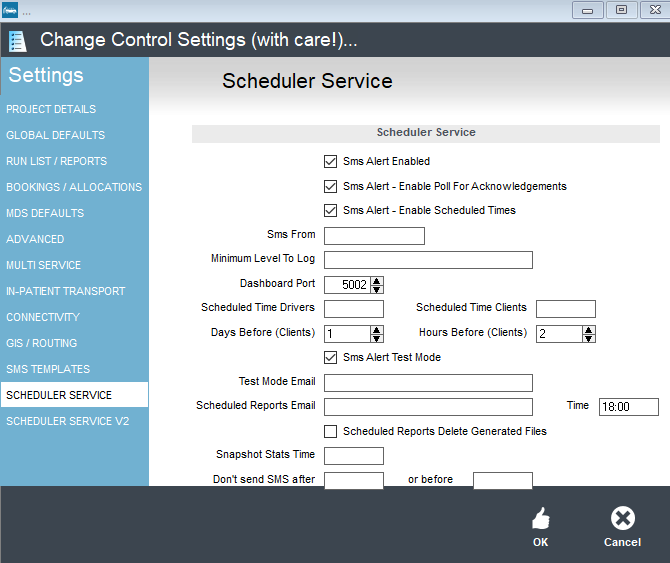
These settings are for users who have sms scheduling setup, please don't change without consulting Trips Support.