
Crew
All persons driving vehicles or assisting in client care for your service need to be entered as Crew Members. Once a person is entered as Crew, you are able to enter them against journeys or an activity the person has undertaken. Current Crew Members are listed in Main -> Crew. \n When entering a crew record, you are able to enter personal details such as their address, contact numbers, whether they are a volunteer or wage driver or a driver of their own vehicle, license details, medical dates and notes for that crew member e.g. availability, incompatibilities with clients or vehicles.
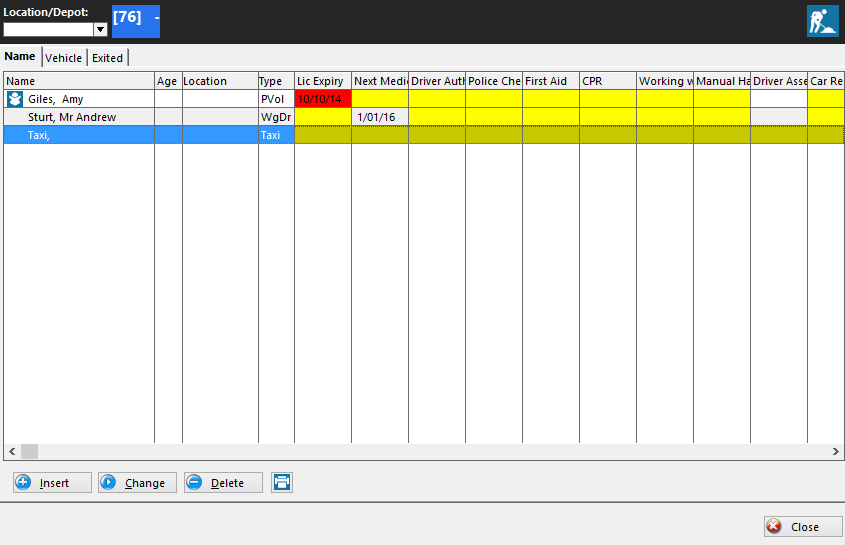
Insert or Changing a Crew Record
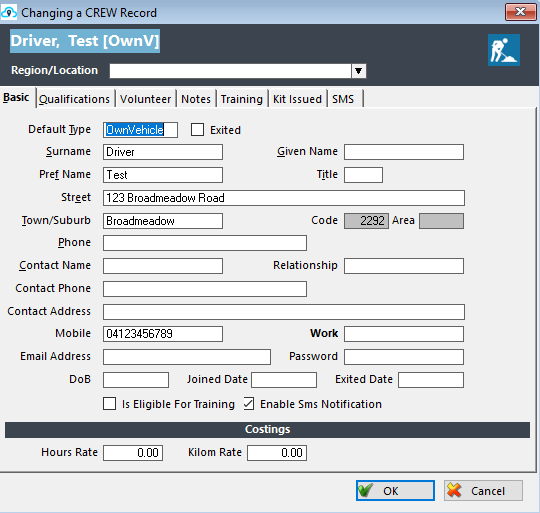
The Basics tab is where you enter in basic contact information about the crew member. The Contact Name, Contact Phone and Contact are for recording their Emergency Contact details.
When you have entered the Crew Member’s basic details and have selected what type of Crew member they are, click on Qualifications to enter license details. If a Crew Member has a Default type of OwnVehicle then the Volunteer tab will be visible, this is where you enter in details about the crew member’s vehicle. \n To enter information about the Crew Member, click on the Notes tab and enter the appropriate information. You are able to make changes and updates in this section when required. \n In the Training tab you can create training topics, and note if when they were taken by a crew member. \n The Kit Issued tab works similar to the training tab, in that you can create items of kit or equipment within Trips and mark if crew members currently have them and when they are due to be returned. \n The SMS tab is only visible if ‘SMS Alert Enabled’ is ticked in the Scheduler Service tab within Control Settings. This can be used to send one-off messages to crew members. \n If a Crew Member leaves the organisation you will need to exit the Crew Member, this is preferable to deleting anything. Tick the Exited box towards the top of the Basic tab, this makes the crew member no longer visible in the Crew page when looking at the Current tab. If you wish, you can also place an Exited date towards the bottom of the Basic tab.