
Custom Reports for Participants and Staff/Volunteers
There are many current reports available for Participants and Staff/Volunteers and these are outlined here:
There is also the option for you to create your own Custom Reports for Participants and Staff/Volunteers.
There may be a price for Custom Reports.
You need to start by requesting access to Custom Reports. To activate this please contact our Customer Care team.
Reports are able to be created and accessed by Administrators and Coordinators.
Once activated, to create your Custom reports, go to Reporting → Custom Reports

From here you can Add New Custom Report, Search for an existing report and edit or run an existing report.
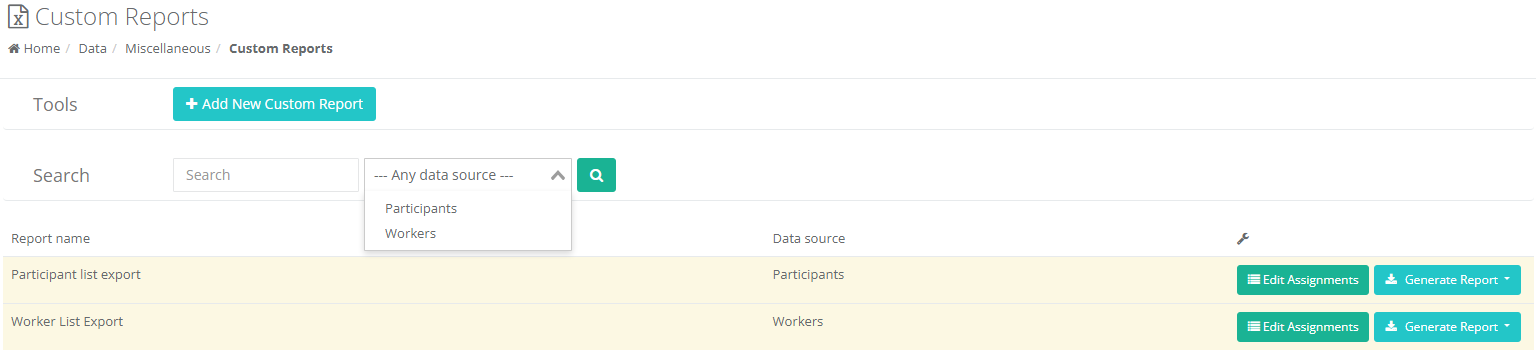
***Please note you cannot combine a Participant and Worker data source for a mixed report.
To add a new custom report, press +. add a Report name and select if the primary data source if from Participants or Workers.
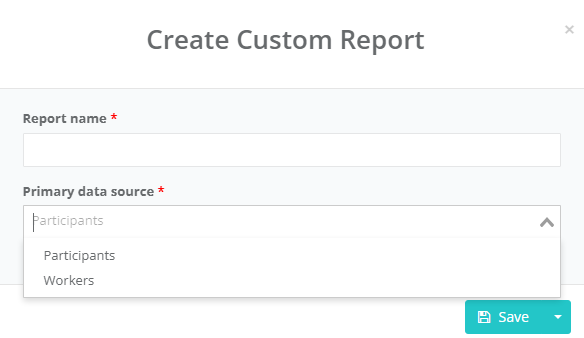
Once created you can then Edit the name or delete the report if needed.

Next step is to Edit Assignments where you choose which fields to apply to your custom report.
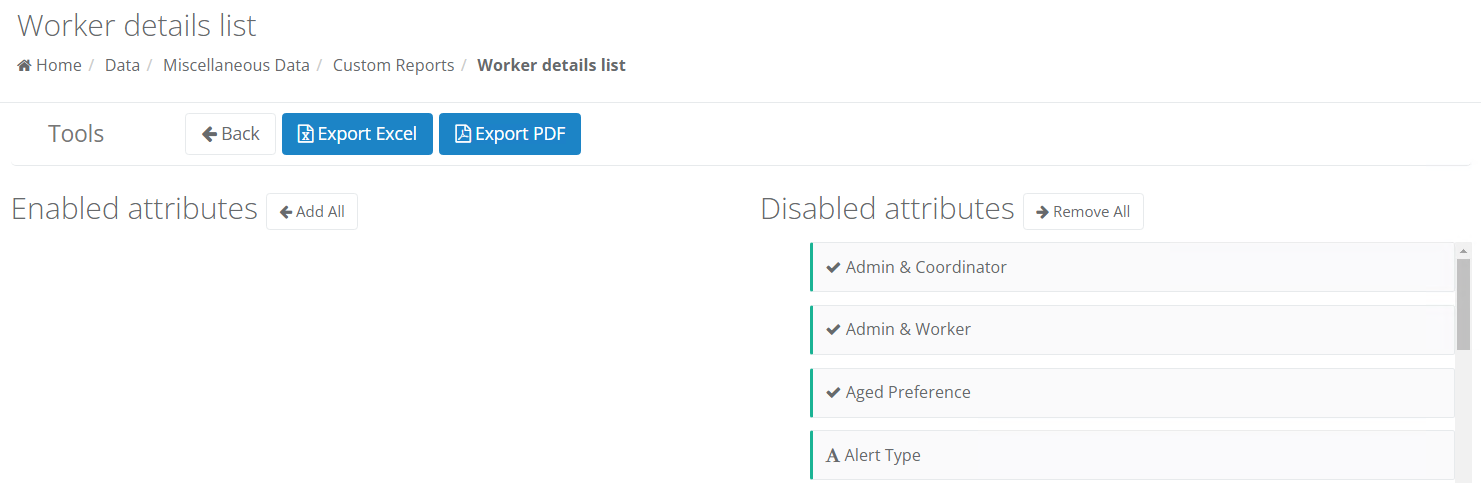
Scroll down the Disabled Attributes column and drag and drop your relevant fields into the Enabled attributes.
It will show an available slot to drop it into.
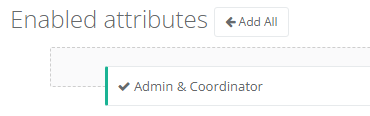
Keep adding all your required fields. It auto saves once you have completed the move.
You can also Add All or Remove All as a bulk task.
Once you have created your Custom report, it can be exported in Excel or as a PDF for easy saving or distribution.

This report can then be easily accessed and run based on your specific needs anytime via the Reporting → Custom Reports
Some reports can return very large data amounts, so we have added a Queue function that allows this report to be generated ‘behind the scenes’ and notify you once it is available. This means you can keep working on other tasks without any system lags.
To access this, click on the kebab icon and select Queue full export - choose Excel or PDF
Here is the notification you’ll see once ready:
You are able to create Custom Fields that will appear in these Custom reports as well. This is the same process to create Custom fields for Participants and Workers.
For information on how to create custom fields for Custom Reports Click Here - Step 25