
Guide to running TfNSW export from Trips
The TfNSW report includes any trip records with a Future or Verified status, of funding type CHS, CTP and HRT. Please note that the report specifically picks up only trips with those funding types, so you're unable to for example split up your CHS funding into multiple streams and have it all included.
It requires a high level of data accuracy and completion, making this a potentially time consuming task especially if running this for the first time. The report can (and will generally need to) be run multiple times to get an error- free export, so its recommended to start running this as early as possible in order to meet submission deadlines.
Running the Export
To run the export, in Trips go the Data tab. From here, press the ComT Export button. 
In the popup, select select a date range by either using the Month options on the left, or manually specifying a date range on the right. Click OK 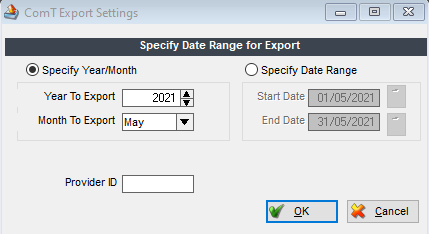
The report will take a few moments to process, and will let you know when its complete. Click Save As, and select a location you'd like it to save it to, make sure that this is somewhere accessible from your own computer. 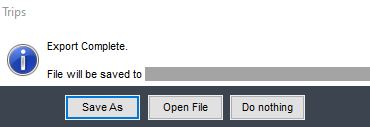
After being saved you'll be asked if you want to open the file - depending on how Trips has been installed for your organisation you will likely need to select No.
Navigate to where you saved the files, you'll notice that there are 2 files here that will appear similar to what's shown below. All of your TfNSW events will be in either the first file if there are no errors, or the INVALID file if there were. If you haven't already, copy both of these files over to your own computer.

Checking for errors
Open the INVALID file in Excel.
This file contains a single transport record on each row, with the reason(s) it could not be included successfully in the report. The error message lets you know the reason(s) why that transport event wasn't included in the report. Fix up any issues in Trips, then rerun the export. The INVALID report isn't submitted, so you can filter/edit/change or do whatever you'd like to help you get through the error list.
If wanting to look at a transport record from the export in Trips, there are a couple of ways to find this. Every client, journey and trip have a unique ID within Trips, these are included on the export
-
K Pickup Date - this is the date the transport took place. The column will likely need to be widened in Excel
-
AK CUSTOMER_INTERNAL_ID - This will appear in the format of 'TRIPS1234' with 1234 being the client's number in Trips. If you search for this number in the Clients section of Trips, the client with that ID will appear in the list. From here, you can click on the 'Transport' button on the top right to see all of their transport events.
-
AD RUN_ID - This refers to the journey number, or journey ID. This is shown in the trip list on the client page, and on the Journeys page in Trips
-
D Trip_ID: The unique ID of the trip itself.
Depending on the error being resolved, there's also other useful identifying information such as destination addresses or vehicle registration.
Error messages
You'll notice that some trip records have multiple error messages on them, this just means that there was more than one thing stopping the trip from coming through. This seems tricky initially to find all records with a particular error, but you can use the Excel filtering options on the first column to (for example) find all records with a 'drop_off_time missing' error, regardless of any other errors they have.
-
Country of Birth Code missing: This means that the client record doesn't have a Country of Birth listed. Go into their record in Client Central, and add a Country. The client IDs are different between Client Central and Trips, so you will need to find the client name in Trips using their ID in column AK, and then search for that client in Client Central.
If you have a large amount of clients with this information missing support@tmasoftware.com.au can add this in for you, but we can only add the same country for every client that doesn't have one, eg add Australia for all clients with a missing country.
-
Destination/Origin Latitude/Longitude missing: This is likely because the Destination doesn't have a Verified location. In Trips, go the Data tab, then click on 'Places'. The 'Verify All' button at the bottom will go through all Destinations and Verify what it can, its recommended to give this a go if you haven't before.
You will then likely still have a few that couldn't be verified because of invalid or incomplete information. Find the destination using the filter up the top, if its Verified it will have a green tick next to it. If it isn't Verified, double click on it to open it. Adjust/enter information as needed, and click the Verify button. If it can't verify the address, look for the address using the Google Maps to see if the postcode or other information is incorrect.
When saving an edited Destination, you will be asked if you want to update all Future bookings/trips - select Yes. Fixing this up for one destination record will resolve the issues for any trips in the export using this destination.
-
Drop Off time missing: Adjustments are still being made to this export to make things easier here, but for now contact support@tmasoftware.com.au to assist here. We can assist by copying over any OBV information regarding drop offs where there is any, and/or using a combination of the pickup time and estimated travel time to fill in missing information here.
-
Customer Preferred Language missing: This means that there isn't a main/preferred language entered for this client. You can enter this information into Trips, find the client record by searching for the TripID in the export and select a language from the Details tab of the record.
If you have a large amount of clients with this information missing, support@tmasoftware.com.au can add this in for you, However we can only add the same language for every client that doesn't have one, eg add English for all clients missing information here.
-
Dead Running kms: A new Trips app that we are working on will gather this information much more than it does currently, but for now this information is generally not captured in Trips and therefore cannot be reported on. Contact support@tmasoftware.com.au to more easily add missing information here, eg add 0 for any records missing this information.
-
Customer Birthdate: A date of birth needs to be entered in for the client. This can be entered in from the client record within Trips.
-
Type of Transport missing: Each transport event is either a DIRECT or INDIRECT type. This information is gathered from the journey when verifying a trip, its likely that the journey hasn't been verified. Go to the Register/Verify page in Trips, select the date that you can see from the PICKUP DATE column in the export, and look for a journey that isn't verified. Verify it from this page by double clicking on it, going to the Costings tab, and using the Verify button there.
-
Trip Distance kms 0 or missing: Contact support@tmasoftware.com.au for assistance here. We have a process that goes through Trips and adds in kms based on estimated travel distance and destination coordinates, but this is resource intensive and best done out of hours. To help this process along, its recommended that you resolve errors regarding missing latitude or longitude information first as this will then assist with resolving missing kms data.
After fixing errors, repeat the steps above to run the Export from Trips and check again for any errors. Its no problem to delete the previous exports and just use the most recent ones. Ideally you will end up with no transport records in the INVALID file, meaning that all of your transport events will have successfully made it over to the other file. Its this file that can be submitted to TfNSW.