
How to hide unpublished rosters using Confirmed status
There is a setting available that will hide any support from appearing in the worker app if it is not confirmed.
Go to Settings > System Settings > Roster Show Confirmed transactions only

This is useful if you are still finalising future rosters and do not want to yet make them public.
This can be done for each individual support by editing it and scrolling down and selecting Confirmed.
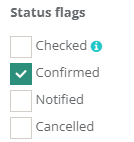
The good news is that you can bulk update the status of your supports to make them confirmed.
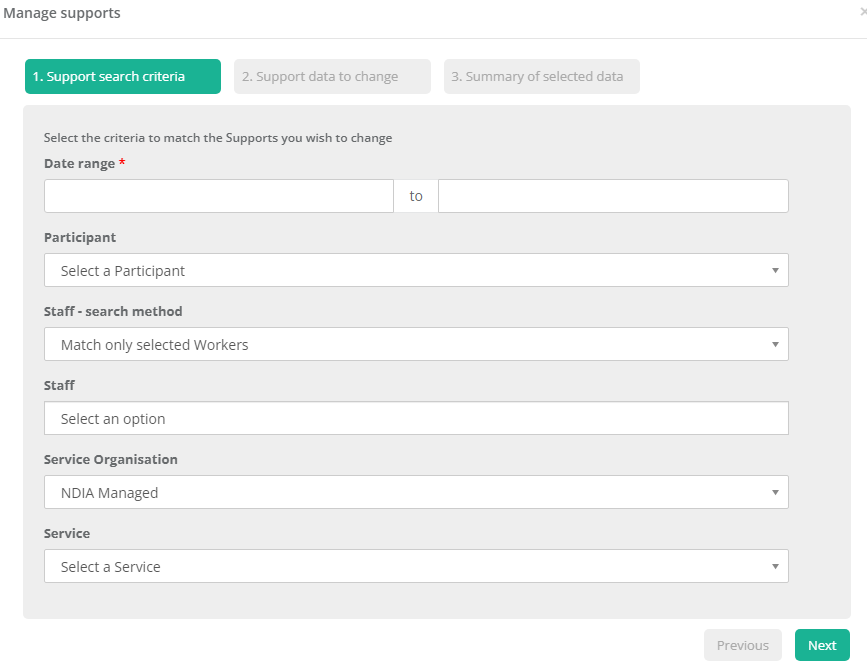
Go to Supports > All and look on the righthand side for the Manage button.

On the first page, use the fields to narrow down your requested supports to update.
Choose a Date Range / Participant(s) / Staff / Service Organisation and or Service and click Next.
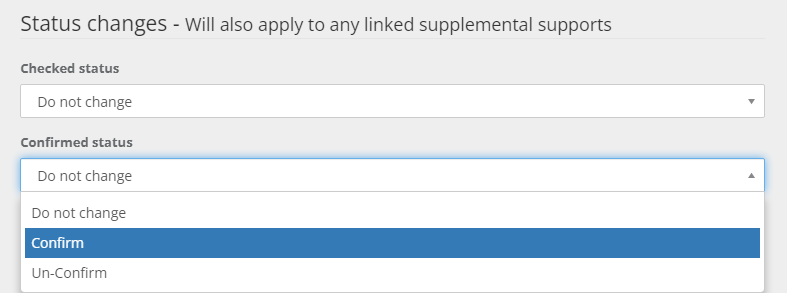
On the second page, change the Confirmed Status from D not change, to Confirm and press next.
The final page will display all of the affected supports. When ready press Finish to make the change. 
Now only the Confirmed supports will show in the worker roster. Remember to keep doing this as you publish each roster to make sure your selected timeframe of supports are visible to your workers.