
How To Invoice Clients/Participants Manually?
NOTE: This is only relevant for organisations who do not use our invoicing integrations (Xero, MYOB, Reckon).
CareMaster has a range of reports and invoices available to export in order to keep your invoices and finances in order. These can be found from the Reporting Section of Caremaster from the main menu. After clicking on Reporting, the menu will expand and you will need to select a report Category to proceed. For invoices, click on the Account section.
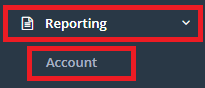
After clicking on the Account section you'll get a drop down box with a selection of the reports to choose from.

Can I manually edit the invoices?
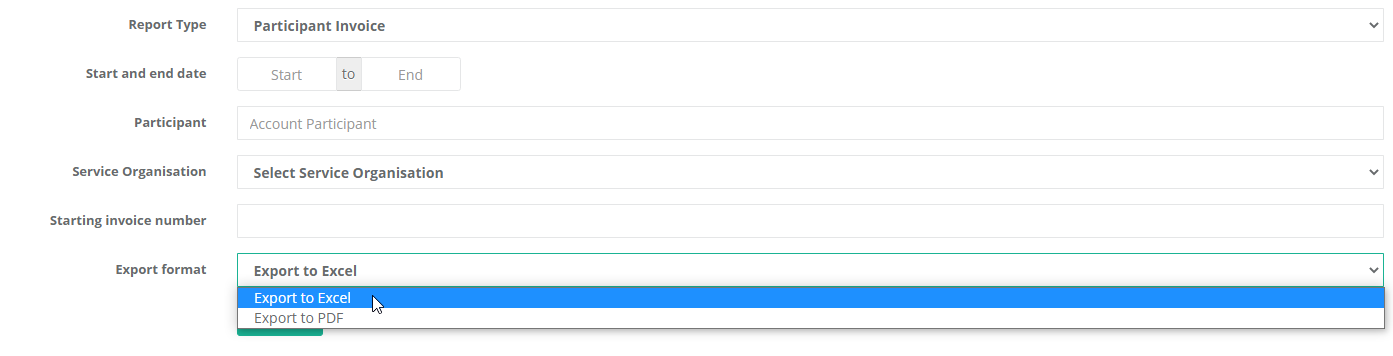
Yes you can, often you may need to manually adjust prices or other information before sending out an invoice. After selecting a report you'd like to run from CareMaster, alongside the filters you'll see a drop down box labelled Export format. You can choose to have the reports export in either an Excel format where they can be edited or added to, or a pdf format.
Can I add any notes or extra notes or information to the invoices, for example payment/banking information, or if the prices have GST included?
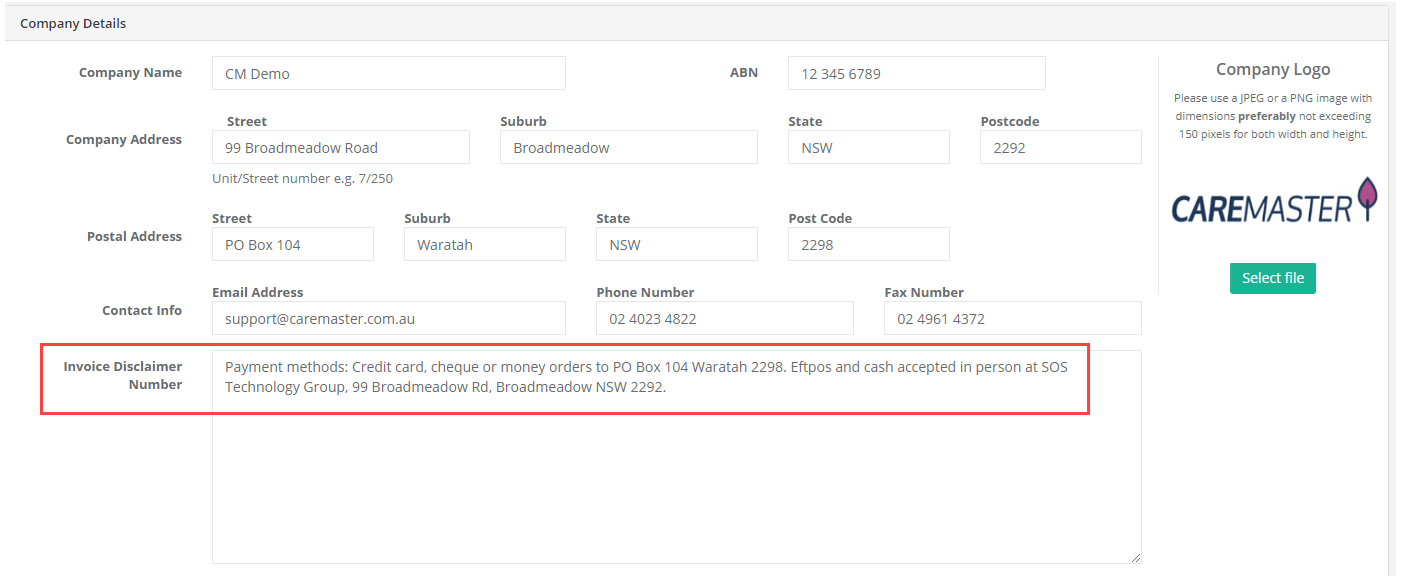
Yes you can. If you go to Data > Company details, there is a section there labelled 'Invoice Disclaimer' to add additional notes that will appear on all of your invoices. We recommend quickly running a test invoice to check that it appears as you'd like.
Does running the report mark a support or client as having been invoiced?
Yes, running the reports will mark supports as invoiced and dated for the day the report was run, however, you can run and re-run the reports as much as you'd like. We recommend avoiding using these reports, or using them with care if you are using the Xero, Reckon or MYOB integration for invoicing.
There seem to be some items missing from the export?
- Firstly check that the missing supports haven't been cancelled with a non-billable cancellation code as these won't show up in invoice reports.
- Confirm that the items are marked as 'Checked'
- Look at the configuration in Admin > Service Organisations, select the Service Organisation and then the Service being selected. Ensure the 'Include on Invoice Reports' box is ticked. If this box isn't ticked, any supports that had that service selected will not appear in invoice reports.
- Check if the support has already been invoiced. You can check this on the support in the Payment tab.