
How to run a MYOB AccountRight Invoice Export?
Required Setup Steps:
All clients need to be set up in MYOB as Individual with their first name and last name identical to what is in CareMaster. MYOB matches on the card ID field AND their first and last name so if these do not match, it will not import them.
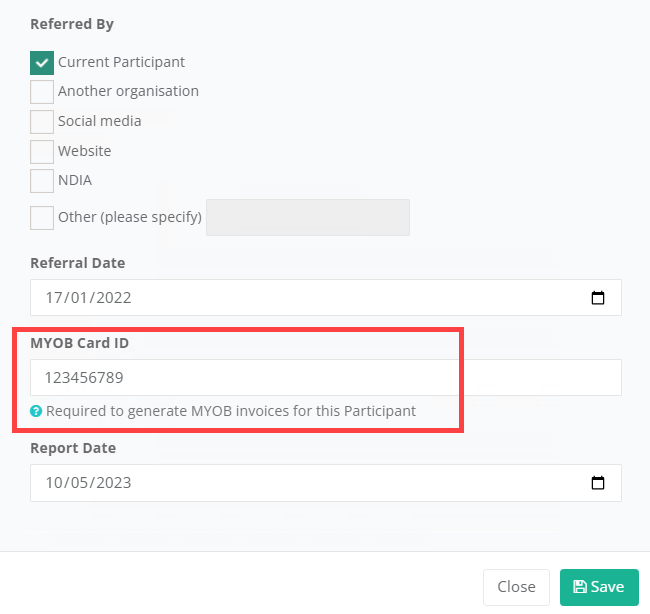
You will have to enter in Card ID for the participants. This is on their profile in the Service Provider Information popup.
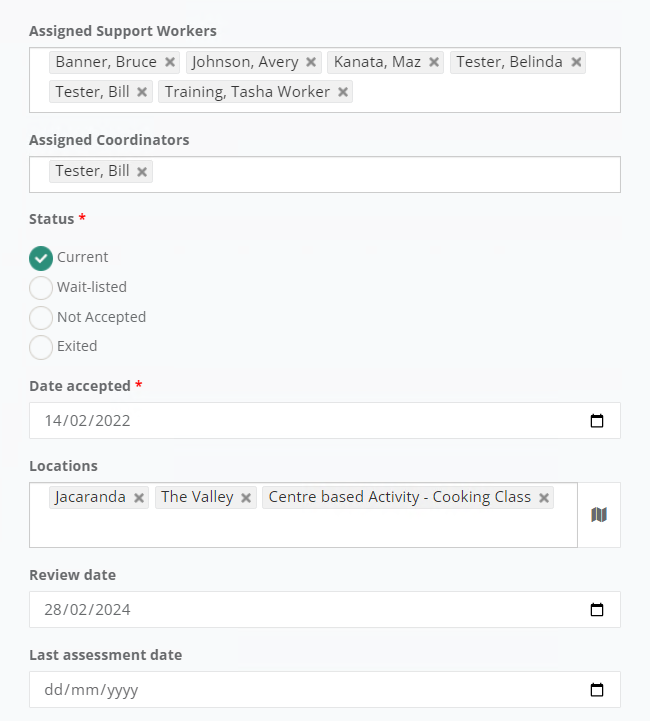
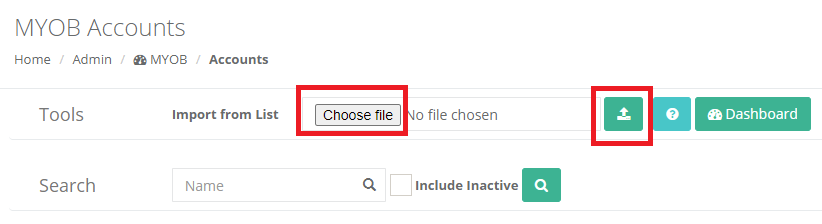
You will need to import a list of Accounts. You can do this by exporting a list from MYOB Accountright and then going to Admin → Integrations → MYOB → Accounts and using the Import From List function.
 Once you have imported these accounts, you will need to go to Admin → Integrations → MYOB → Settings and assign the default services income account.
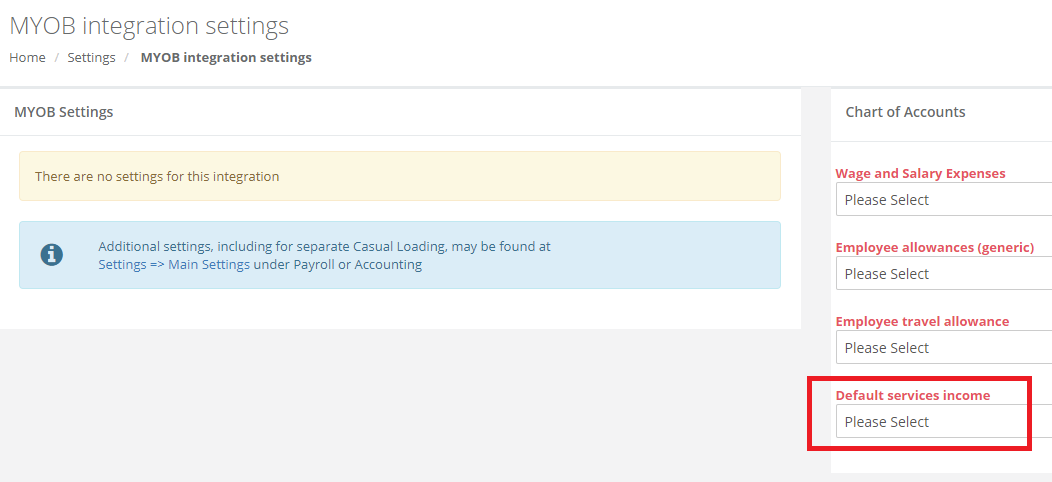
The setting section will also allow you to adjust the line item templates. Make any required changes and save here. 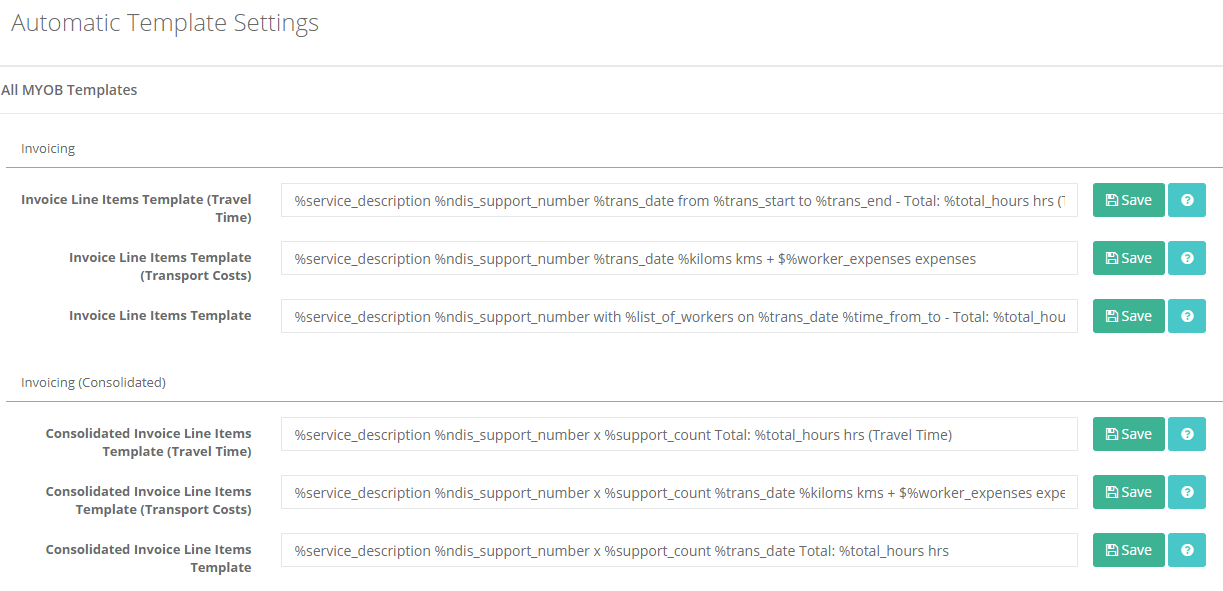
The options available here for Invoicing are:
- Invoice Line Items Template (Travel Time)
- Invoice Line Items Template (Transport Costs)
- Invoice Line Items Template
- Invoice Line Items Template (Centre Capital Costs)
- Invoice Line Items Template (per 1Waytrips)
- Invoice Line Items Template (per Annual)
- Invoice Line Items Template (per Code)
- Invoice Line Items Template (per Day)
- Invoice Line Items Template (per Deliveries)
- Invoice Line Items Template (per Dollars)
- Invoice Line Items Template (per Each)
- Invoice Line Items Template (per Monthly)
- Invoice Line Items Template (per Number)
- Invoice Line Items Template (per Various)
- Invoice Line Items Template (per Week)
- Invoice Line Items Template (per Year)
- Invoice Line Items Template (Non-Face-To-Face)
- Invoice Job ID template
The options available here for Consolidated Invoicing are:
- Consolidated Invoice Line Items Template (Travel Time)
- Consolidated Invoice Line Items Template (Transport Costs)
- Consolidated Invoice Line Items Template
- Consolidated Invoice Line Items Template (Centre Capital Costs)
- Consolidated Invoice Line Items Template (per 1Waytrips)
- Consolidated Invoice Line Items Template (per Annual)
- Consolidated Invoice Line Items Template (per Code)
- Consolidated Invoice Line Items Template (per Day)
- Consolidated Invoice Line Items Template (per Deliveries)
- Consolidated Invoice Line Items Template (per Dollars)
- Consolidated Invoice Line Items Template (per Each)
- Consolidated Invoice Line Items Template (per Monthly)
- Consolidated Invoice Line Items Template (per Number)
- Consolidated Invoice Line Items Template (per Various)
- Consolidated Invoice Line Items Template (per Week)
- Consolidated Invoice Line Items Template (per Year)
- Consolidated Invoice Line Items Template (Non-Face-To-Face)
- Invoice Job ID template (consolidated)
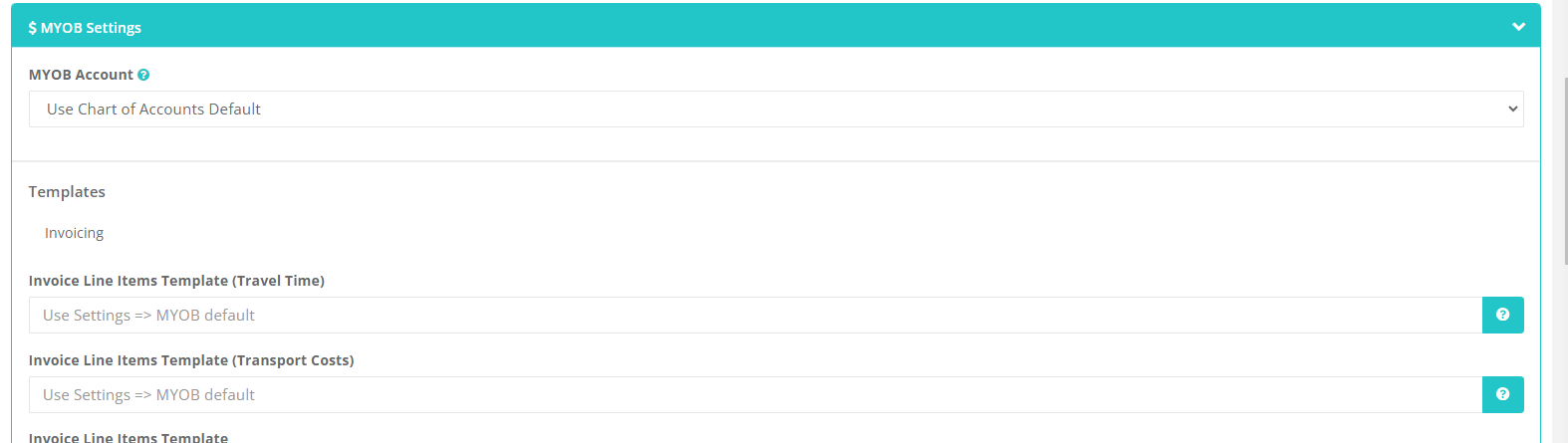
You can also set the line item templates and account per service organisation and service by going to Admin → Service Organisations → editing the service organisation and clicking on the MYOB Settings under Integration Settings:
-
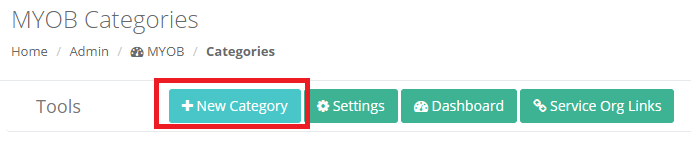
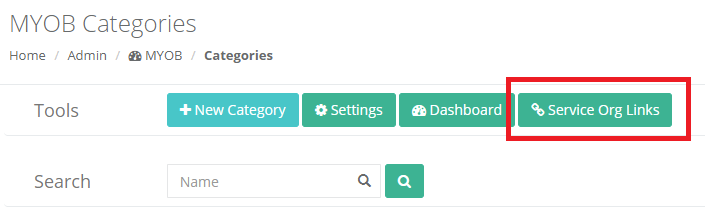
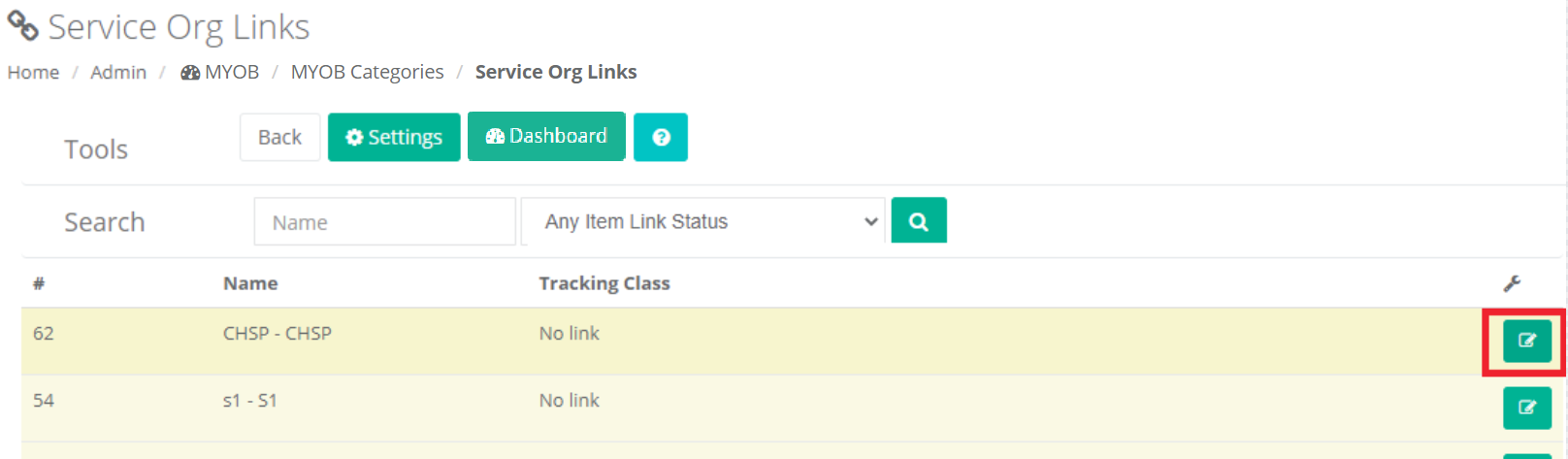
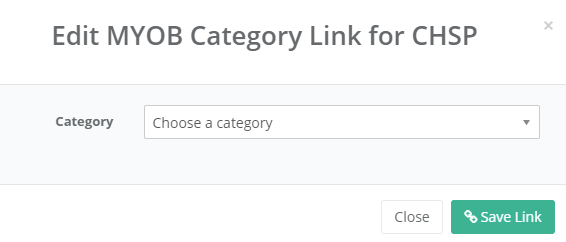
If you would like to use categories, you will need to make sure that you have added these and linked them by going to Admin →Integrations → MYOB → Categories. You will need to use the New Category button to manually add them, then you will need to use the Service Org Links button to assign the categories to appropriate service organisations.
Generate Invoice TXT File:
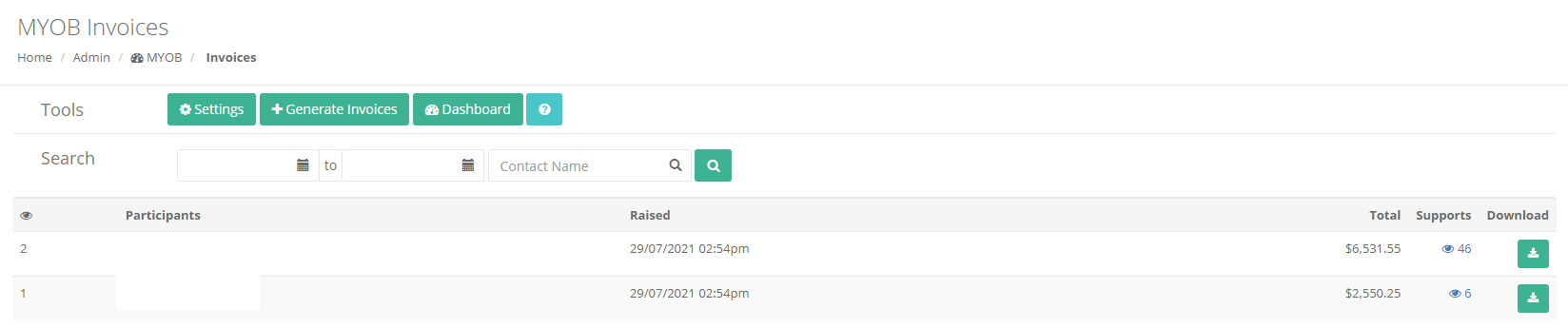
Once you have set up the accounts and assigned them, you can now go to Admin → Integrations → MYOB → Invoices.
The main page will display a list of invoice files that were previously generated with the ability to download the file again.
To generate new invoices, click on the Generate Invoices button.
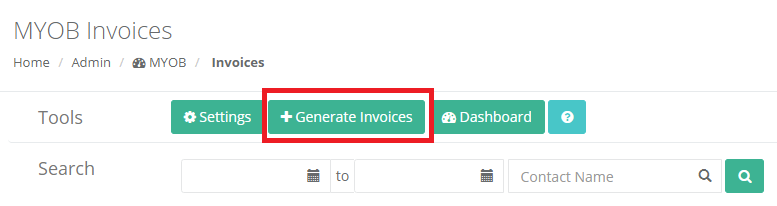
A list of all supports available for invoicing are displayed.
You can use the Search filters to filter the invoices by date, client name and/or service organisation.
Once you have the list of supports you wish to invoice, you can place a tick in the include column and click on Export Selected.

If you would like to review or manually adjust an invoice, click on the Manual button.

Here you can change the invoice date, the line item description, the account and/or category. You can also untick a line on the right hand column and it will not invoice that support.
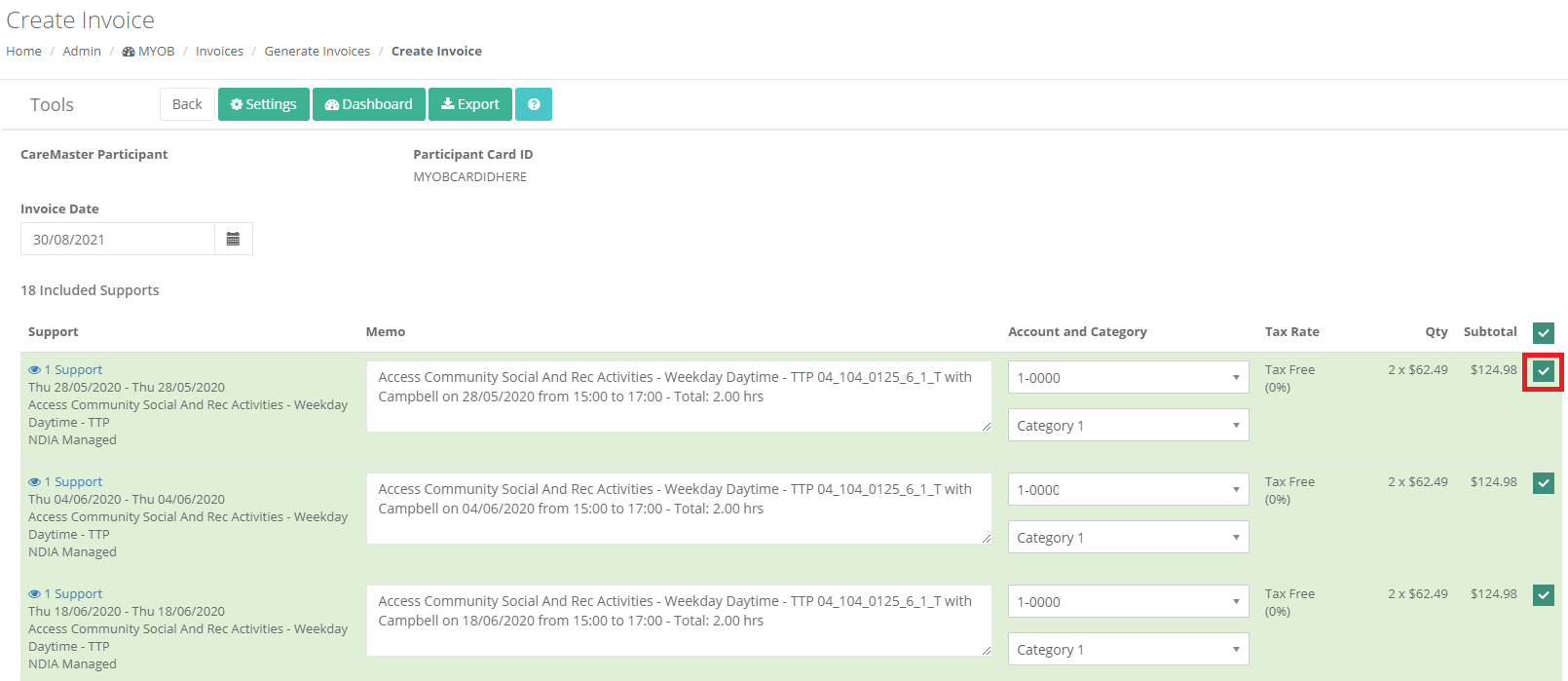
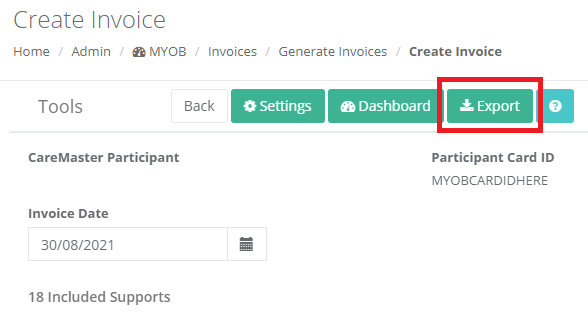
If you manually edit the invoice, you will need to click on Export at the top of the page or the bottom. Any manual changes you make to the invoice will not update the corresponding supports in the system, it will only change the invoice. Once you navigate from the page, any unexported changes to the invoice will not be saved.
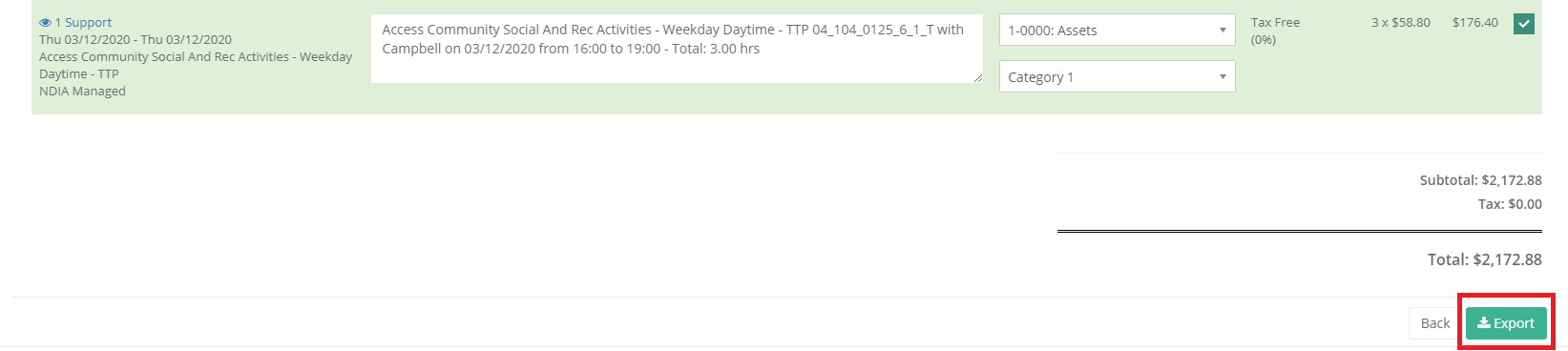
Whether you exported all selected or you manually exported a single invoice, you now have a file that you can import into MYOB Accountright.
If you are unsure on how to do this, the basic guide below goes over how to import into the desktop version of MYOB Accountright. Otherwise you will need to contact MYOB support for assistance.
Please note: Before you start your import, be sure to make a back up of MYOB first. That way you can restore the backup if the import is not correct or you run into any issues.
-
Follow the instructions above to generate the file. You can open it in Excel if you want to double check the contents before importing by right clicking on it and selecting Open With and then navigating to Excel.
-
Once you have done that, you can go into MYOB → File → Import/Export Assistant.
-
On the Welcome tab → select Import data.
-
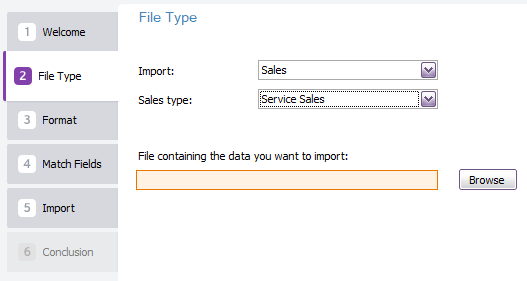
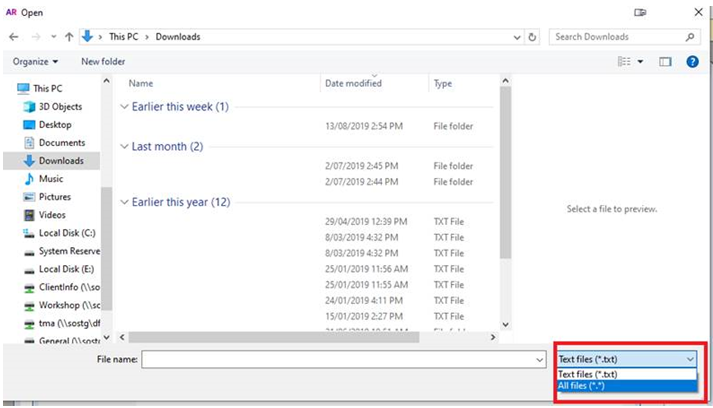
File Type → Import → Sales → Sales type → Service Sales. The file you want to use is the one you generated.
-
Format tab → data is separated by Commas and has Headers or Labels.
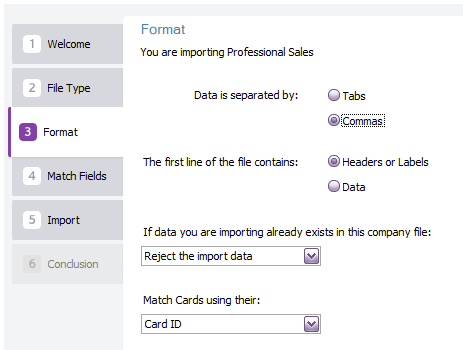 Make sure you pick Card ID for the Match Cards using their option.
 -
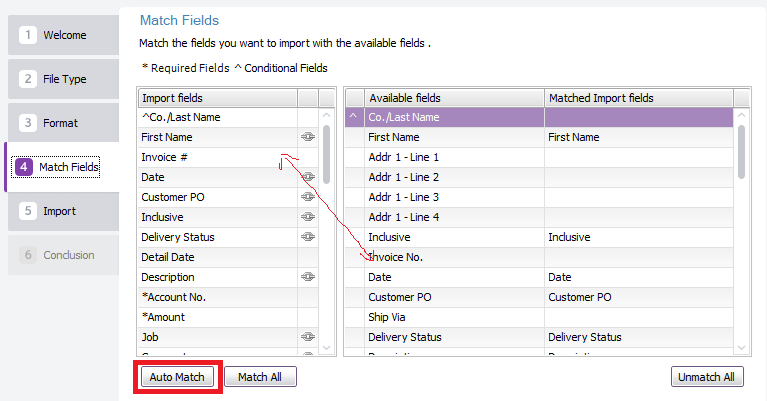
On the Match Fields tab use the Auto Match button to match most of the fields, then manually go through and manually match any remaining. To manually match, click on the Import fields option in the left column and then you click on the matching field in right column.
-
The next tab prompts you to do a backup - if you have not created a backup, please do so. If you have you may skip this step.
-
Click the Import button.
-
Any errors displayed will be listed in a log file, you can click on the click here option on the last tab to find out what these are.