
How to Send SMS/Email Notifications to Workers?
CareMaster has the functionality to send email and SMS notifications from the system. CareMaster will not send SMS messages or emails unless you manually adjust the settings below.
Please note: A SMS can be as short as 1 character or as long as 160 characters. Any SMS messages sent from CareMaster costs 15c per message. This fee is billed monthly and will be incorporated into your standard invoices.
CareMaster will not send SMS messages or emails unless you manually adjust the settings below.
The worker notifications can be used to:
- Automatically remind staff of services they are scheduled for on the next day
- Notify several potential workers of a support that requires worker(s) to be assigned. The first workers to click on the sent link will be automatically assigned to the support.
- Send the roster out to workers (more info)
For this functionality to occur, there are few pre-requisites:
- Some back-end configuration to be turned on by CareMaster Support, check with the Customer Care Team to check if this is on. Note that the same back-end functionality is used for both Email and SMS Notifications
Settings to be manually set up for each individual staff member.
In a worker's CareMaster record, open the Contact Information section.
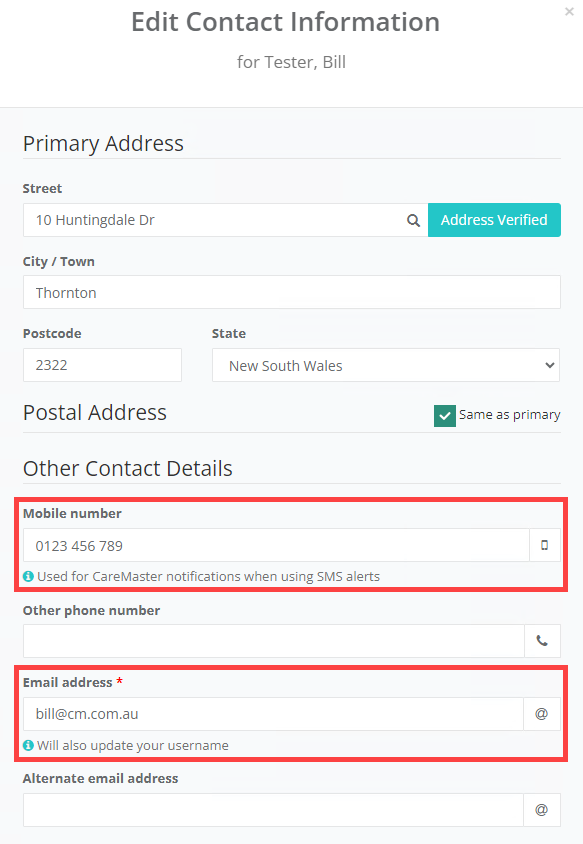
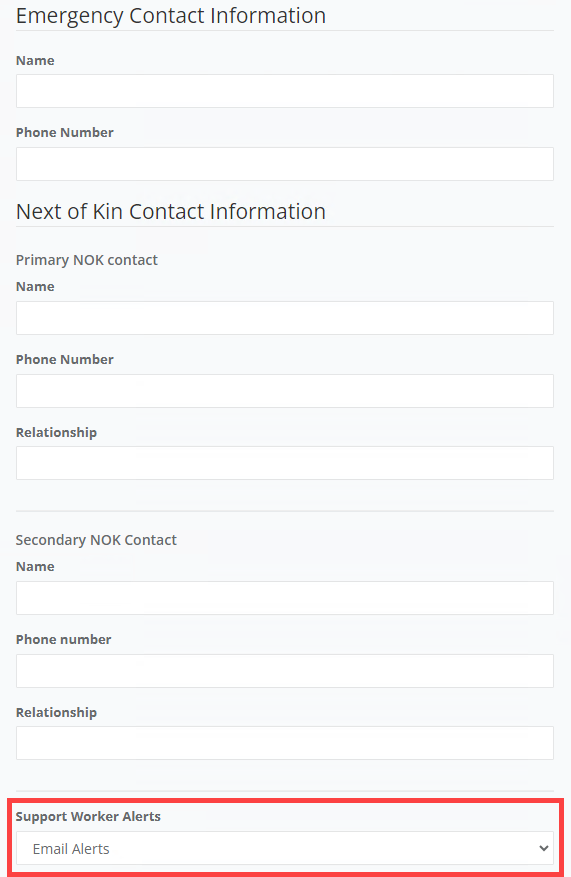
The Mobile Number and Email Address fields are the information used to send any alerts. The Support Worker Alerts field determines which kind of Alert (Email/Mobile/None) is sent to each individual worker, but this can be overridden if desired below
- Settings > Work Notifications*:* This is where Global settings for notifications can be set, as well as a change to templates.
A few last things to note:
- Note that the above functionality is separate to other emails being sent out from CareMaster, for example Forgotten/Reset Password emails. However like the SMS/Email Scheduler, this is also dependent on email server settings having been configured.
- We also send out shift update reminders to workers if a notification has already been sent out to a worker for a support if any of these fields are updated in the support:
-
date of support
-
start time of support
-
end time of support
-
transport pickup location
-
transport drop off location
-
if support has been cancelled
-
support notes
-
vehicle has been changed
-
assigned workers have been changed
-
Applicable Settings
The below can be set from Settings > Worker Notifications:
-
SMS/Email Notifications - Day of Options: Choose a time to send a login reminder: Do not send or choose 15, 30, 45 or 60 minutes before the support.
-
SMS/Email Notifications - Time after shift to auto clock off: Auto logoff shifts: Do not send or choose 15, 30, 45 or 60 minutes after.
-
SMS/Email Notifications - End of day options: Choose a time to send a logoff reminder: Do not send or choose 15, 30, 45 or 60 minutes after.
-
SMS/Email Notifications - Day before options: Shift reminder for tomorrow: Do not send or choose from 4:00, 4:30, 5:00 or 5:30.
-
SMS/Email Notifications - Worker SMS Reply Number: Use the field provided to enter in a Mobile number for workers to reply to SMS Notifications. If the SMS reply number is not entered; the number will default to an un-manned number and replies will not be recorded.
-
SMS/Email Notifications - Override worker broadcast method: There is the option to individually set alert type notifications within a worker's record, but that can be overridden here if desired. This doesn't change the settings currently within the worker record, but overrules them. Please note this only impacts broadcaste
-
CareMaster also allows you to edit the notification templates that are sent out to workers.