
Places
The Places (previously known as Destinations) will assist you with data entry when entering trips for clients. Enter all destinations your service regularly attend, for example Doctors, Specialists, Shopping Centres and other regular drop off and collection points. Creating a Places list will save you time and improve data accuracy.
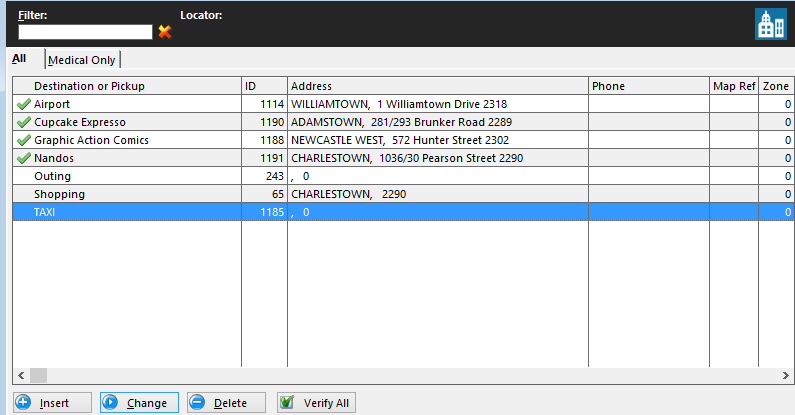
To create a new place, click on Data then select Places. The All Destinations list will display. Click Insert then after filling in the required details, click Verify. This will ensure you have entered a valid address. If the address is valid, you will get a message stating successful and will show the address on a map. There is also a “Verify All button”; this will check all addresses in the destination list are valid. \n If you flag it as medical destination it will appear (and can be printed) in a separate list for medical destinations only, while also remaining on the All Destination list. To flag as a medical destination, tick the Medical Flag box.
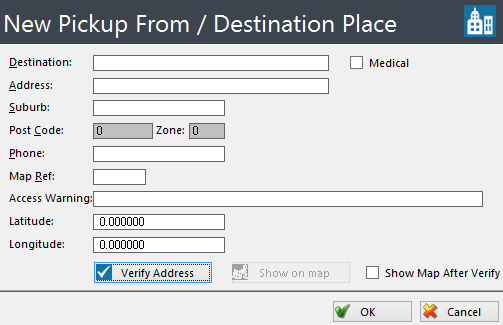
Enter all details in the fields provided. Once entered, click OK and the new place will appear in the Places Browse file.