Transaction List Export
The Transaction List Export allows users to export the filtered supports, listed on the
Supports→ All menu
Users can customise the export by adding or removing the fields displayed within it.
How to customise the report.
To manage the fields displayed with transaction list export, go to menu:
Data → Support Data → Transaction List Export
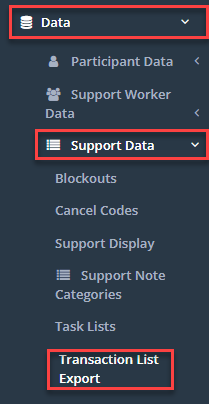
The screen will showcase both the Available fields and the currently Assigned fields.

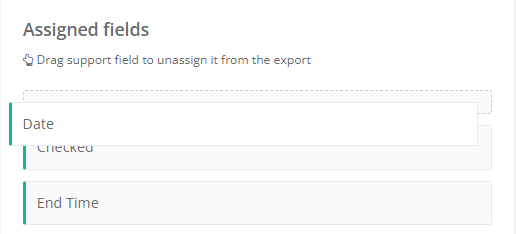
To modify the fields, simply drag the necessary support fields into the Assigned fields section.

Users also have the flexibility to vertically rearrange the fields within this section, enabling them to personalise the sequence of fields in the export
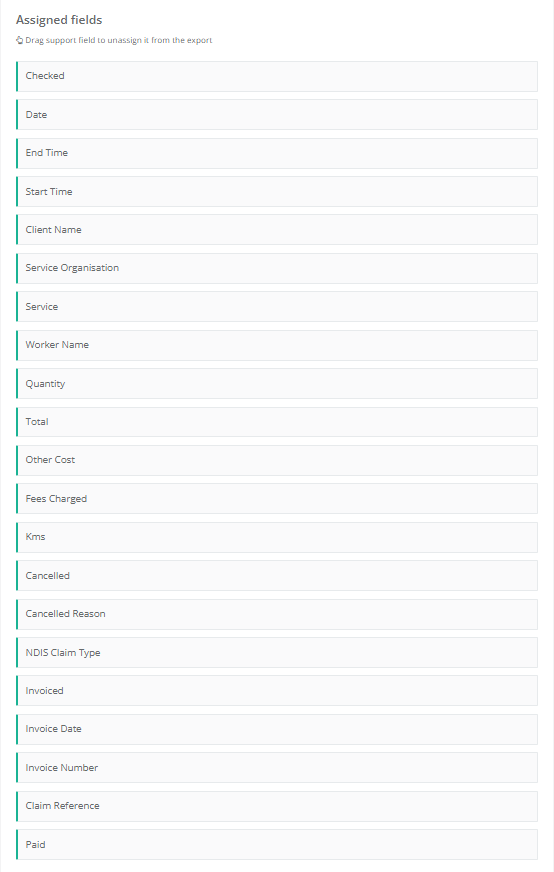
Below is a list of the commonly Assigned Support Fields
How to generate the export report
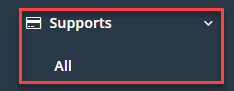
To generate the Transaction List Export, go to menu Supports > All
Apply the necessary filters, such as the date range and Participant Name, and then click on the Search button.
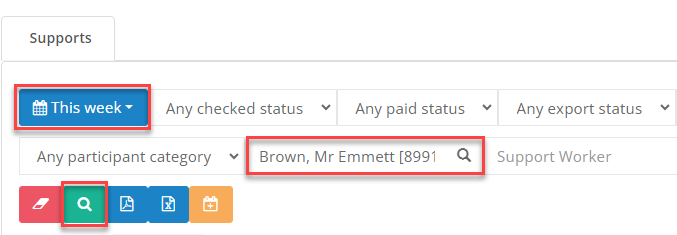
To generate a pdf file of the export, press the PDF button

To generate an Excel file, press the Excel button.

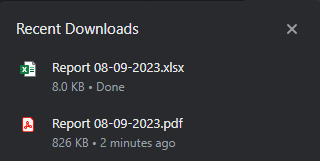
The requested file will be accessible in your system’s download folder. Open the required file to view the data.