
User Guide: Employment Hero - Timesheet Export Reports
Employment Hero - Timesheet Export Reports
Did you know your workers must clock on to every support, using the mobile app for their timesheets to be created?
As an example, if a support worker was rostered onto 10 supports during the pay period, the support worker should have 10 timesheets.
Inevitably some workers will not clock on to supports (using the Mobile app) and naturally the app will not create timesheets for them.
The process below shows how to:
Review the workers rostered supports.
Review the workers timesheets.
Generate missing timesheets.
Approve the worker timesheets.
Run the Employment Hero Export Report.
Review the workers rostered supports.
In CareMaster go to menu Supports > All.

Using the filters select the pay period dates, the workers name and click on the search icon to bring up the worker’s supports.

Take note of the number of supports the worker was roster to.
Review the workers timesheets
The next step is to view worker’s timesheets for the same pay period.
Go to menu Staff/Volunteers > Timesheets. Right-click on Timesheets and select "Open Link in New Tab". This will open a new tab in Chrome, displaying the workers timesheets.
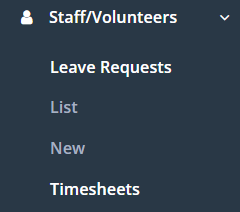
Having the 2 CareMaster tabs open will help you compare the
workers Supports vs Timesheets.
Use the filters to search for the worker’s timesheets.
Make sure on both the SUPPORT and the TIMESHEET tabs you are searching, have identical filters for the pay period dates and the worker’s name.
Then click on the search icon to bring up the worker’s timesheets.

Now compare the worker’s Supports against their Timesheets.
Do they match?
Do you have 1 timesheet per support?
If a worker were rostered and they worked but no timesheets came up – it is because they did not or could not clock on via the mobile app.
Generate missing timesheets
In this step you will check that the timesheets are accurate before creating any missing timesheets.
If you need to adjust time, date, or add KM travelled - click the “pencil” icon to edit the timesheet and save.

Next, to create missing timesheets go back to the “SUPPORTS” tab you have opened for the worker.
Refer to the column called “CHECKED.”
If the worker did not log on to the support, you will need to update the supports “Checked’’ status.
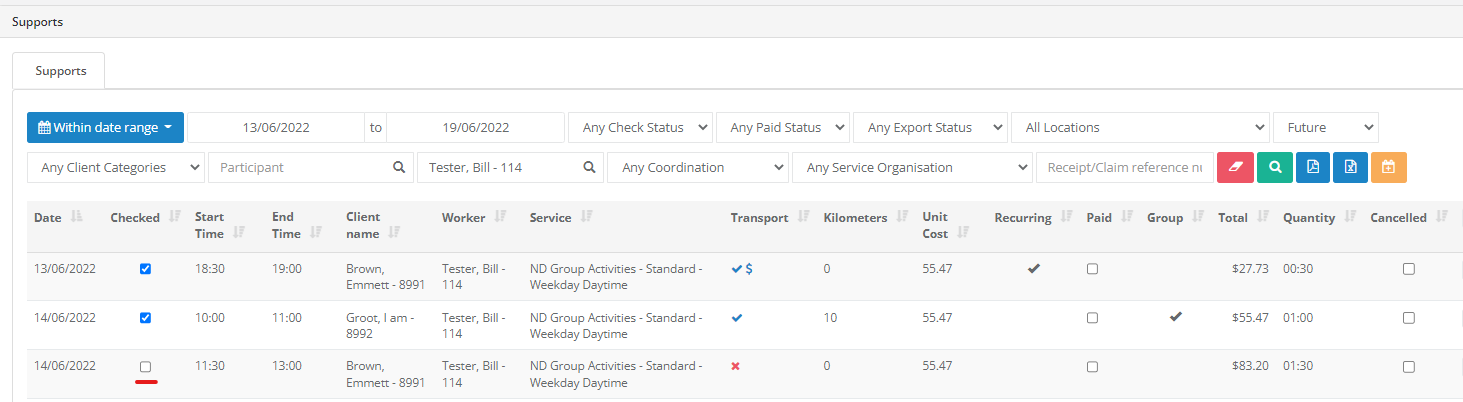
Supports not marked as Checked will not generate timesheets.
After updating the supports “Checked’’ status. Click on the yellow icon on the right-hand side of this screen.

This button creates missing timesheets only, so there is no fear of duplicating existing ones.
Approve the worker timesheets.
It is time to go back to the TIMESHEETS tab again. Go to menu Staff/Volunteers > Timesheets.
Reapply the filters to search for the worker’s timesheets. You should now see all the missing timesheets for that worker in the pay period.
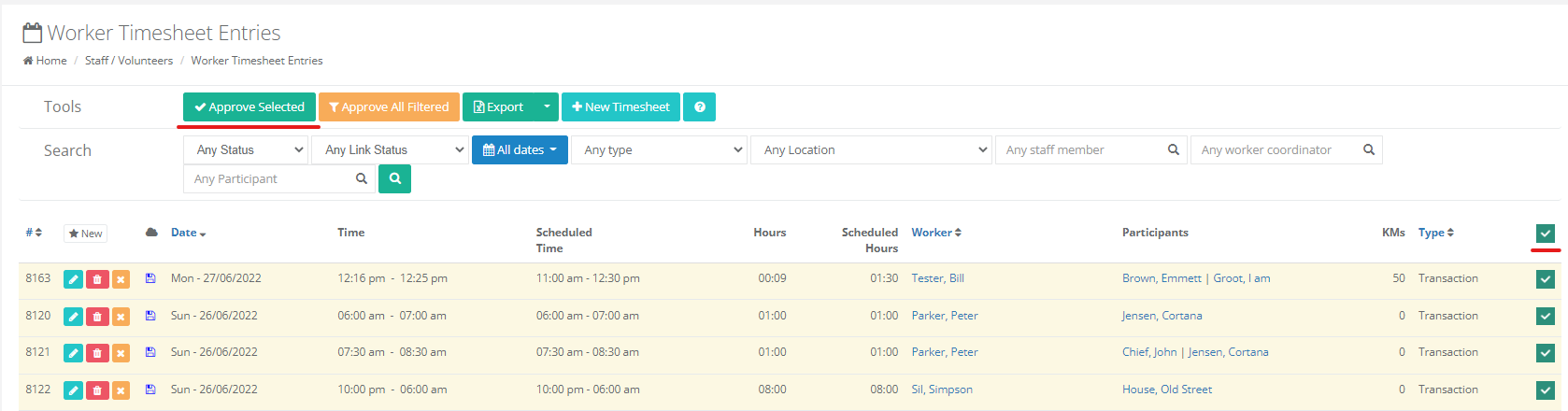
To approve the workers timesheets one at a time. Click the yellow “(X) cross” button to turn it into a “tick.”

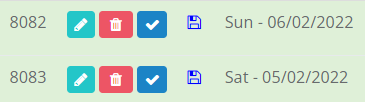
Did not meant to do that just yet? Just click the “tick” and it’ll turn back to “X.”
To bulk approve the timesheets, select them all and click on the “Approve Selected” button.
Run the Employment Hero Export Report
After you have approved all the worker timesheets, the data is ready to be exported. (The process below shows how to export the data) After exporting the data, you to need to import it into Employment Hero.
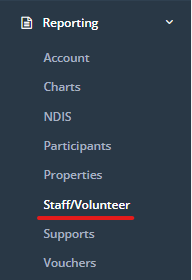
Go to menu Reporting > Staff/Volunteers.
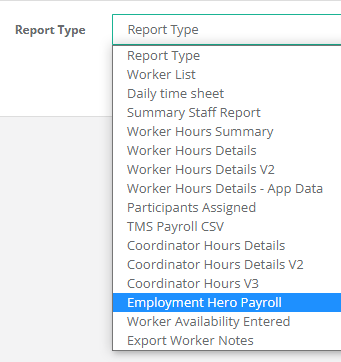
Click in the Report Type field and select the Employment Hero Payroll report
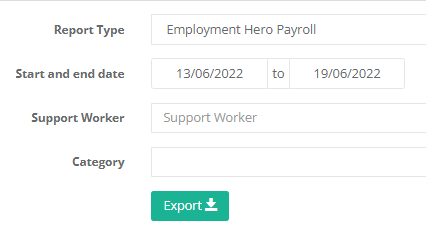
Enter the pay period dates in the Start and End date fields.
Leave the worker field blank to export all your workers approved timesheets for the pay period.
Then press the Export button.
CareMaster will download the employment hero reports into a .zip folder.
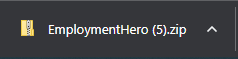
Open the folder to view the reports. The data is ready for you to import into Employment hero.
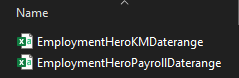
Please refer to Employment Hero how to import the timesheet data.