
User Guide: HCP Funded Participants Setup Guide
HCP Funded Participants Setup Guide
Please note: This guide explains the steps setting up the HCP participant’s funding information, including how to:Setup the HCP Participant’s Funding detailsMake Adjustments Generating StatementsDeleting Statements created in error.
Step 1: Entering the participant funding details
Go to the HCP participant’s profile. Click edit on to the Funding Information Tab.
Select the HCP core funding type and the required custom funding types. (Please note the custom funding types may appear different in your CareMaster database)

Enter the participants My Aged Care Number and Care Recipient ID.
Please note, the Care Recipient ID is required for the HCP Bulk Invoice Export.
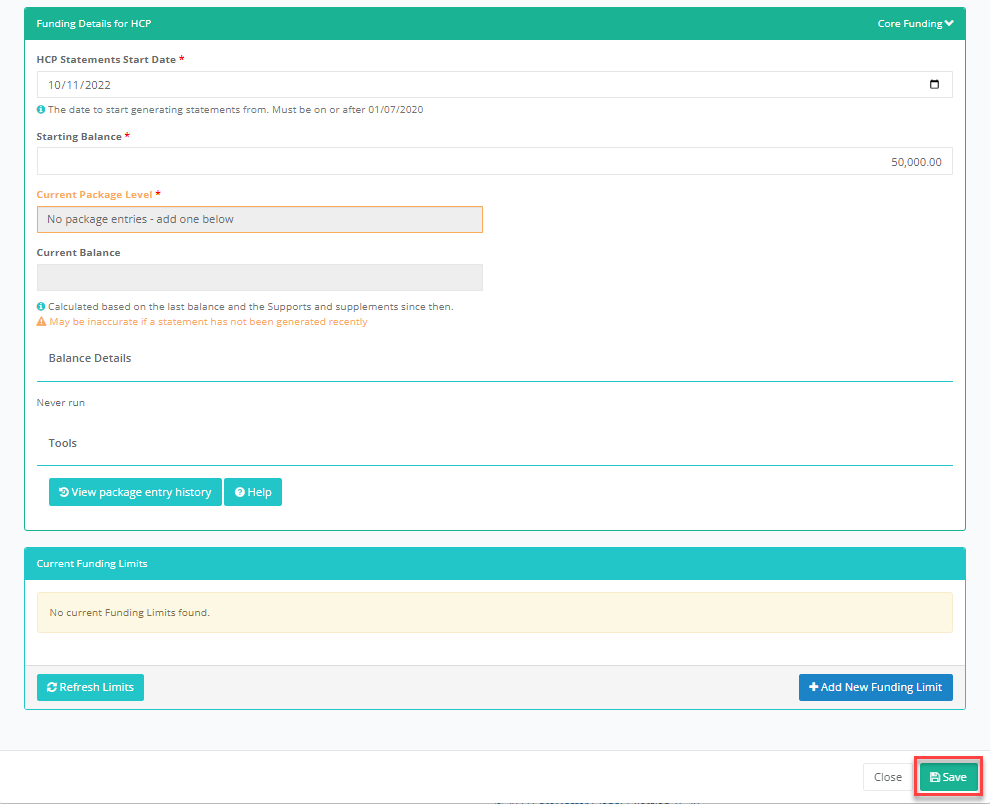
Scroll down to the Funding Details for HCP. Enter the HCP Statements Start Date.
Enter the participant’s Starting Balance.
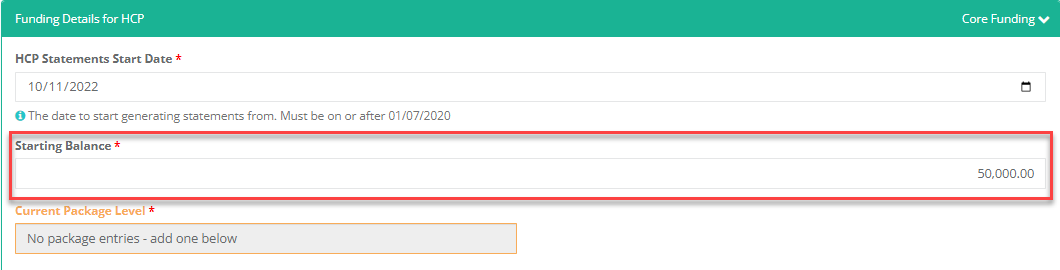
CareMaster will use the information to generate the participant’s statements, income, and current balance.
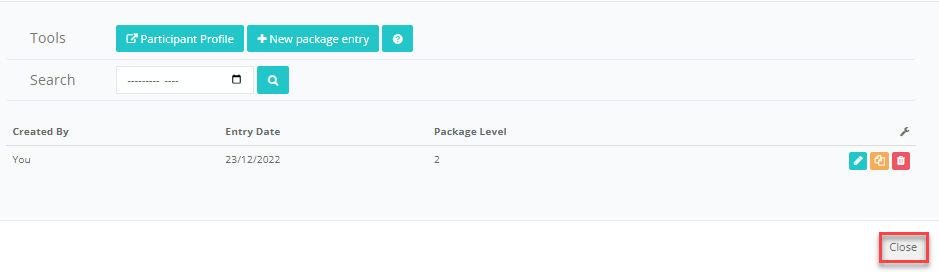
Click on View Package Entry History.
Click on New Package Entry
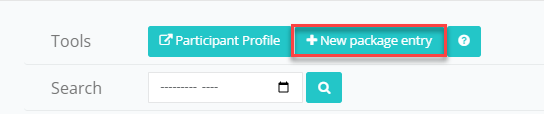
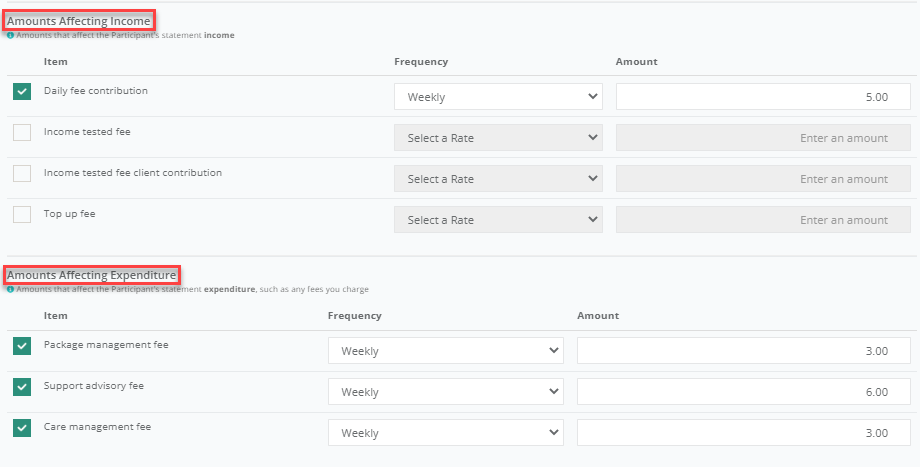
A new screen will appear, enter the participant’s details, then click Save Date (The day the HCP package starts) Package Level (The Current Basic Daily Subsidy will be displayed)

Amounts Affecting Income (Amounts the Participant pays that increase their package balance)
Amounts Affecting Expenditure (Amounts charged that decrease the participant’s package balance)
Package Supplements (Amounts paid for eligible participants which increases their package balance.)
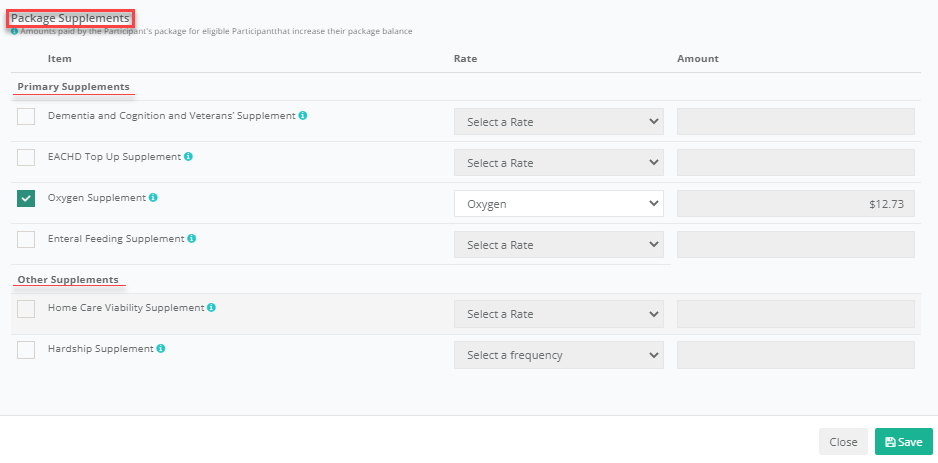
CareMaster will use the information to calculate the participants daily income which is displayed on their statements.
Click Save in the Participants Funding information Tab.
Step 2: Assign the participants approved services
Go to the HCP Participant’s profile Scroll down to the Approved Services tab.
Identify the required HCP Service Organistion’s. Assign the participants approved services.
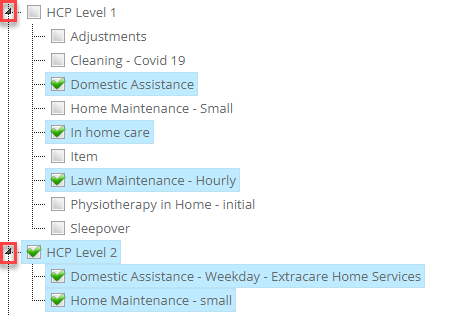
Please note the names of the HCP Service Organistion and Service Items may be different in your CareMaster Data
Step 3: HCP Participants
Go to menu: Participants → HCP Funding → Participants
The list displays all the participants with HCP funding.
Click on the Statements button next to the required participant to: Download the latest statement
Email the latest statement
Preview the next statement
Generate the next statements.
View past Statements
When the participants receive a statement, they will be able to quickly identify their: Opening Balance Expenditure costs
Care Services and Purchases costs
Applied Package Details
Adjustments
HCP providers may receive notifications from Medicare advising a participant funding for a previous month needs adjusting. Go to menu: Participants → HCP Funding → Adjustments
Click the Edit button next to the required month
Locate the participant in the list Tick - Has basic daily subsidy adjustment Enter the adjustment amount and reason.
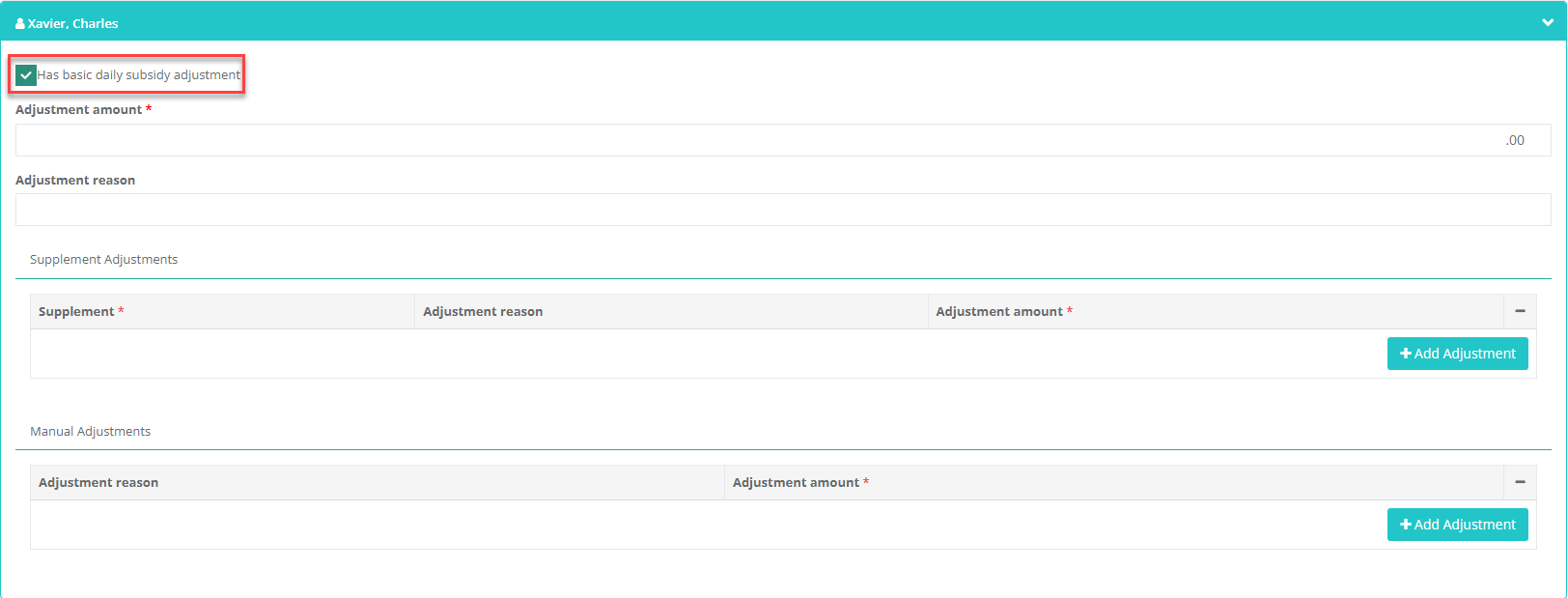
Alternatively other adjustments can be added by clicking on the Add Adjustment button and entering the Adjustment amount
Press the Save button at the top of the screen after entering the adjustment
After the adjustments have been entered, regenerate the participants statement for that Month.
Regenerating Statements after an Adjustment
Go to menu: Participants → HCP Funding à Statements
The HCP Funding Statements will be displayed.
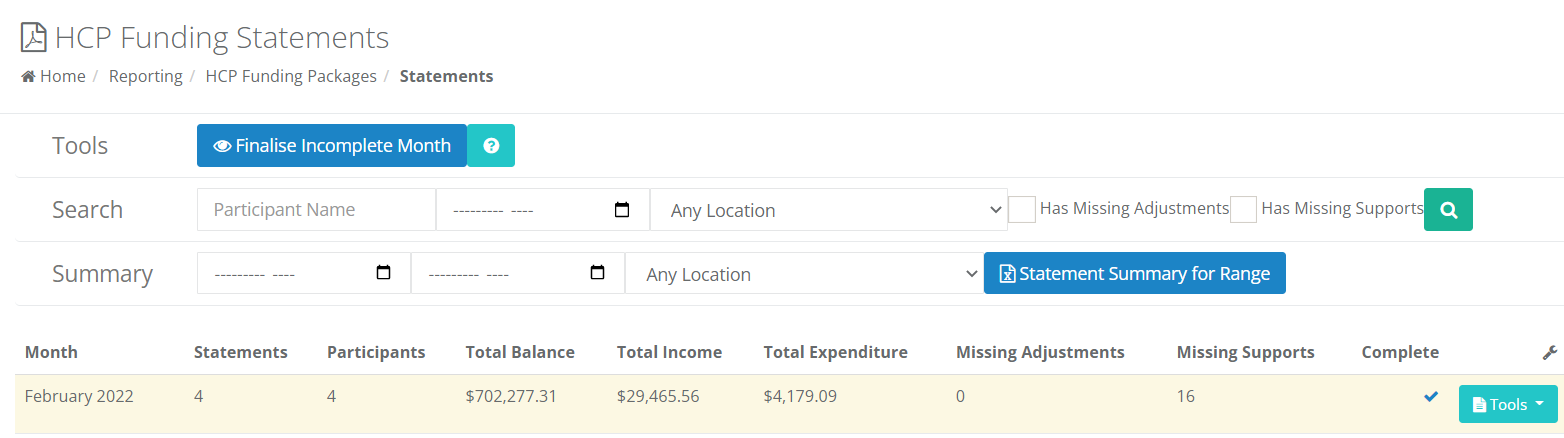
If an adjustment is required for a previous month, the MISSING ADJUSTMENTS column will display a number. If an adjustment is required. Click the Tools button and select the Regenerate Month option.
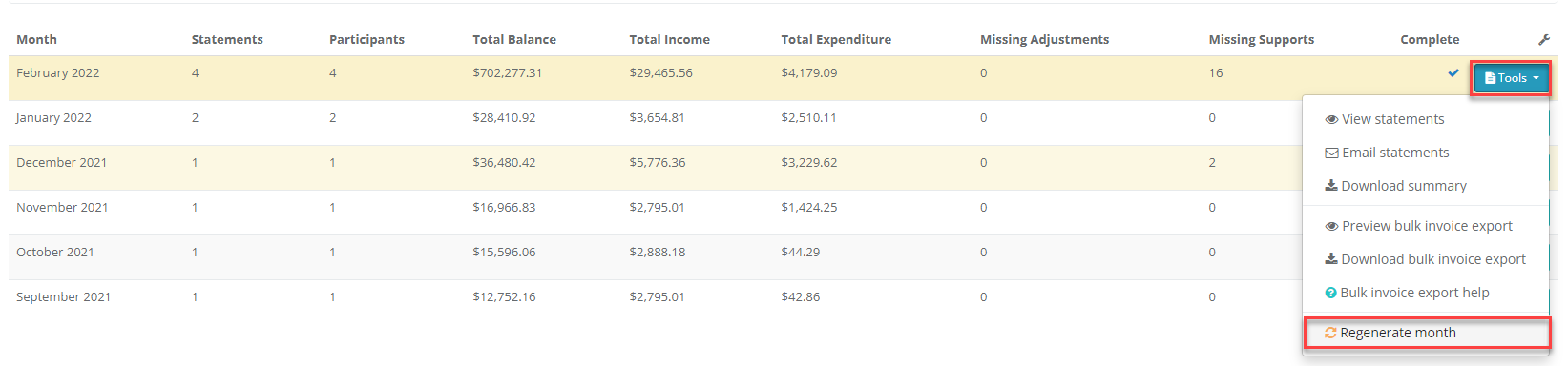
Click on the Yes to confirm.
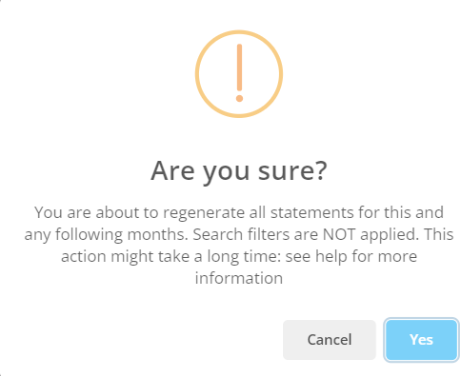
A notification will be displayed. Click OK
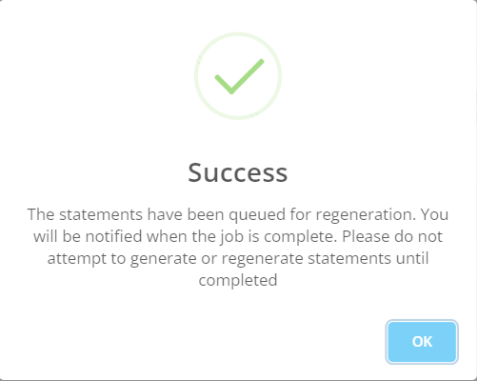
Notifications will be displayed when the statement has been regenerated.
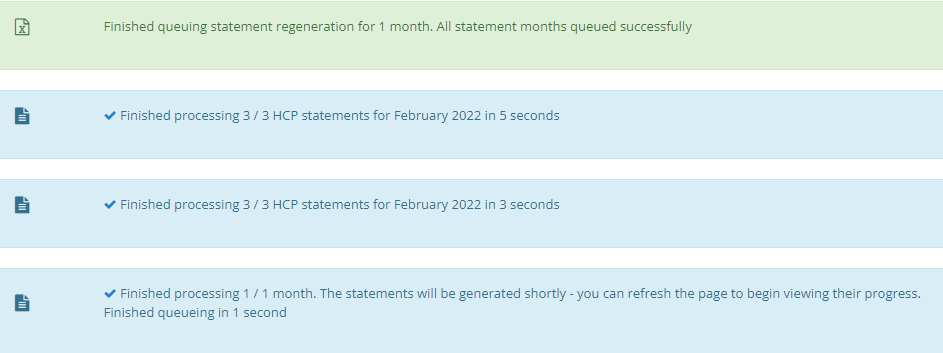
Generating Statements
Go to menu: Participants → HCP Funding à Statements
Click on Finalise Incomplete Month
Click on the Preview button to view the statement before it gets generated.
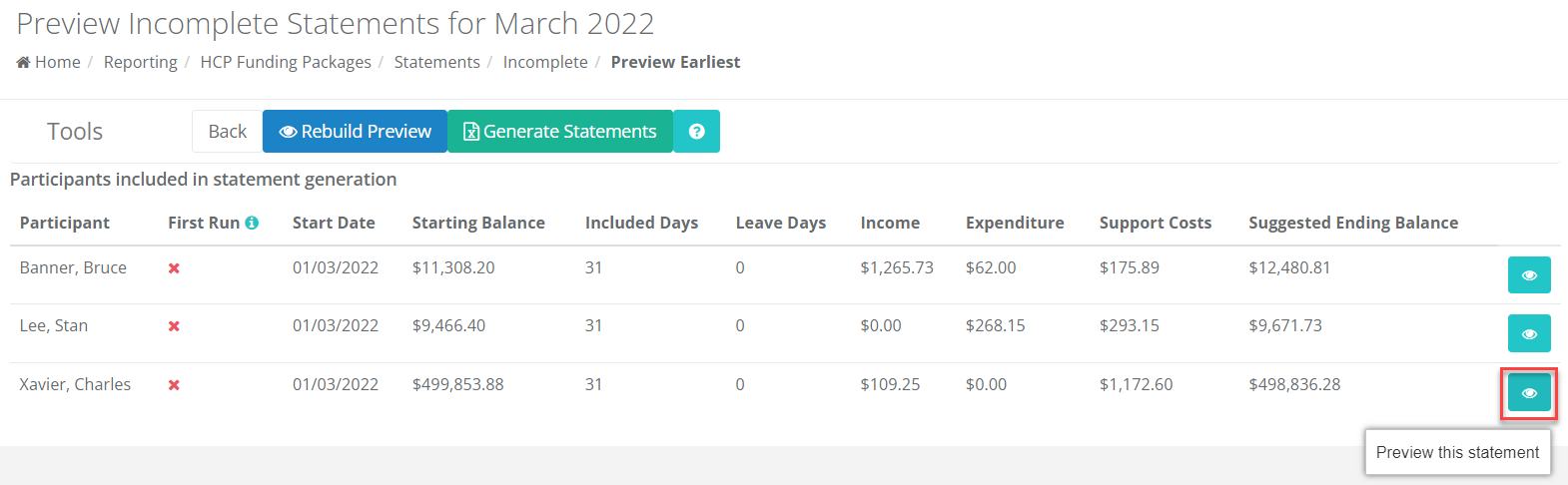
After confirming the statement details in the preview screen, click on Generate Statements.
Depending on the number of participants this process may take several minutes to complete. CareMaster will display a notification when the process has been completed.
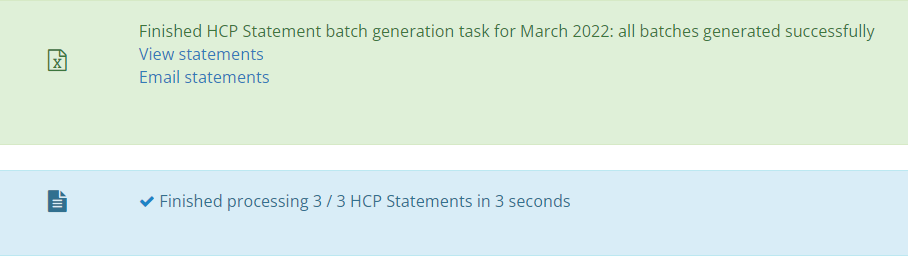
Select the View Statements option to review all the statements for the month. Click on the download button or email button to send the pdf statement to the participants.
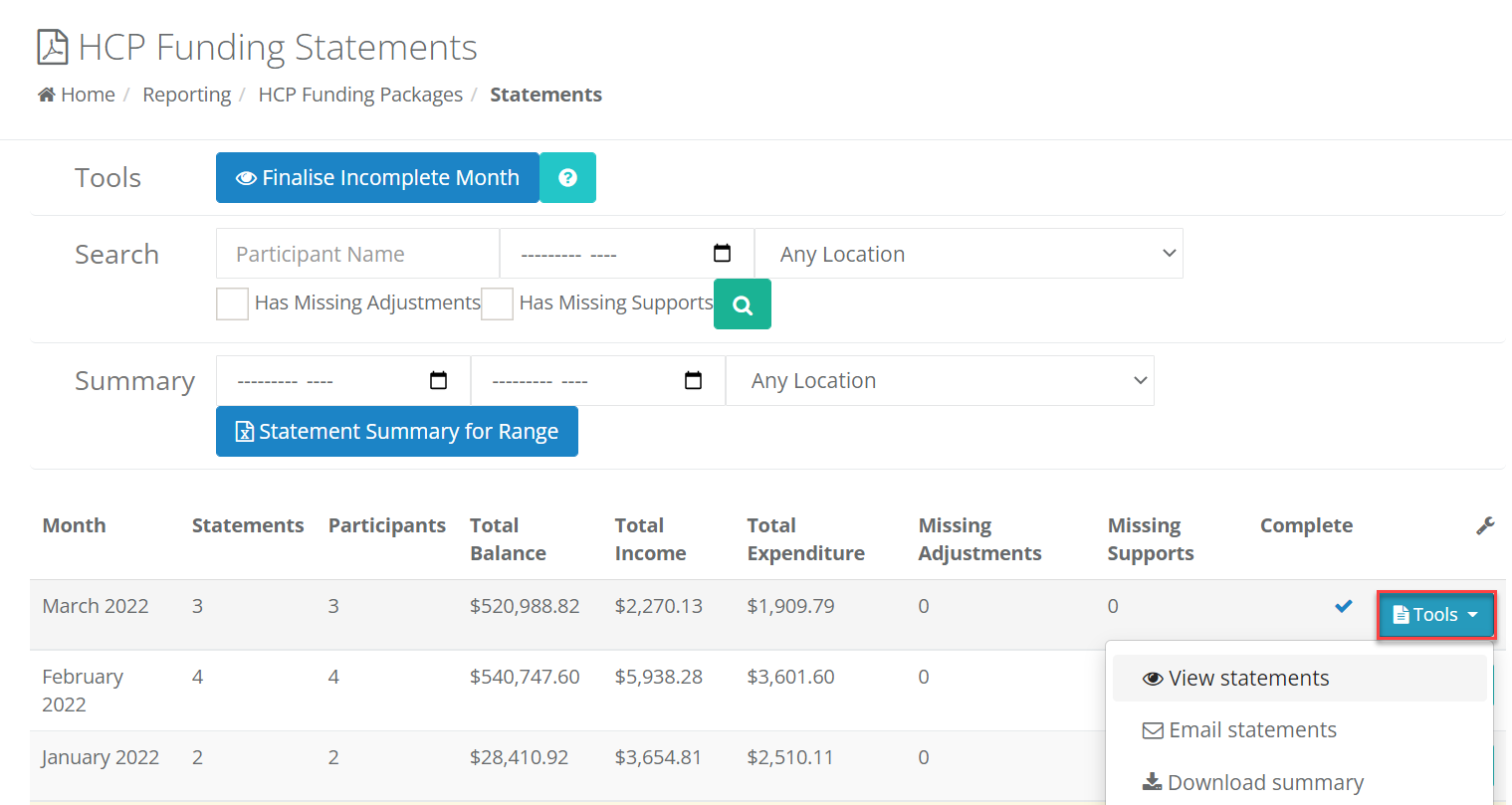
Bulk Claiming
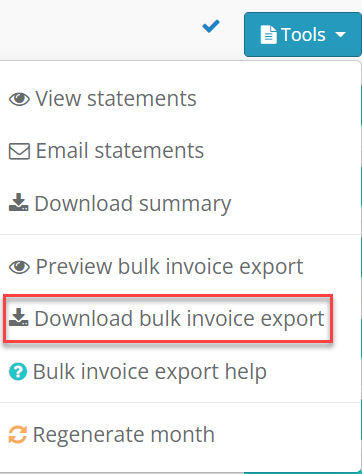
If Bulk Claiming is completed for the monthly HCP claim. Click on the Tools, select the Download Bulk Invoice Export. A .csv file will start downloading. When the file has downloaded it is ready to be submitted on the portal
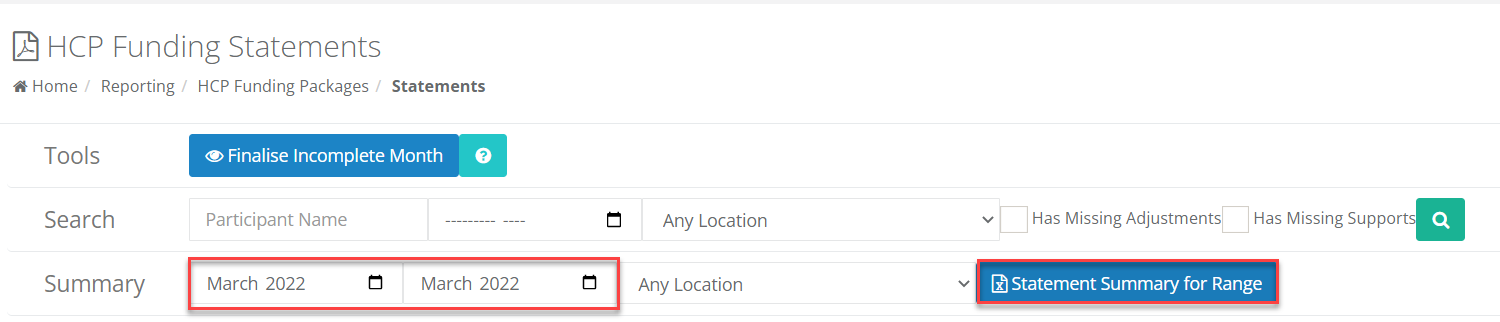
To view statement summary range. Enter the summary start and end dates and press the Statement Summary for Range to generate the report.
The excel document displaying the statements for the selected month.
Deleting Statements
In the event a participant HCP plan was incorrectly set up: Example: The participant’s HCP Package Entry start date is incorrect. i.e. 01/03/2022 was entered instead of 01/02/2022 within the participants funding tab. There are supports from the 01/02/2022 to 28/02/2022 which need to be claimed for. The procedure below outlines how to delete the participant’s generated statements, to be able to process the claims from the 01/02/2022 to 28/02/2022. The process updates the participant’s the HCP Current Balance in line with the participant’s HCP Starting Balance
Go to menu: Participants à HCP Funding à Participants
Click on the Statements next to the required participant and select View Past Statements.
Click on the Bin icon to delete the monthly statement
Click Yes to delete the statement. All statements generated prior to the incorrect date within the participant’s HCP Package Entry will need to be deleted.
After the participants statements has been deleted: Add the participant’s New Package Entry for missing period Update HCP Statement Start Date on the participants funding tab.
Refer to Step 1: Entering the participant funding Generate the participant’s monthly statements Refer to Step 3: HCP Participants → Generating Statements
Step 4: Modifying a package entry.
If changes are required to participants package entries. ENSURE all the statements are generated up until the start date of the new Package entry. Any remaining balance left the old package details will be rolled over to the new package.
Go to menu: Participants → HCP Funding → Participants
Search for the participant. Click Package entries.
To create a new Package Entry: Click on the Copy Entry Button

Enter a New Date Update the Package Level If required update: Amounts Affecting Income Amounts Affecting ExpenditurePackage Supplements Press the Save Button. The participants new package details will be displayed.