
User Guide: How to Automatically provide workers access to clients for scheduled supports
How to Automatically provide workers access to clients for scheduled supports
Their are 2 settings that need to be reviewed to enable this process.
==Allow worker access to clients prior to assigned supports.==
==Allow worker access to clients after assigned supports.==
By default, these settings are not enabled. Activating them will allow your organisation to automatically grant workers access to client information when they are assigned to upcoming supports.
Currently if a worker is assigned to a Support. The worker can only access the clients' information if they have been assigned as a support worker to the participant’s profile. With this update, there's no longer a need for manual worker designation in the participant profile.
By activating these settings, workers will automatically gain access to participant information within the CareMaster Worker App, during specific hours designated by your organisation. This streamlines the process and ensures efficient access for workers.
Step 1: Allow worker access to clients prior to assigned supports.
This setting allows your organisation to provide workers access to clients before the commencement of support. This setting allows for a predetermined number of hours to be entered. To activate the setting follow the steps below.
-
In CareMaster go to menu: Settings > System Settings
-
Select System from the drop-down list.
-
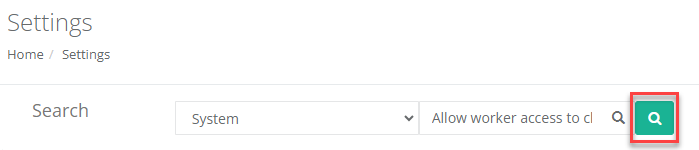
In the any title field enter: Allow worker access to clients prior to assigned supports.
-
Then press the search icon
-
Enter the number of hours workers can have access to the clients, before the support begins.
Example: 24 hours.
-
Please note if 0 hours is entered, the workers can only view the participant’s details during the support.
Step 2: Allow worker access to clients after assigned supports.
The setting allows your organisation to provide workers access to clients after the end of the support. This setting allows for a predetermined number of hours to be entered. To activate the setting follow the steps below.
-
In CareMaster go to menu: Settings > System Settings
-
Select System from the drop-down list.
-
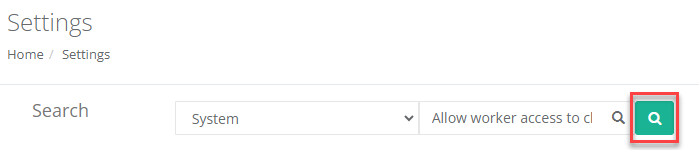
In the any title field enter: Allow worker access to clients after assigned supports.
-
Then press the search icon
-
Enter the number of hours workers can have access to the clients, after the support ends.
Example: 24 hours.
-
Please note if 0 hours is entered, the workers can only view the participant’s details during the support.