
User Guide: Recording Medication Usage for Participants
Recording Medication Usage for Participants
The medication section within the Participants CareMaster profile provides a convenient way for System Administrators and Coordinators to manage participants' medication. This feature allows users to record each participants initial medication balance and keep track of its usage over time.
The data is organised with the most recent records displayed at the top and the oldest ones at the bottom. By doing so, it becomes easier to monitor the changes and the gradual decrease or increase in the medication balance over time.
Step 1: Participant Medication Tab
1.
To access each participants medication tab, go to the Participants Profile à Medication Tab.
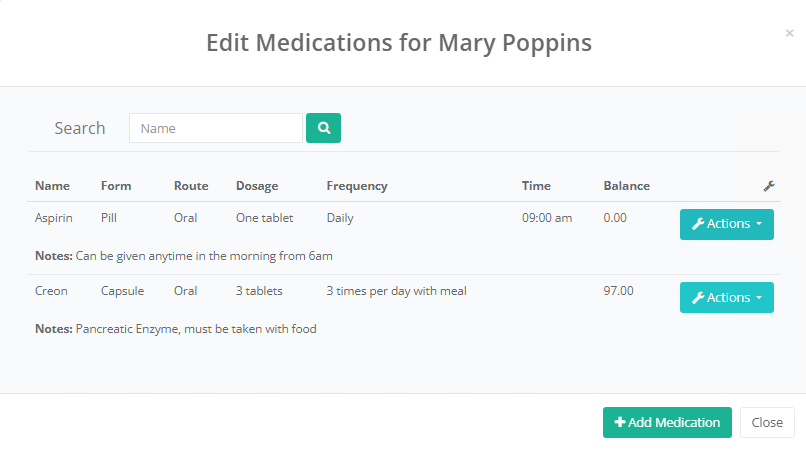
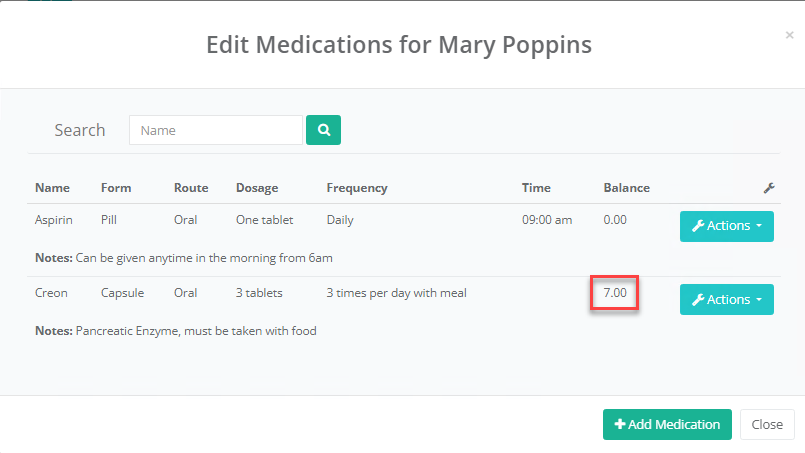
Once there, click on the 'edit' icon to view all medications assigned to the participant.

The Medication Tab provides comprehensive information for each medication entry. It displays the Name, Form, Route, Dosage, Frequency, Time, and Balance of the participant's current medications.
Field Name
Notes
Name
Medication Name
Form
Identifies the physical form of the medication, such as tablets, capsules, injections, topical creams, inhalers, suppositories, and patches
Route
Identifies how the medication must be administered. Such as orally, or topically.
Dosage
Refers to the specific amount of medication that needs to be administered per frequency
Frequency
Outlines the number of times a prescribed medication should be taken
Time
If the medication is scheduled to be taken daily, the time field indicates the specific time of day when the medication needs to be administered.
Balance
The current count of medicine available to the participant.
Step 2: Adding New Medications
1.
Click the "Add New Medication"
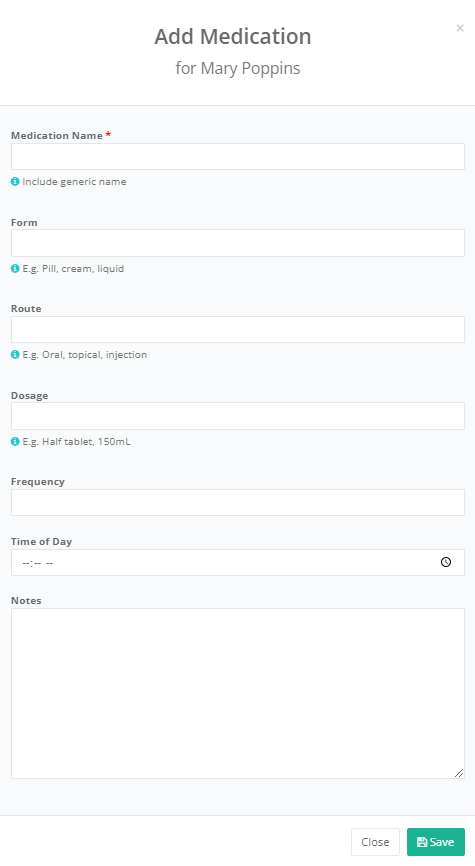
Complete the form details for each medication.
2.
Enter the Medication Name and Form: Input the name of the medication and its form (example: tablet, capsule, liquid).
3.
Include the Route Details: Provide information on how the medication is administered to the participant (example: oral, intravenous, topical).
4.
Enter the Dosage. The specific amount of medication that needs to be administered per frequency
5.
Enter the Frequency: Indicate how often the medication should be given (example: twice daily, once daily).
6.
Enter any relevant notes relating to the medication (example: must be taken with food).
7.
Press Save.
Step 3: Administer Medications
1.
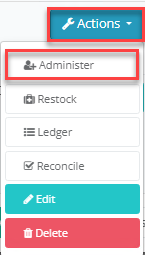
Press the Action button and select Administer.
2.
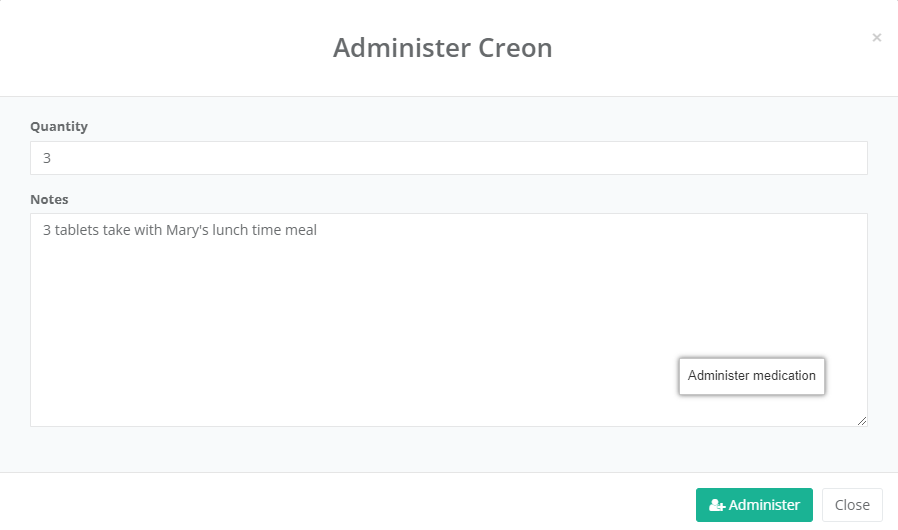
Input the medication dosage quantity in the numerical field.
3.
Enter the details about the administration of the medication.
4.
Press the Administer Button
Step 4: Restock Medication
1.
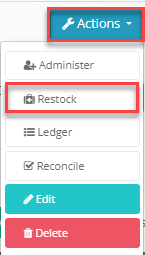
Press the Action button and select Restock.
2.
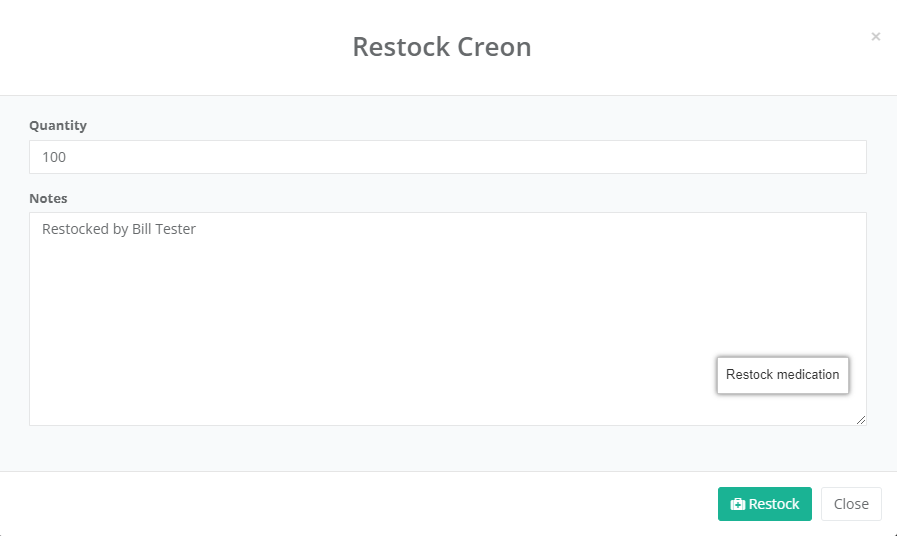
Enter the restock quantity of the medication. (example: 100 tablets)
3.
Enter notes about the restock of the medication.
4.
Press the Restock button.
Step 5: Medication Ledger
1.
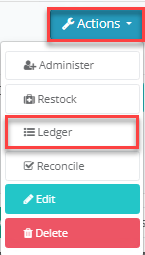
Press the Action button and select Ledger.
2.
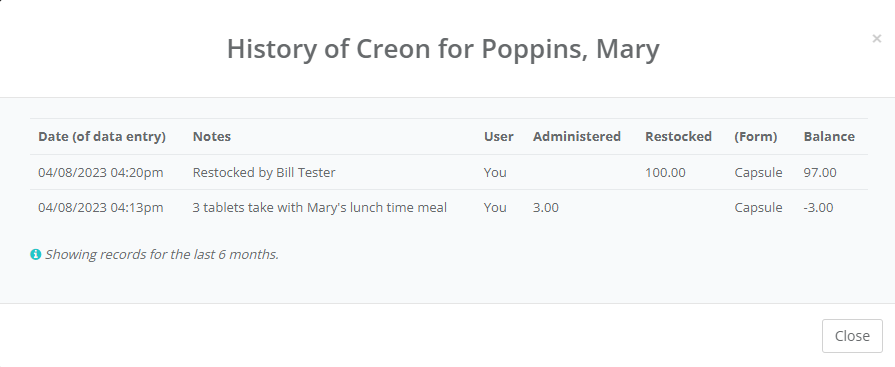
The ledger will display the Administer and Restock history for the required medication.
Step 6: Reconcile Medication
1.
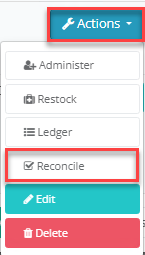
The process allows users to reconcile the participants medication, in the event a discrepancy has been identified with the balance of the participants medication.
Press the Action button and select Reconcile.
2.
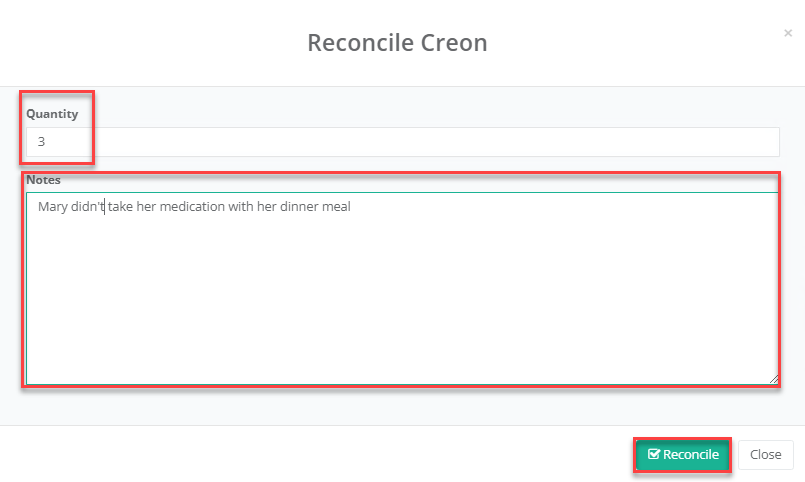
Enter the quantity of medication (example: 3 tablets) and enter a brief description.
Then press the Reconcile button.
3.
The participant’s updated balance will be displayed.
User Guide Recording Medication Usage for Participants.pdf 797059