
User Guide: Xero Workers Setup
XERO – Workers Setup Guide
Please note: Ensure each of your CareMaster Worker Profiles Employment information tabs have been setup, before beginning the process below.
This guide will assist you syncing the CareMaster Worker data with the Xero Employee data.
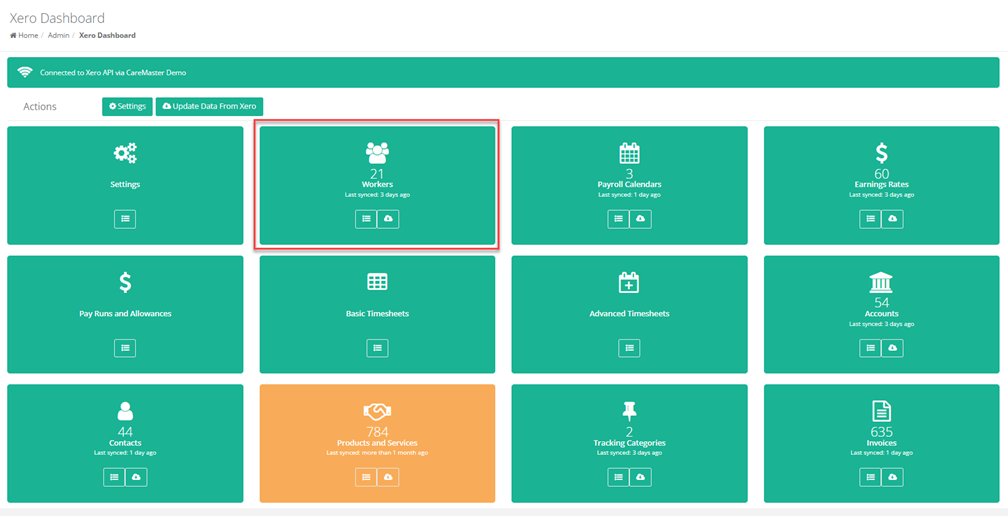
- In CareMaster go to menu: Admin> Integrations> Xero> Dashboard.
- Click on the Workers Tab
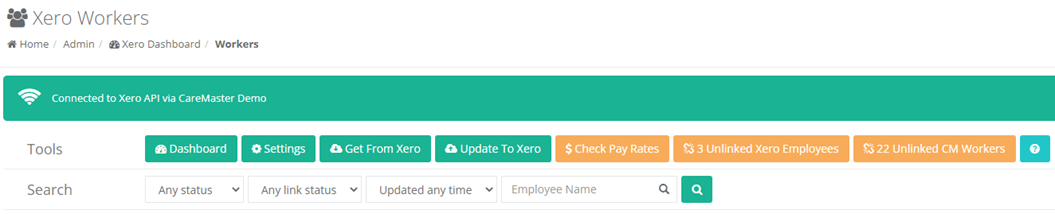
Understanding the Xero Workers toolbar.
The following buttons may be displayed at the top of the Xero Worker toolbar.
Get From Xero
Imports the basic information on all Xero Employees into CareMaster. This process will not make any changes to linked CareMaster Worker Profiles.
Update to Xero
Imports all the linked worker details from CareMaster to Xero.
# Problems
The button is only displayed when there are workers without an Ordinary Rate or Payroll Calendar.
# Unlinked Xero Employees
The button is only displayed when there are Xero Employees not linked to a CareMaster Worker.
# Unlinked CM Workers
Shows a list of all CareMaster Workers that have not been linked to a Xero Employee.
Step 1: Get from Xero
- Press the Get from Xero button to ensure the basic Xero Employee data has synced and is up to date in CareMaster.

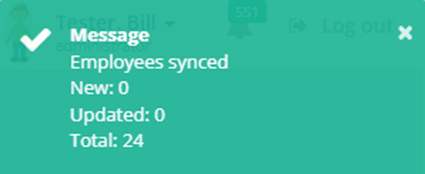
A notification will be displayed when the process has been completed. Like the notification below.
Step 2: Unlinked Xero Employees
- This process links your existing Xero Employees profiles with their CareMaster Worker profile
Press the # Unlinked Xero Employees button.

To link a Xero Employee to a CareMaster Worker, select the worker’s name from the drop-down list.
Repeat this step for each Xero Employee in the list.
Please note if the Employees name is not displayed in the drop-down list, leave the field blank.
- Press the Link Selected Workers button.

The process will link the Xero Employees to their CareMaster Worker Profiles.
Step 3: Unlinked CM Workers
- This process will create new Xero Employees from the selected CareMaster Workers.
Make sure you have completed STEP 2, to prevent the creation of duplicate Employee Names in Xero.
Press the # Unlinked CM Workers button.

- The screen displays the CareMaster worker names that have not been linked to a Xero Employee.
The workers Ordinary Rate field, Payroll Calendar field and Award Status are also displayed.
If a worker’s name is highlighted red. On the right-hand side of their name, identify the reason/s.
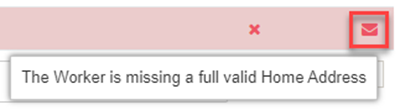
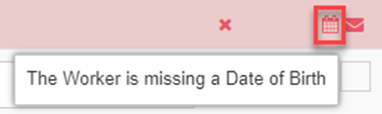
Click on the workers name to resolve the issue/s. This will open a new tab in your browser displaying the worker’s profile.
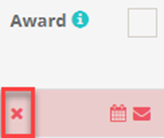
- If the worker’s Award Status has not been set up in CareMaster a red X will be displayed.
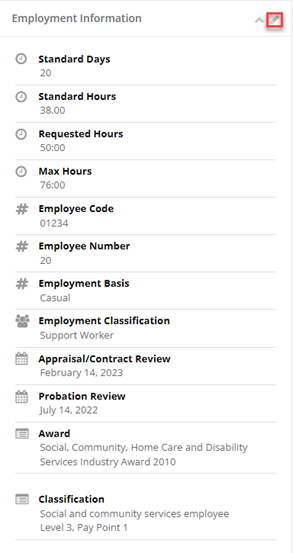
If the worker is paid according to the award, go to the worker’s profile, and update their Employment Information Tab.
Assigning the workers Ordinary Rate and Xero Payroll Calendar.
- Assign the CareMaster worker the Ordinary Rate.
Click in the drop down and select the required earning rate.

Please note the earning rate is setup in the AdminàIntegrationsà Settingsà CareMaster Earning rates.
If your organisation is using a different Xero Pay Item. Ensure it matches the Ordinary Rate field displayed on the Defaults Tab CareMaster Earning rates.
- Assign the workers Xero Payroll Calendar
- Press the Send Selected button to create the CareMaster workers, Xero employee profiles.

Please note: In Xero update the employees’ bank account, superannuation and tax information.
Step 4: Updating the Workers details after linking to Xero.
- If a workers employment basis, award classification level and pay point or their ordinary earnings rate need to be updated. Go to the workers profile Employment Information Tab and make the changes.
-
Go to the Workers Sync Status tab.
Press the Send to Xero button.
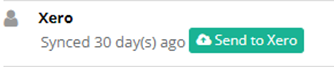 A pop-up screen will appear
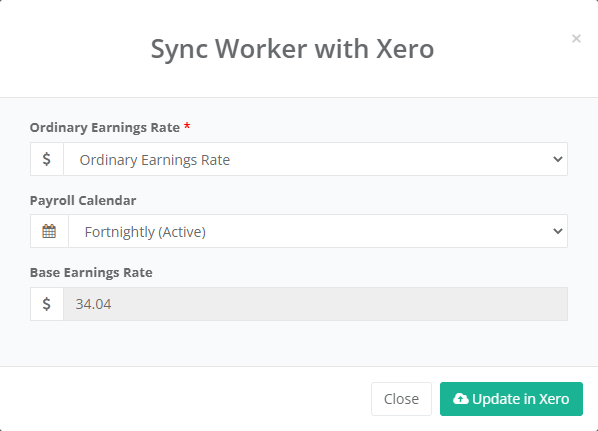
- In the Ordinary Earnings Rate field scroll down and select the MA000100 Ordinary Earnings Rate.
Or your Organisation allocated Xero Pay item. Refer your organisation’s CareMaster Earning Rates Ordinary Earnings Rate field.
- Select the Current Payroll calendar.
- The Base Earnings Rate field is populated from the worker’s Employment Information Tab.
- Press the Update in Xero button.
Step 5: How to delete a duplicated Xero Employees profiles from Xero
- In the event a CareMaster Worker has been duplicated in Xero
Open Xero → Payment Tab → Employees → Identify the duplicated Xero Employee.
- Click on the Xero Employees
- Click on the Details Tab
- Scroll down and press delete.
- In CareMaster if the duplicated Xero Employee was linked to the CareMaster Worker.
Go to menu Admin → Integrations → Xero → Workers
Refer to Step 2: Unlinked Xero Employees. To link the CareMaster Workers with the correct Xero Employee.