
What do the account reports show?
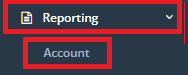
To access these account reports, go to Reporting -> Account.
PLEASE NOTE:If you use any of our Xero, Reckon or MYOB integrations, do NOT use these reports under Reporting -> Accounts for invoicing. You can find invoicing for each integration under the Admin menu instead.
Except for the KM Expense Report and Invoice CSV Summary, when a user selects any of the other available reports and clicks the 'Invoice and Export' button, a confirmation will be displayed, seeking the user's confirmation to proceed with generating the selected report.
Support included in invoice reports will be designated as 'invoiced' and will consequently be excluded when generating invoices through any other financial system.
To unmark a support previously marked as invoiced, edit the support and uncheck the invoiced field in the Payment tab.
Summary
These reports are for searching and exporting participant invoice data. These can be used for a direct upload into many financial integration systems and can mark the supports as Invoiced if required.
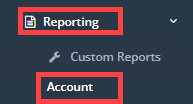
To access these report options, in the left-hand menu, go to Reporting → Account:
Step 1: BC Exports
1.
These reports are for our customers using Business Central - please contact our Customer Care team if you have any questions.
- Sync Extract - Shows all active participants and funding payers, along with their preferred method for receiving invoices
- Trips Payments and acquittals – Under development
- User Contributions - Exports all supports within the selected data range along with their expected total and acquittal amounts. You are able to filter by:
- Date Range
- Participant
- Service Organisation
- Funding Type
- Category
- Region / Location
- Cancellation Inclusions
- Choose an export format – Excel / PDF
Step 2: Participant Invoices
1.
Warning – Running these reports mark the supports as Invoiced if selected.
2.
Total Cost - Generates invoices for all accessible participants with supports in the selected date range using the Total Cost amount.
Input your search parameters for:
- Date Range
- Service Organisation
- Participant
- Starting Invoice number
- Cancellation Inclusions
- Export Formats
3.
Other - Generates invoices for all accessible participants with supports in the selected date range using the Other amount.
Input your search parameters for:
- Date Range
- Service Organisation
- Participant
- Starting Invoice number
- Cancellation Inclusions
- Export Formats
4.
Fees Charged - Generates invoices for all accessible participants with supports in the selected date range using the Fees Charged amount.
Input your search parameters for:
- Date Range
- Service Organisation
- Participant
- Starting Invoice number
- Cancellation Inclusions
- Export Formats
Step 3: Participant Invoice Summaries
1.
Total Cost – Reports on the expected invoiceable amounts for accessible participants with supports in the selected date range using the Total Cost amount. Does not mark them as invoiced.
Input your search parameters for:
- Date Range
- Service Organisation
- Participant
- Cancellation Inclusions
- Export Formats
2.
Other - Reports on the expected invoiceable amounts for accessible participants with supports in the selected date range using the Other amount. Does not mark them as invoiced.
Input your search parameters for:
- Date Range
- Service Organisation
- Participant
- Cancellation Inclusions
- Export Formats
3.
Fees Charged - Reports on the expected invoiceable amounts for accessible participants with supports in the selected date range using the Fees Charged amount. Does not mark them as invoiced.
Input your search parameters for:
- Date Range
- Service Organisation
- Participant
- Cancellation Inclusions
- Export Formats
4.
Invoiceable Supports Summary - Provides a summary of the supports that have been provided to active accessible participants within the selected date range and their invoiced amounts.
Input your search parameters for:
- Date Range
- Service Organisation
- Participant
- Funding Type
- Cancellation Inclusions
- Export Formats
Step 4: Organisation Invoices
1.
Warning – Running these reports mark the supports as Invoiced if selected.
2.
Total Cost - Generates invoices for service organisations with supports in the selected date range using the Total Cost amount.
Input your search parameters for:
- Date Range
- Service Organisation
- Participant
- Funding Type
- Cancellation Inclusions
- Export Formats
3.
Other Cost - Generates invoices for service organisations with supports in the selected date range using the Other amount.
Input your search parameters for:
- Date Range
- Service Organisation
- Participant
- Starting Invoice number
- Cancellation Inclusions
- Export Formats
4.
Fees Charged - Generates invoices for service organisations with supports in the selected date range using the Fees Charged amount.
Input your search parameters for:
- Date Range
- Service Organisation
- Participant
- Starting Invoice number
- Cancellation Inclusions
- Export Formats
Step 5: Expense Reports
1.
Kilometres Expense Report - Provides a report on the total kilometres for each accessible active participant with recorded kilometres - either directly or as a transport costs support.
Input your search parameters for:
- Date Range
- Service Organisation
- Participant
- Cancellation Inclusions
- Export Formats