
What do the voucher reports show?
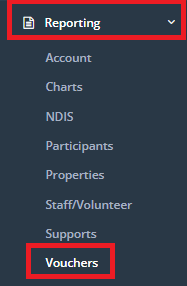
To access these voucher reports, click on Reporting -> Vouchers. \n
\
| PLEASE NOTE: \n These voucher reports only show if the Vouchers section is turned on in your CareMaster system. It is turned off by default. |
|---|
Exited Participants Voucher Value
Voucher by Name
Voucher by LGA
Service Hours by LGA
Voucher Payment Contribution
Remaining Vouchers
All Participants with Vouchers Assigned
\
Exited Participants Voucher Value
This report will export the Exited Clients/Participants that still have vouchers assigned to them and the dollar value of those unreturned vouchers.
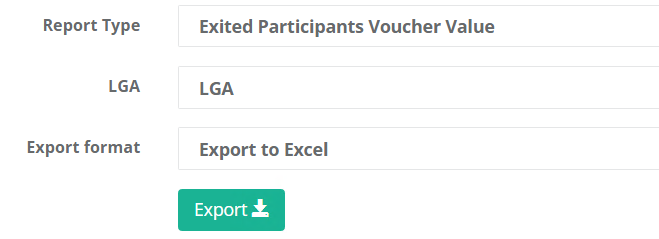
Before running the report, you have the option of filtering depending on the results you wish to receive:
-
LGA – if your organisation has set out LGA’s and Participants have been assigned these, you are able to filter this report so that only these participants are visible on this report. Select this using the dropdown provided.
-
**Export Format –**using the dropdown, select how you would like the export to be formatted:
- Excel – exporting to an excel document, allows you to edit the information that has been exported such as delete any unrequired fields that are generated.
- PDF – exporting to a PDF will not allow editing.
\
Voucher by Name
This report is used to generate a list of the participant/client that have a voucher with the name selected assigned to them.
This report will not generate without the Voucher Name entered; to find a voucher name go to: Main Menu > Voucher to view a list of the vouchers in your organisations CareMaster.
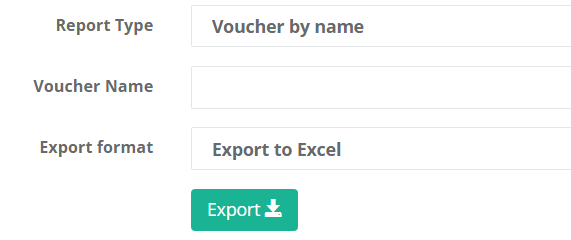
The only filtering option before running this report is:
- **Export Format –**using the dropdown, select how you would like the export to be formatted:
- Excel – exporting to an excel document, allows you to edit the information that has been exported such as delete any unrequired fields that are generated.
- PDF – exporting to a PDF will not allow editing.
\
Voucher by LGA
This report will generate a list of all vouchers for an LGA issued in a particular date range.
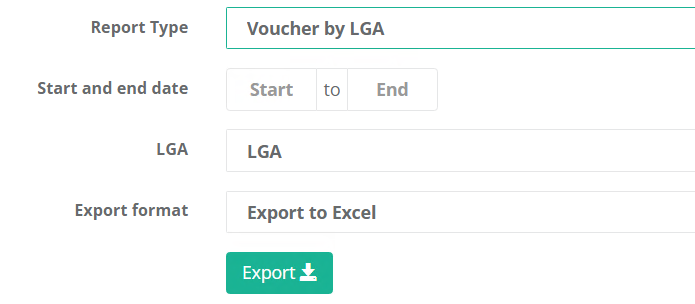
In order the report to run; there must be information entered into the following filters:
- Start & End Date – use this area to enter in the Start and End Date that you would like to view in the report.
- LGA – if your organisation has set out LGA’s and Participants have been assigned these, you are able to filter this report so that only these participants are visible on this report. Select this using the dropdown provided.
The only filtering option before running this report is:
- **Export Format –**using the dropdown, select how you would like the export to be formatted:
- Excel – exporting to an excel document, allows you to edit the information that has been exported such as delete any unrequired fields that are generated.
- PDF – exporting to a PDF will not allow editing.
\
Service Hours by LGA
This report will export the total of service hours for each LGA for the date range specified.
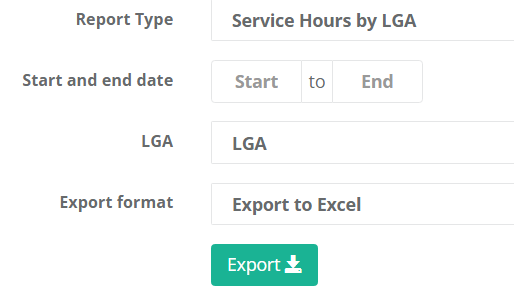
In order the report to run; there must be information entered into the following filter:
- Start & End Date – use this area to enter in the Start and End Date that you would like to view in the report.
Optional filters include:
-
LGA – if your organisation has set out LGA’s and Participants have been assigned these, you are able to filter this report so that only these participants are visible on this report. Select this using the dropdown provided.
-
**Export Format –**using the dropdown, select how you would like the export to be formatted:
- Excel – exporting to an excel document, allows you to edit the information that has been exported such as delete any unrequired fields that are generated.
- PDF – exporting to a PDF will not allow editing.
\
Voucher Payment Contribution
This report exports a list of the participant contribution and the reimbursement totals for a service organisation in the specified date range.
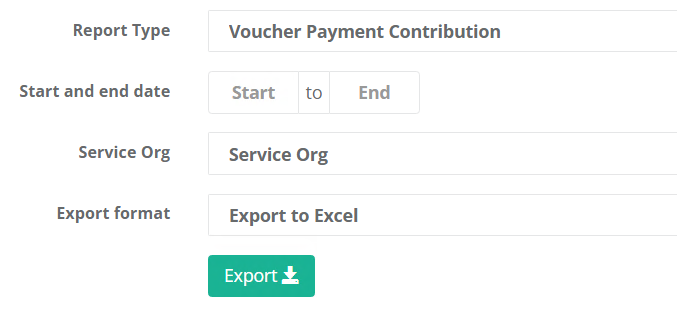
In order the report to run; there must be information entered into the following filter:
- Start & End Date – use this area to enter in the Start and End Date that you would like to view in the report.
Optional filters include:
-
Service Organisation - using the dropdown provided select a Service Organisation; this will provide a list of all the Vouchers assigned to this service org.
-
**Export Format –**using the dropdown, select how you would like the export to be formatted:
- Excel – exporting to an excel document, allows you to edit the information that has been exported such as delete any unrequired fields that are generated.
- PDF – exporting to a PDF will not allow editing.
\
Remaining Vouchers
This report will export a list of any remaining vouchers that are assigned to participants that have not been returned. The report is formatted so that the exact number of remaining vouchers needs to be selected to export the information.
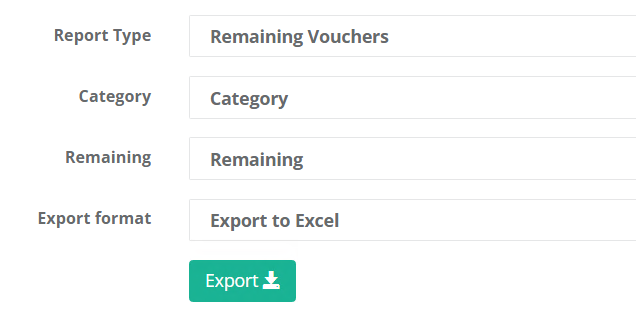
Before running the report, you have the option of filtering depending on the results you wish to receive:
-
Category – if your organisation has set up Support Categories you are able to filter using the dropdown provided.
-
**Export Format –**using the dropdown, select how you would like the export to be formatted:
- Excel – exporting to an excel document, allows you to edit the information that has been exported such as delete any unrequired fields that are generated.
- PDF – exporting to a PDF will not allow editing.
In order the report to run; there must be information entered into the following filter:
- Remaining – Using the dropdown provided select the number of remaining assigned vouchers you wish to export.
\
All Participants with Vouchers Assigned
This report will export a list with all Participants that have vouchers assigned to them.
This report can be ran without any filters.
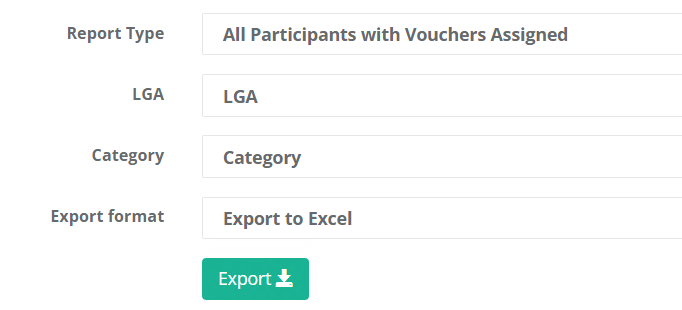
Before running the report, you have the option of filtering depending on the results you wish to receive:
-
LGA – if your organisation has set out LGA’s and Participants have been assigned these, you are able to filter this report so that only these participants are visible on this report. Select this using the dropdown provided.
-
Category – if your organisation has set up Support Categories you are able to filter using the dropdown provided.
-
**Export Format –**using the dropdown, select how you would like the export to be formatted:
- Excel – exporting to an excel document, allows you to edit the information that has been exported such as delete any unrequired fields that are generated.
- PDF – exporting to a PDF will not allow editing.
\