
Service Importing - NDIS Price Guide update
Important information before you start:
Important information before you start:
-
The NDIS Support Catalogue is available from the NDIA https://www.ndis.gov.au/providers/pricing-and-payments/pricing/what-support-catalogue
-
You can import the NDIS Support Catalogue as a whole or you can import selected services by following the tip below
Tip: Within the NDIS Support Catalogue spreadsheet:
- Colour the rows for the required service items.
- Sort by colour.
- Delete the items not coloured.
Save the spreadsheet.
-
Ensure that your timesheets and supports are up to date. Once the new NDIS support catalogue is imported any new supports that are created OR any previously existing supports that have the service changed will have the new pricing will apply automatically.
- Your user level will need to be Administrator to perform Service Importing.
NDIS Catalogues
The NDIS support catalogue needs to be uploaded as a resource first to then be able to be selected for a Service Import.
Go to menu: Admin > Service Importing > NDIS Catalogues
Select File, then locate and choose your NDIS Support Catalogue file. Then select Upload.
This will now be available as a resource to update or insert your requested service line items.
On this page you can download, delete or select previously downloaded files for importing.
Service Import
The Service Import can be used to add NDIS services or update NDIS services whenever a new NDIS Support Catalogue is released.
In CareMaster, go to Admin > Service Importing > Service Import
Select + New Service Import
Select the required Service Organisation from the drop-down menu.
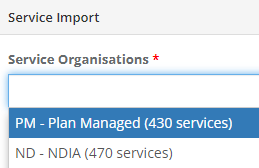
Please note: Select only one Service Organisation at a time. Individually repeat the process below for each Service Organisation. Example the NDIA, Plan Managed and Self-Managed.
Select the Price Region or leave as Match service organization state
Press Select File to show you a list of the available resources to use for this upload.
From here you can Upload a new resource or Select an existing resource.
Press select and it will apply this resource for you.
Enter the start date of the new NDIS Support Catalogue
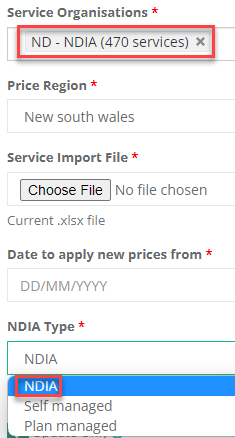
Enter the NDIA Type.
Please note: The NDIA type must match the Service Organisation.
Example:
- Service Organisation: NDIA must match NDIA Type – NDIA
- Service Organisation: Plan Managed must match NDIA Type – Plan Managed
- Service Organisation: Self Managed must match NDIA Type – Self Managed
Import Options
The following imports options are available.
Update Existing Services Only
If this setting is selected – Only existing service items will be updated.
If this setting is not selected - The import will add new services items and update existing ones
Update Service Names
If this is selected - it will re write over any name changes you have made i.e. Active Overnight
Invoice Include on Insert
If this setting is selected – The newly added service items will be marked as invoiceable
Also Update Invoice Include
If this setting is selected – When updating existing service items, the items will be marked as invoiceable
Update Assigned Service Costs
If this setting is selected – Participants who have customised pricing for their approved services will have their customised pricing updated to match the new cost of the item if the new cost is higher than the current customised pricing set for the participants.
Ignore Service Agreement Completion Date
If this setting is selected – All the supports provided to participants, whether before or after the completion date of their service agreement, will be automatically updated to reflect the newly assigned costs of the service item(s).
Press the Perform Import to import the new service items into the required service organisation.
Repeat the process for each individual Service Organisation.
How to add Remote/Very Remote locations service orgs/Services
You will need to create a Service organisation and the services under remote and very remote.
Go to Admin > Service Organisations:
Select + New Service Organisation
Enter the details - E.G Name = Remote - PM ( plan managed ), add the other required details and select Save.
You will then be able to see in the list of Service Organisations the name Remote - PM. You would then need to get a copy of the NDIS support catalogue and remove all of the services that you do not want to provide under Remote - PM.
Select Admin then Service Upload
Complete all the fields on this page ( import options shown below) and choose file to upload a copy of the NDIS support catalogue guide
For this example the Service Organisation will be Remote - PM. The NDIA type needs to be the same so for this example it will be Plan managed. Select the required price region e.g Remote
Once entered, press the submit button and this will be completed for you.
You will then need to complete this process again for Remote - NM, Very Remote - PM, Very Remote - NM
Why are my prices not updating in supports?
If you have completed the Service Import and you have not selected Ignore service Agreement Completion date the prices will not update in existing Supports until after the Participants Service Agreement Completion date which is available on the Participant profile under Funding Information.