
Reporting User Guide
NOTE: Running any of the reports in the Account section will mark supports as invoiced so please use only if you are intending to mark these supports as invoiced and do not use any of our invoicing integrations (Xero, Reckon, MYOB).
To run a report, click Reporting from the main menu, then select one of the report categories from the menu.
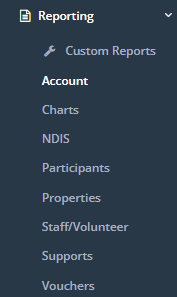
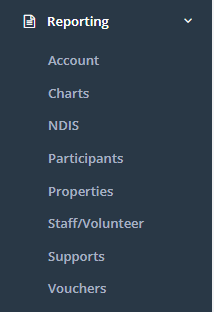
For more information on each report under the reporting categories, please go here:
What do the custom reports show?
What do the account reports show?
What do the participant reports show?
What do the property reports show?
What do the staff/volunteer reports show?
What do the supports reports show?
What do the voucher reports show?
After selecting the report category, use the drop-down menu to select the type of report you wish to run.
Additional options and filters will appear depending on the report type selected. Fill these in as appropriate, then hit Export to generate your report.
Be aware that if you are pulling data for a large date range, it may take a couple of minutes to generate the report. Further information about each kind of report is provided below.
After the report has finished generating, you will be provided with either an excel or PDF document to download to your computer.