
Settings Overview User Guide
The Settings page has a range of settings to customise your use of CareMaster.
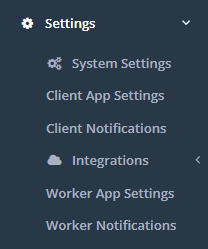
Most of your CareMaster settings can be found in the System Settings category.
System Settings
Client App Settings
Client Notifications
Integrations
Elmo
KeyPay
MYOB
Reckon
Xero
Worker App Settings
Worker Notifications
System Settings
There are a large number of system settings within CareMaster that change how the program works. From the web portal, use the search bar or filter to search for a specific setting, or relevant keywords for any related settings. You may also want to use Ctrl + F to find a specific setting from the list below. Clicking on the green ? icon next to the setting name will give you more information on the setting.
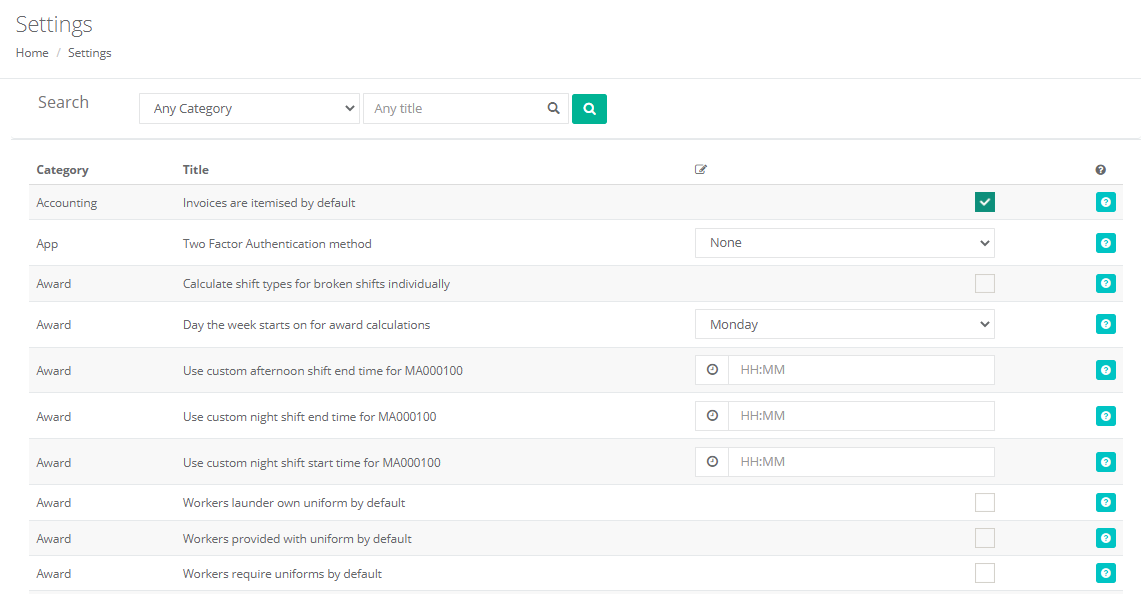
You can also view more information on these system settings here: What do the System Settings mean?
Client App Settings
This page will allow you to view and adjust a number of Client App Settings. For more information and explanation on these settings, go here: What do the client app settings mean?
Client Notifications
If using SMS/Email alerts you can change the settings here regarding when the alerts are sent out and the templates that are sent to clients. This feature is free to use, with the exception of each SMS costing 15c. It may require additional configuration so contact our Customer Care team with any questions or clarifications required.
- How many days before service to send a notification: Enter in the number of days notice you would like the client to receive before a support.
- Time to send day before service notification: Enter the time of day you would like a client to receive the days before notification in 24hr time.
- Hours before service to send day of service notification: Enter in the number of hours notice you would like the client to receive for the day of support notification.
- Do not send upcoming appointment notifications - Tick if you do not want these to be sent.
- Do not send appointment today notifications - Tick if you do not want these to be sent.
- Do not send appointment changed notifications- Tick if you do not want these to be sent.
- Client SMS Reply Number: Use the field provided to enter in a Mobile number for clients to reply to SMS Notifications. If the SMS reply number is not entered; the number will default to an un-manned number and replies will not be recorded.
CareMaster also allows you to edit the notification templates that are sent out to clients.
Integrations
Dex
This setting page confirms your connection credentials and can update the template settings for Case ID Prefix, Client ID and Session ID Prefix.
Elmo
This setting page holds a number of settings and sections relating to our Elmo export. For more information on these settings, go here: Elmo Payroll Export.
KeyPay
This setting page holds a number of settings and sections relating to our KeyPay integration. For more information on these settings, go here: KeyPay Payroll.
MYOB
This setting page holds a number of settings and sections relating to our MYOB Export. For more information on these settings, go here: Xero Payroll Setup or Xero Invoicing Setup.
Reckon
This setting page holds a number of settings and sections relating to our Reckon IIF file generation. For more information on these settings, go here: Reckon Payroll or Reckon Invoicing.
Xero
This setting page holds a number of settings and sections relating to our Xero integration. For more information on these settings, go here: Xero Payroll Setup or Xero Invoicing Setup.
Worker App Settings
This page will allow you to view and adjust a large number of Worker App Settings. For more information and explanation on these settings, go here: What do the worker app settings mean?
Worker Notifications
If using SMS/Email alerts you can change the settings here regarding when the alerts are sent out and the templates that are sent to workers. This feature is free to use, with the exception of each SMS costing 20c. It may require additional configuration so contact our Customer Care team with any questions or clarifications required.
-
Day of Options: Turn these notifications on or off via email or SMS.
-
Time after shift to auto clock off: Do not send or choose 15, 30, 45 or 60 minutes after via email or SMS.
-
End of day options: Do not send or choose 15, 30, 45 or 60 minutes after via email or SMS.
-
Day before options: Do not send or choose from 4:00, 4:30, 5:00 or 5:30 via email or SMS.
-
Worker SMS Reply Number: Use the field provided to enter in a Mobile number for workers to reply to SMS Notifications. If the SMS reply number is not entered; the number will default to an un-manned number and replies will not be recorded.
-
Override worker broadcast method: There is the option to individually set alert type notifications within a worker's record, but that can be overridden here if desired. This doesn't change the settings currently within the worker record, but overrules them.
-
Custom Incident Received - will send a confirmation email or SMS to the person who submitted a new custom incident
-
Customer Incident in Progress - will send a confirmation email or SMS to the person who submitted a new custom incident when the status of the incident changes to “In Progress”
-
Customer Incident Resolved - will send a confirmation email or SMS to the person who submitted a new custom incident when the status of the incident changes to “Resolved” CareMaster also allows you to edit the notification templates that are sent out to workers.